
Move from Freelance to Career / Advanced
Advanced turns you from a pilot taking supplied flights into the operator of a company. Aircraft, people, recurring costs and positioning become part of your decisions. This chapter prepares a small first operation and walks through the mode controls before you spend on expansion.
Step 1. Decide what your first company will do
Write a simple starting plan:
- One operating region with airports you understand.
- One aircraft suited to a short mission you can fly.
- Your own pilot for the first company flight.
- Enough remaining cash for operating expenses after any acquisition.
- One manageable mission before a fleet, FBO or factory expansion.
You can add employees and automation after proving this first operation. An industry network is a later optional branch; it is not a prerequisite for earning company revenue.
Step 2. Check world rules and pilot qualifications
Check the company and world at the top of the app. Read the available assistance and AI restrictions for that world. A tutorial using AI must be adapted to your own flying where AI pilots are unavailable.
Inspect your pilot's aircraft-class qualifications. The transition confirmation explicitly warns that Advanced aircraft classes require the applicable certification, and that Freelance flying does not automatically grant those certifications. Begin with a class you can already operate, or complete the required checkride before planning to fly the larger aircraft.
CAPTURE TO COMPLETE — checkride flight required, CA-02. If the chosen first aircraft requires another certification, capture the qualification requirement and the actual checkride briefing. Complete the exam flight, then capture the earned qualification. Do not illustrate success merely by selecting the aircraft in a market list.
Step 3. Inspect your finances before switching
Read the company's available cash. For a first unlock, inspect the actual quotation shown by the server; use the cash bonus and equity calculation explained in Chapter 2. A company that already unlocked Advanced can instead receive a resume confirmation.
Plan what remains after the switch and the aircraft acquisition. Include fuel, maintenance, rentals or loan commitments where applicable, and any employees you intend to hire. A low purchase price is not useful if the aircraft is far away, unavailable or leaves no operating reserve.
Step 4. Open the mode control
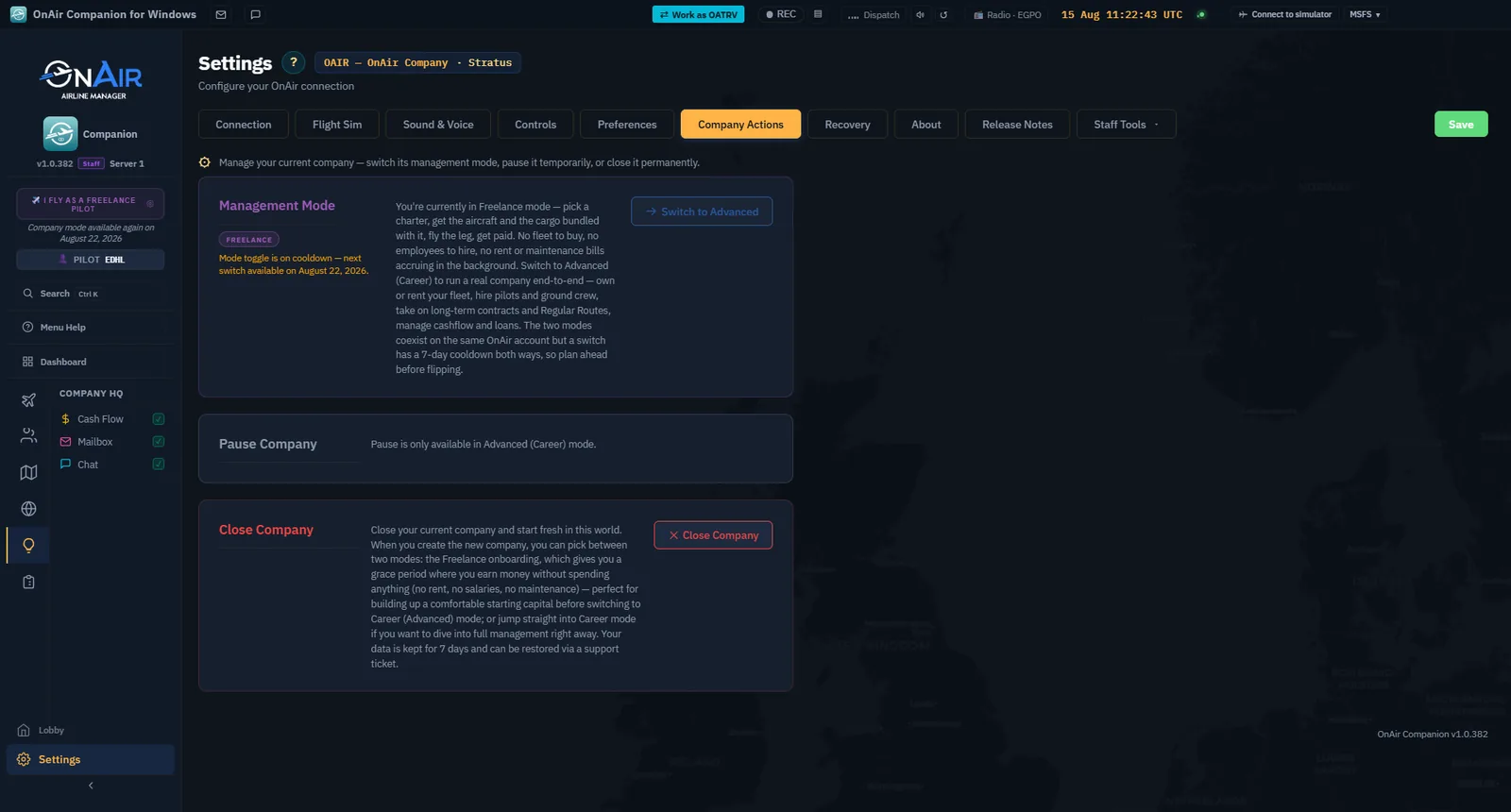
1. Open Settings.
2. Select Company Actions.
3. Find Management Mode and confirm that it currently reads Freelance.
4. Read any cooldown message before using Switch to Advanced.
This is the mode control for the current company. Close Company is a separate action and is not part of this tutorial.
Step 5. Read the confirmation that actually applies
Click Switch to Advanced and inspect the response before confirming. In our live example, OAIR had unlocked Advanced previously. The dialog therefore said Welcome back to the captain's seat and offered Resume my company.
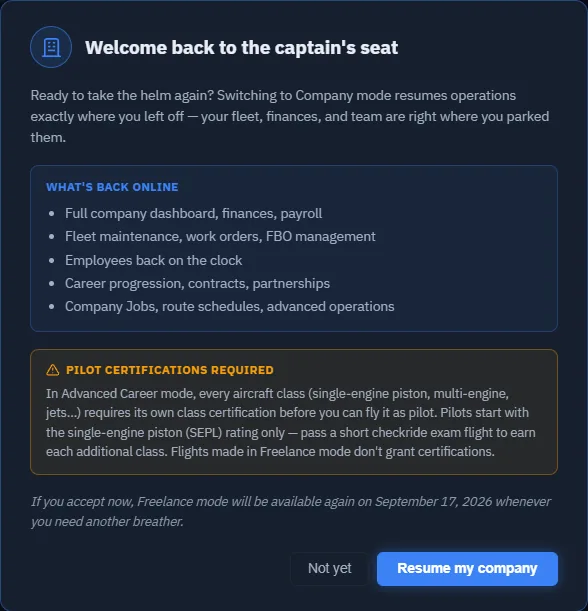
For a first unlock, record and assess the quotation shown on your own company. For a return, review the fleet and workforce that will resume. The two cases should not be illustrated with interchangeable screenshots.
For a real first-unlock quotation and its resulting ledger, see Chapter 2: KAIR on Thunder was switched from Onboarding to Advanced with 10,000 Cr. starting equity. The OAIR screenshots here demonstrate the separate return-to-Advanced case.
The live return was confirmed on 10 September 2026. The app announced a return-to-Freelance availability date of 17 September 2026. Read your own date; the screenshot is not a permanent calendar instruction.
Step 6. Confirm the resulting mode
Confirm when your plan and the displayed conditions are acceptable. Allow the company to reload. Verify the management-mode badge and the expanded company tools.
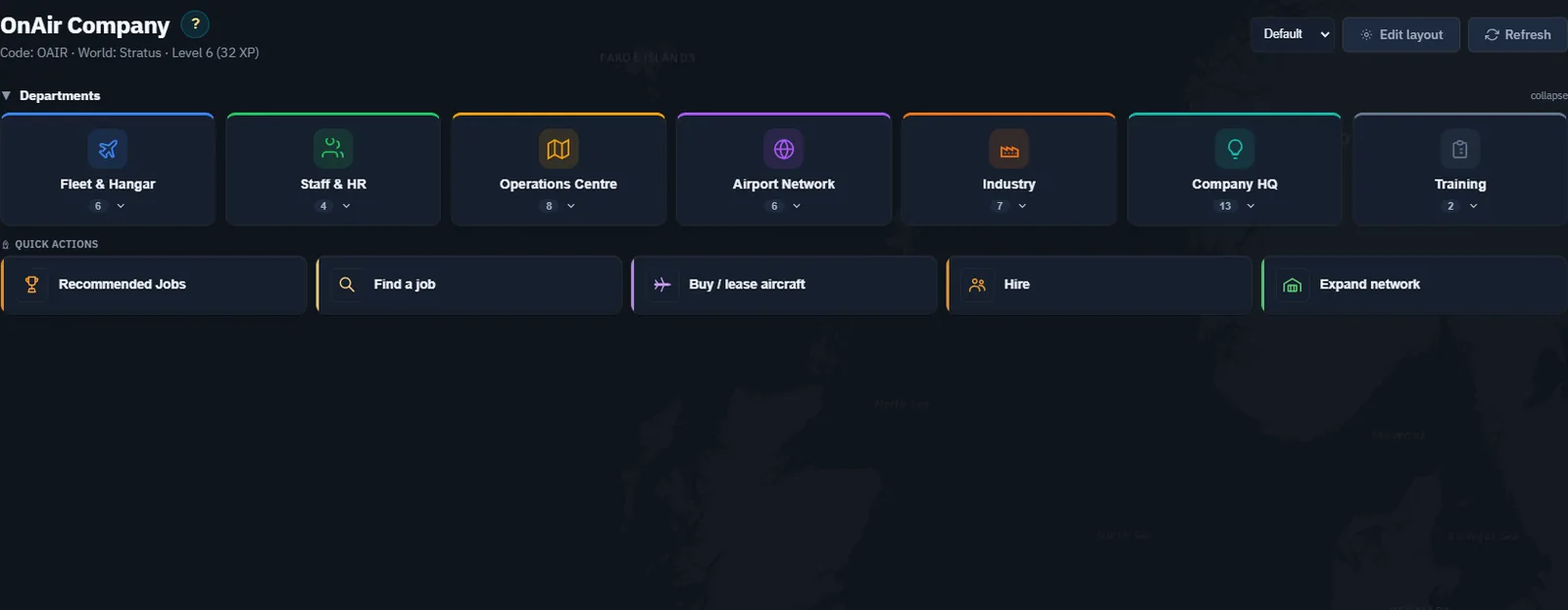
Return to Settings → Company Actions to verify Advanced and the new cooldown information.
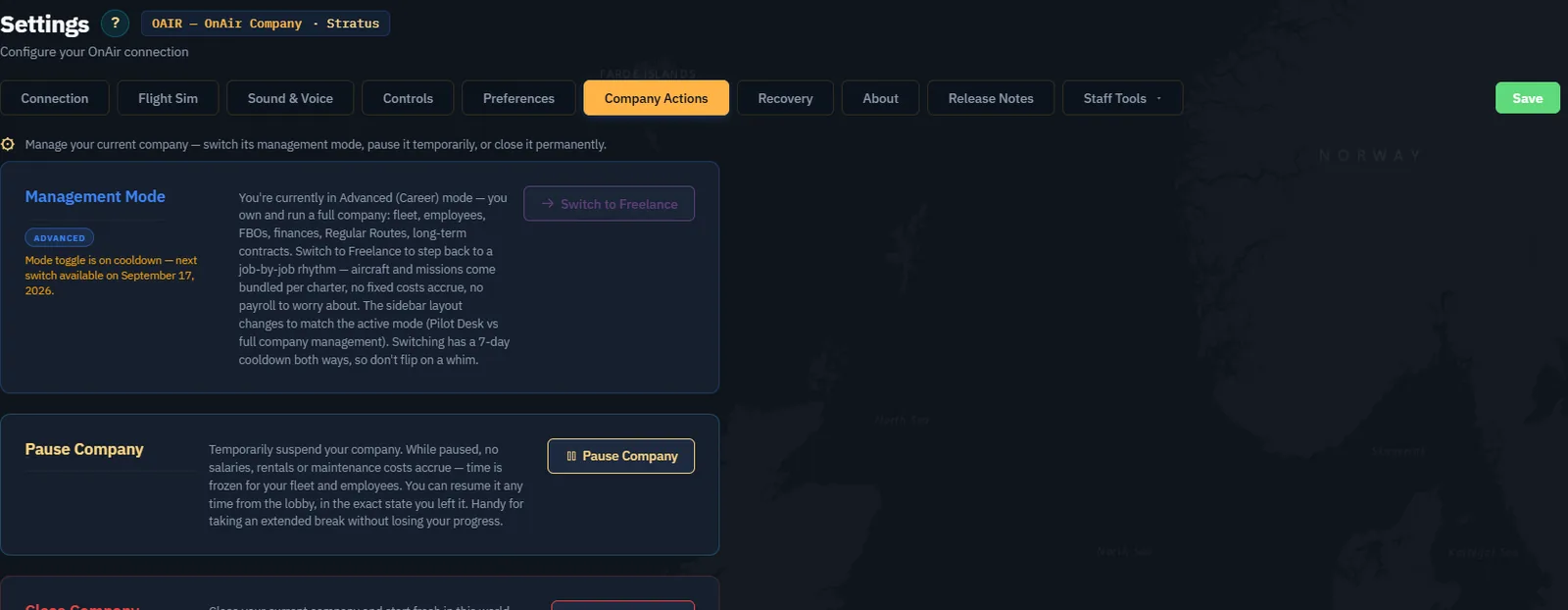
Checkpoint: the company is in Advanced and you understand which commitments are now running.
Recognise the Advanced interface
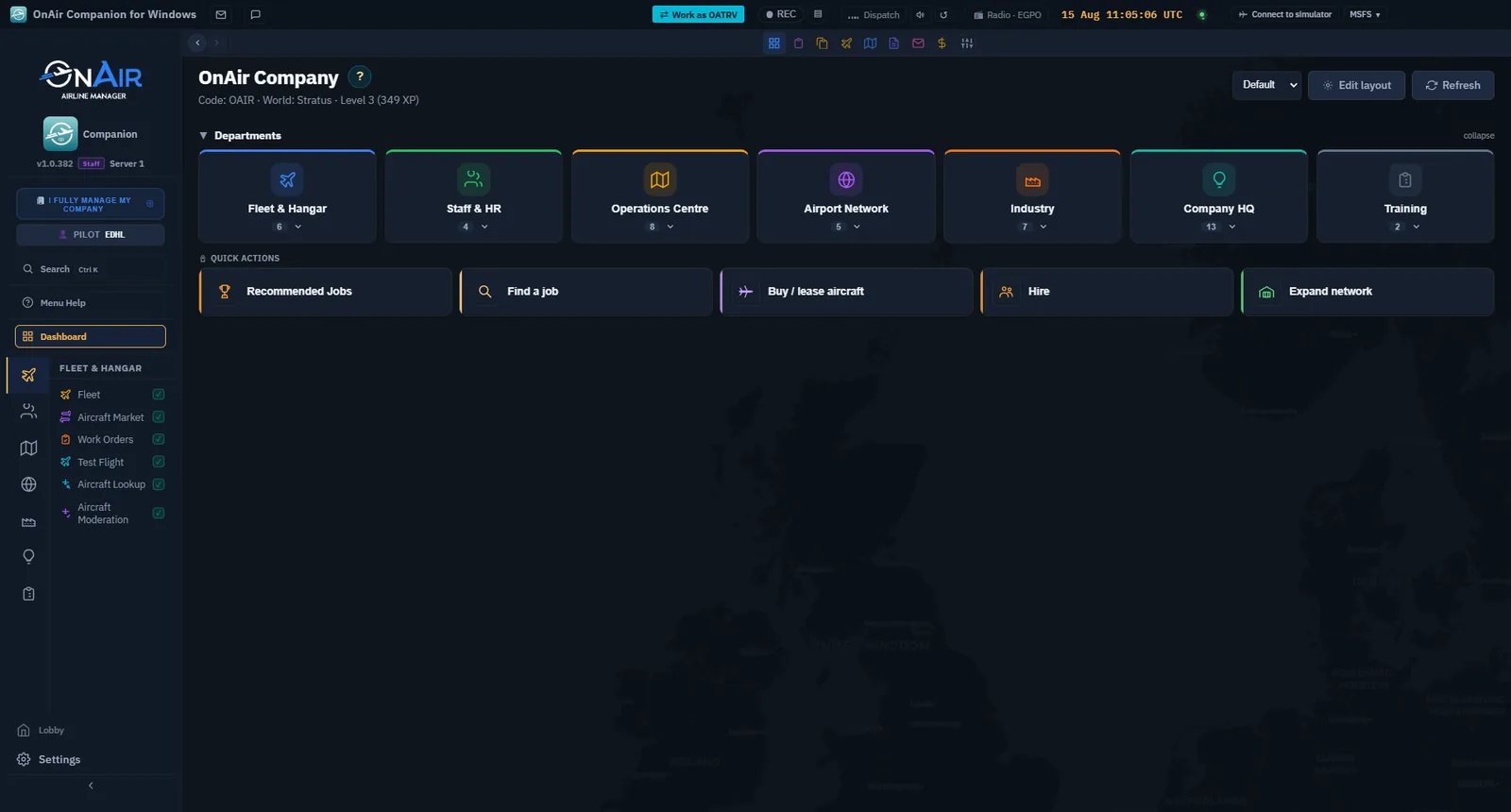
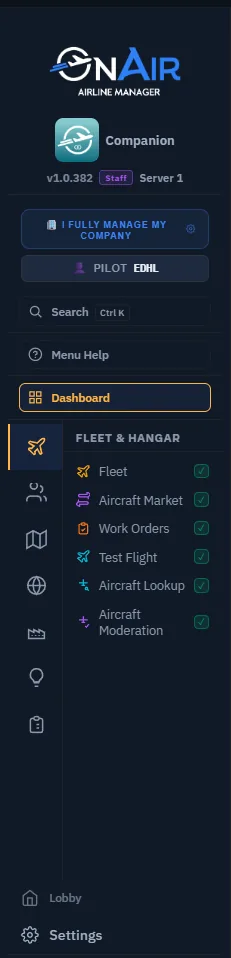
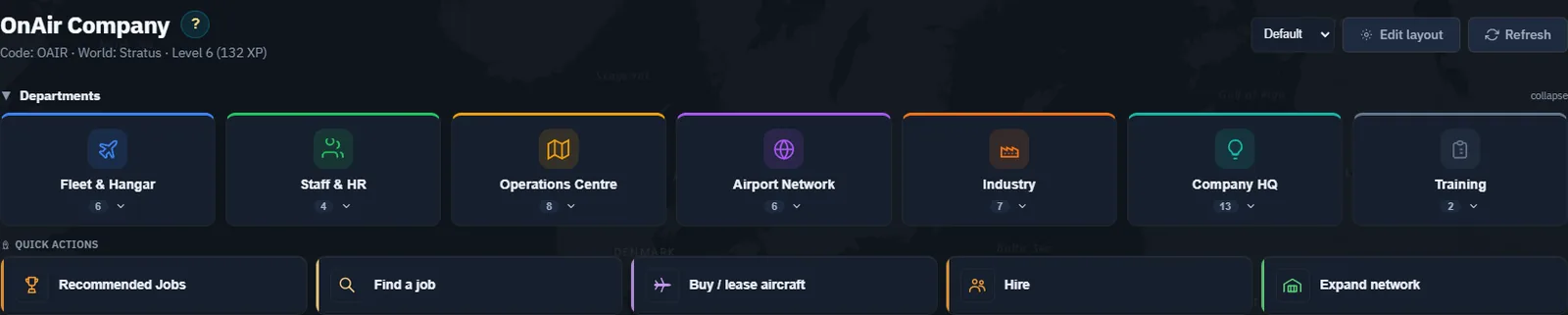
These earlier Companion captures show where to find the mode controls and how the navigation changes. They complement the transition recorded above; their companies and balances belong to different sessions.
Step 7. Make the first operating decisions in order
1. Inspect the fleet before buying. A returning company may already have a suitable aircraft.
2. Locate your pilot and the selected aircraft. Their positions must support the planned departure.
3. Check condition, configuration and the relevant pilot qualification.
4. Compare one suitable mission with the aircraft's capabilities.
5. Reserve enough cash to finish that operation before expanding.
On a returning company, also inspect active Work Orders, routes, FBOs and employees. Resuming full management is not the same as creating a blank company. Preserve useful existing assets and understand their obligations.
Step 8. Know how to take a break
Read Pause Company separately from the mode switch. Its purpose is to suspend company operations; the mode switch changes how you use the company and has its own cooldown. Before either action, inspect ongoing flights and the confirmation shown by the current app. Do not close the company to take a temporary break.
Continue to Acquire and Prepare Your First Company Aircraft. For an existing company, follow the same checks on a suitable aircraft you already have; buying another one is not mandatory.