
Create Your First Work Order
A Work Order is a flight schedule for one aircraft. You describe a sequence of legs, crew, destinations and loads. The server prepares each leg in order; it flies eligible AI legs automatically and waits for your simulator flight on hand-flown legs.
14.1 What a Work Order is
Think of it as the difference between flying one taxi run by hand and handing a driver a full day's route sheet.
Where this fits — Work Orders are a Career-mode tool. Open them from Fleet & Hangar → Work Orders. They need a suitable company aircraft and crew, subject to your world's operating rules. If you're still in Freelance mode, see the Freelance guide first — this chapter assumes you've grown into a full company (chapter 6, Growing into Career mode).
What it does for you
A Work Order ties together:
- one aircraft (one of yours — not a freelance loaner);
- a crew (a pilot, plus a copilot and cabin crew when required);
- a starting airport;
- an ordered list of legs (the "actions"), each with its own destination, alternate, fuel and cargo.
Once you activate it, the server executes the legs in order. Each leg loads its cargo, flies, lands, and hands over to the next leg — until every leg is done.
AI pilot vs. you at the controls
Each leg can be flown two ways:
- By an AI pilot — the assigned crew flies it automatically, in the background, on the server. You don't touch the simulator. This is the whole point of work orders: passive, hands-off operation.
- By you, in the simulator — the leg pauses and waits for you to fly it yourself (the same tracking flow as a normal flight). Useful when you want to hand-fly the interesting legs and let the AI grind the boring ones.
In a company using a simulator, an employee pilot flies AI legs where the world permits them; your avatar waits for you to fly. Thunder is human-only. A company set to operate without a simulator (NoSimulator) executes work-order flights through the server even with an avatar, subject to the world rules. See the crew setup and activation sections below.
One aircraft at a time
An aircraft can only execute one work order at a time. If you create and activate a second work order for the same aircraft, it doesn't run in parallel — it queues behind the first one and shows a Waiting status until the first finishes (§14.8).
A newly created order remains Idle until activated. Only activated orders participate in this queue.
Work Order vs. a single dispatch — Flight Dispatch (chapter 3, Dispatch) prepares one flight that you fly right now. A Work Order schedules many legs in sequence, with automatic execution or a wait for your simulator flight according to the company and world settings. Use dispatch for the flight you want to fly; use a work order for routine runs you'd rather automate.
Before you start — what you need
Plan both the activation checks and the conditions needed when each leg actually starts:
- Before activation: Career mode, a non-Freelance aircraft, departure, pilot, required copilot and cabin crew, and defined legs with distinct destination/alternate airports. Check seats, weights and sufficient fuel. Don't load fuel skips refueling, not the need for fuel already on board.
- Before departure: aircraft and crew must be in the right place. An activated order can wait for aircraft maintenance, crew rest or Required cargo to become available. An aircraft in the wrong place can instead cause a failed leg.
- For unattended flying: use an eligible AI pilot in a world allowing AI flights, or the company's without-simulator setting where permitted. Thunder requires a human flight.
Read the status reason after activation. A waiting order is not necessarily invalid; distinguish an activation refusal, a temporary wait and a Failed leg that needs correction.
You now know how to…
- Describe what a Work Order is — an automated, multi-leg flight schedule for one of your aircraft.
- Tell the two execution modes apart (AI pilot vs. hand-flown).
- Understand why work orders queue one-per-aircraft.
- Check the prerequisites before building one (owned aircraft + crew at the departure airport, defined legs, fuel, weight, cargo present).
Next, a tour of the page itself.
14.2 The Work Orders page
Rail: Fleet & Hangar → Work Orders. The page has two views — a list (your work orders) and a detail (one work order open for editing). This section tours the list; the detail view is §14.4–§14.6.
The filter bar
Across the top:
- A status dropdown — All statuses / Idle / In Progress / Completed / Waiting. Filters the list to one state.
- An aircraft chip and a pilot chip — appear when you've filtered by a specific aircraft or pilot (e.g. by arriving here from the Fleet page). Click the ✕ on a chip to clear that filter.
- A green Create button (right) — starts a new work order (§14.4).
- A red Delete completed button — appears only when you have finished work orders; it clears them all in one go (§14.8).

The stat tiles
Two gauges summarize the operation against the same total:
| Tile | Reads |
|---|---|
| Active | Started orders that are in progress, waiting for cargo, or waiting for the player to fly. |
| Completed | Orders whose legs have finished. |
The denominator is the number of owned work orders, excluding deleted orders. Thus 1 / 2 Active and 0 / 2 Completed describe two orders, one started and neither finished. Active does not necessarily mean an aircraft is airborne. The In Progress status filter is narrower than the Active gauge.

Two ways to view the list
A Strips / Cards toggle switches the layout:
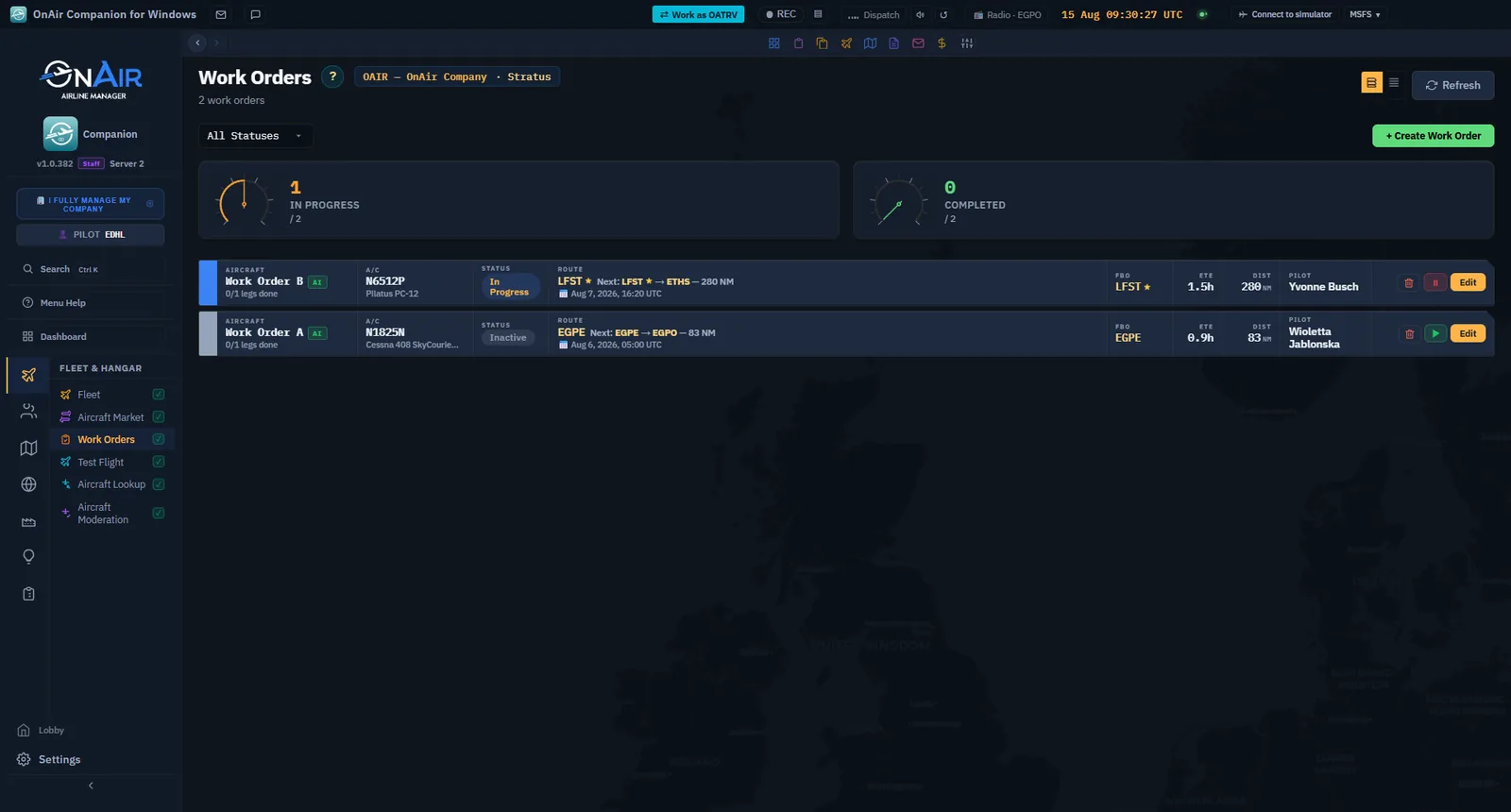
- Strips — a dense one-line-per-order list. Each strip shows the order name + leg count, the aircraft, the route (departure + next leg), the FBO, ETE, total distance, the pilot, and inline action buttons (Pause ⏸ / Activate ▶ / Edit).
- Cards — a roomier grid, one card per order, with a progress bar of finished-vs-total legs, the status badge, the crew, and the same actions.
Both show the same data; pick whichever density you prefer. Clicking a strip or card opens the detail view (§14.4).
The inline action buttons
On each row/card, depending on status:
- ▶ Activate — appears on an Idle order that has an aircraft and a pilot. Starts it.
- ⏸ Pause — appears on an In Progress order. Sends it back to Idle.
- Edit — always available; opens the detail view.
These are shortcuts; the same actions live inside the detail view too.
At-a-glance signals on each row
Beyond name, status badge, aircraft and route, every row carries three signals that answer the questions players ask most often — without opening the order:
- AI / YOU badge — identifies an employee pilot or your avatar. For simulator-enabled companies, YOU means you fly the prepared leg. A company without a simulator can execute an avatar's legs automatically where AI is allowed; Thunder requires human flying.
- Status reason — for a running or waiting order, the server's plain-language reason is shown right on the row (e.g. "Waiting for resting crew to start the leg", "Aircraft is busy"). So when an order looks stalled, the row usually already tells you why — no need to open it (§14.9).
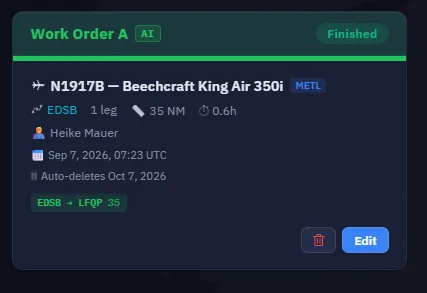
- Auto-delete date — completed orders show their removal date. Server cleanup applies to all statuses once StartDate is more than 30 days old; unfinished orders are not exempt. Keep that in mind when retaining an order to reuse its crew.

You now know how to…
- Filter the list by status, aircraft, or pilot.
- Read the Active and Completed gauges against their shared total.
- Switch between Strips and Cards.
- Recognize the inline Activate / Pause / Edit buttons.
- Read a row's at-a-glance signals — AI/YOU, status reason, auto-delete date.
Next, what each status actually means.
14.3 Status & lifecycle
A work order moves through a small set of states. Knowing them makes the whole page readable at a glance — the status colour tells you what's happening without opening anything.
The statuses
| Status | Colour | What it means |
|---|---|---|
| Idle — the row badge reads Inactive | grey | Created or paused. Not running. This is the only state you can edit in. The status filter calls it Idle, the badge on the row calls it Inactive; same state. |
| In Progress | blue | Currently executing (or scheduled to). Legs are being flown. |
| Completed — the row badge reads Finished | green | Every leg is done. The filter and the gauge above the list say Completed, the badge on the row says Finished; same state. A completed order also shows its auto-delete date. |
| Waiting | yellow | Queued behind another work order on the same aircraft. Starts automatically when the one ahead finishes. |
Two states show up at the leg level rather than the whole order:
| Leg state | Colour | What it means |
|---|---|---|
| Failed | red | A leg hit a problem (bad position, weight, missing cargo…). The order pauses so you can fix it. |
| Diverted | purple | A leg landed at its alternate instead of its destination (e.g. weather). Needs your attention. |
The lifecycle
            create
              |
              v
  +---------- Idle <----------- pause
  |             |
  |           activate (validation passes)
  |             |
  |             v
  |        In Progress ---- all legs finished ----> Completed
  |             |
  |          (a leg fails)
  |             |
  |             v
  +------ pause to fix, then activate again
The key rules:
- You can only edit an Idle order. Activating locks it; to change a leg, pause it back to Idle first (§14.8).
- Activate runs a validation pass — if anything's missing (no pilot, no alternate, overweight…), it won't start and tells you why (§14.7).
- A failed leg pauses the order, not deletes it. Fix the cause, then activate again — it resumes from where it stopped, resetting the failed leg.
- When an In Progress order finishes, any order Waiting behind it on the same aircraft is promoted and starts on its own.
Why "Waiting" exists — Because one aircraft runs one order at a time (§14.1). If you activate three runs for the same plane, the first goes In Progress and the other two sit Waiting until their turn.
The colour tells you the state; the row tells you the reason — For a Waiting or In Progress order, the list also shows the server's plain-language reason on the row (e.g. "Waiting for resting crew to start the leg"). So a blue order that isn't moving usually explains itself right there — see §14.2 and §14.9.
You now know how to…
- Read the four order statuses by colour (Idle / In Progress / Completed / Waiting).
- Recognize a Failed or Diverted leg.
- Follow the lifecycle — and remember you can only edit in Idle.
Next, create your first work order.
14.4 Create a work order
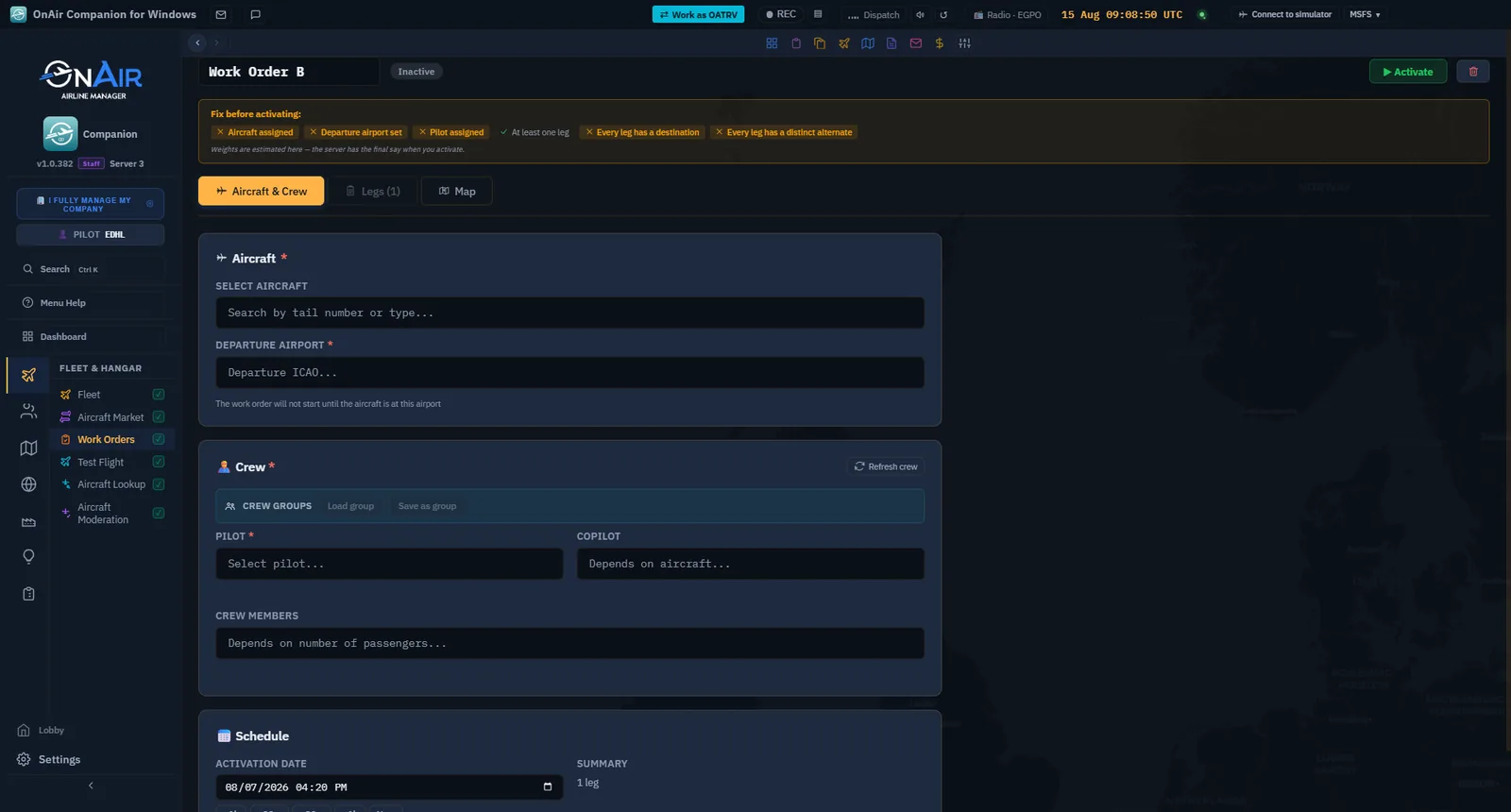
Click Create on the Work Orders page. A new, empty work order opens in the detail view — in Idle status, so it's fully editable. The detail view has three tabs: Aircraft & Crew (this section), Legs (§14.5–§14.6), and Map — a live chart of the whole rotation (§14.5).
Before filling the form, review the activation checks and departure conditions in the introduction. Maintenance, rest and missing Required freight can cause waits after activation; they are not all structural activation blockers.
Name, departure and start date
At the top of the Aircraft & Crew tab:
- Name — a label for this work order (e.g. "Monday cargo loop"). Optional, but worth it once you run several.
- Departure airport — type the ICAO; autocomplete suggests matches. This is where the first leg starts and where the aircraft and crew must be when the first leg starts.
- Start date — when the schedule should begin executing. Quick-adjust buttons (−1h / −30m / +30m / +1h / Now) save you the date-picker dance for small shifts.
Departure = where everything must be — The aircraft and the assigned crew need to be at the departure airport when the first leg starts. The pilot picker highlights crew already at that field in green with a ✓, so you can pick someone who won't need ferrying first.
Assign the aircraft
The Aircraft selector lists your available fleet entries, excluding Freelance loaners. Search by registration, type, or current ICAO, and pick one.
Aircraft required — A work order can't run without an aircraft. The field is marked with a red asterisk and activation is blocked until it's set.
Assign the crew — and decide who flies
- Pilot (required) — search your employees; those already at the departure airport show a green ✓, and each entry carries an availability chip — green Available, purple 😴 Resting · until HH:MMz, orange when otherwise busy. Pilots not certified for the aircraft's class are greyed out and can't be picked.
- Copilot — required only if the aircraft type needs two pilots (the field shows a red asterisk when it does). Otherwise optional.
- Cabin crew / attendants — multi-select, required above 15 charter passengers: one attendant per started block of 50 passengers beyond the first 15. A leg with 40 passengers needs one attendant. The order must cover its busiest leg; deadheading staff are a separate passenger selection.
Who flies depends on both the selected pilot and company/world settings.
- With a simulator-enabled company, an employee pilot flies eligible AI legs automatically; your avatar waits for a simulator flight.
- Thunder is human-only. Use your avatar and fly the prepared leg yourself; hiring a pilot does not unlock AI flying there.
- In a company configured without a simulator (NoSimulator), the server executes the order automatically even with an avatar, where the world permits AI flights.
The AI / YOU badge identifies the selected pilot in the current interface. Interpret it together with these company and world settings. When a manual leg is ready, use Fly this leg to open its flight preparation.
If an order waits for you — Check its status reason and the company/world settings. In a simulator-enabled company, either fly the prepared leg yourself or assign an eligible employee where AI flights are allowed. Thunder requires the manual path.
Copy crew from another order
If you already run similar orders, two helpers save you the re-picking: the Crew Groups quick-bar (the same saved crew presets you use at Flight Dispatch — one click applies a full roster) and a copy the crew helper that clones the crew of another crewed work order. Both appear only while editing (Idle).
Just hired someone? — If a pilot you hired moments ago isn't in the dropdown yet, click Refresh crew in the Crew section header to reload your roster, then pick them.
The pre-activation checklist
Above the tabs, an editable order shows a compact checklist of the structural prerequisites OnAir verifies on Activate: aircraft assigned, departure set, pilot assigned, copilot (when the type needs one), at least one leg, every leg with a destination, and every leg with a distinct alternate.
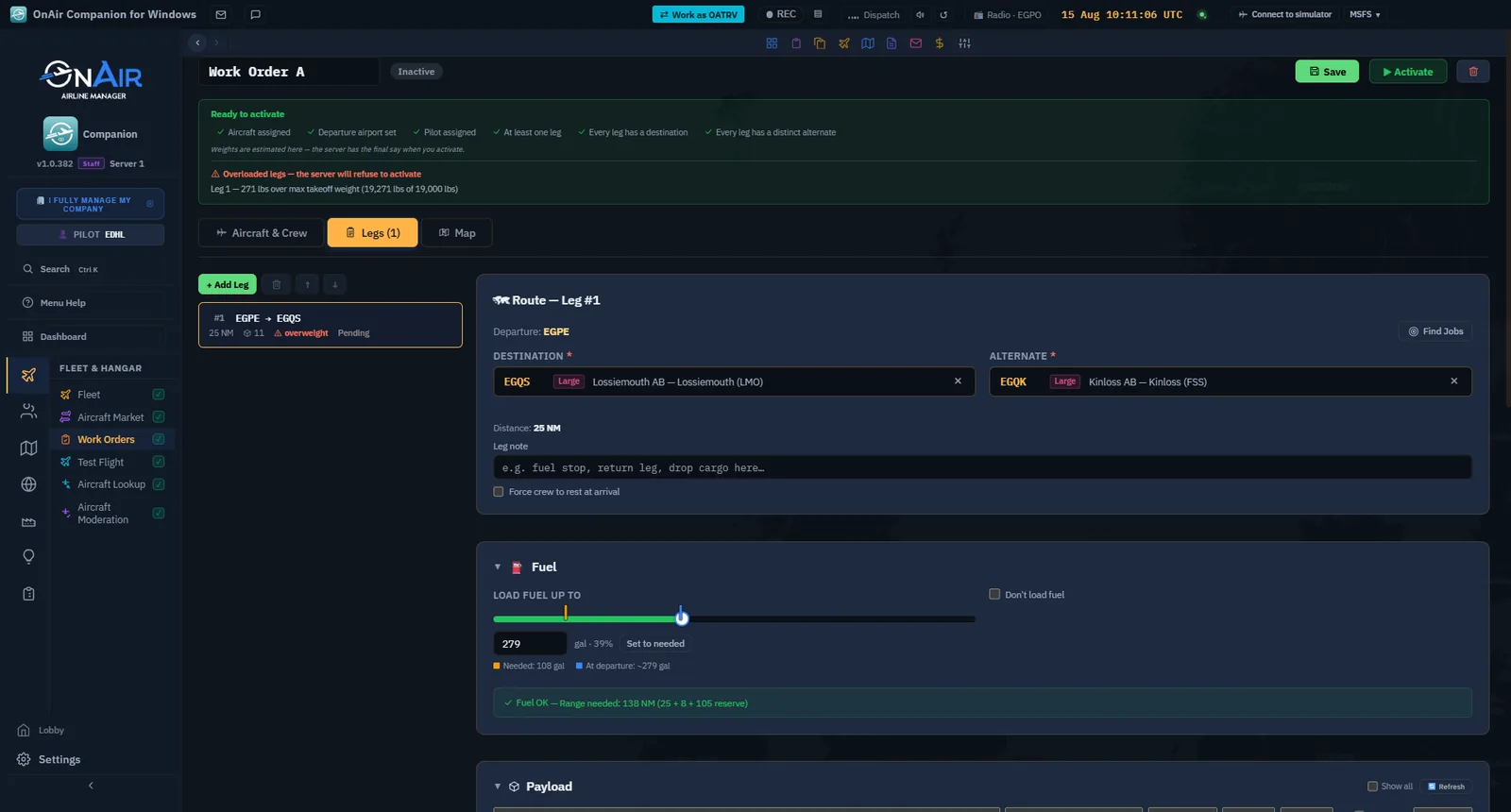
- All green → a "Ready to activate" line.
- Anything missing → an amber "Fix before activating" line that highlights exactly what's outstanding.
It's there so you fix everything up front instead of clicking Activate and getting a server error.
Weight is estimated before activation. The Overloaded legs banner names any leg estimated above the limit and its excess, for example 271 lbs. It is an informational warning, not an activation lock: some inputs can differ from the server.
A green structural checklist and an overload warning can appear together. Review the loads and fuel; the server makes the final weight validation. The Companion separately blocks confirmed cabin-crew, seating, route and fuel shortfalls.

The Aircraft & Crew summary also shows a computed ETA / ETE for the whole rotation (turnaround time per leg, plus 8 h per forced crew rest) — the same estimate you'll see in the list's ETE column.
You now know how to…
- Open a fresh work order with Create.
- Set its name, departure airport and start date.
- Assign the aircraft, and choose a pilot consistent with the world and company simulation settings — and recognize the AI / YOU distinction.
- Add a copilot and cabin crew, copy a roster from another order, and refresh the crew list after a new hire.
- Read the pre-activation checklist and distinguish an informational weight warning from a blocking validation.
The order now needs somewhere to go — let's build the leg list.
14.5 Build the leg list
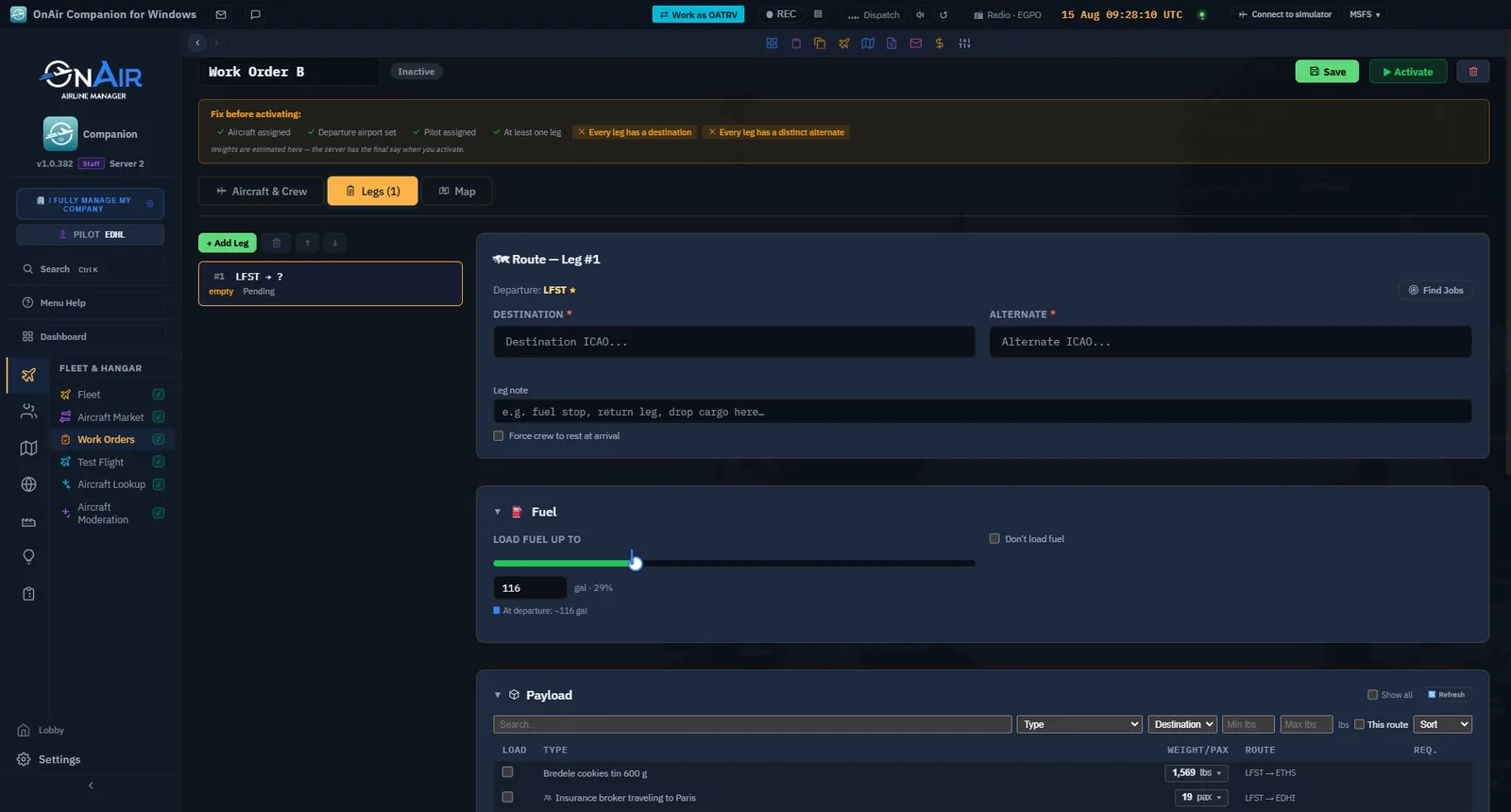
The Legs tab is where a work order becomes a real route (and the Map tab, right next to it, is where you check it visually). A leg (the code calls it an "action") is one flight: from one airport to the next. You chain legs together, and the work order flies them in order.
Layout
The tab splits in two:
- Left — the ordered list of legs. Click one to select it.
- Right — the properties form for the selected leg.
Each entry in the leg list is a quick summary: its number, the dep → dest route, the distance, the leg status, and — at a glance — what it carries:
- a cargo count and a passenger count (so you can see which legs are loaded);
- an amber "empty" marker on any leg carrying no cargo and no passengers — your cue that a leg would fly empty (often not what you intended on a transit run);
- a 😴 icon when the leg ends with a forced crew rest.
5.1b How long each leg takes — and the duty day
Since v1.0.398 the leg list also answers the question that used to force you to count on your fingers: how long is this chain, and will the crew still be legal at the end of it?
Every leg with a destination now shows:
- ⏱ Flight time — cruise time at the aircraft's book speed, plus the **30
minutes of ground turnaround** the server adds to every leg. It is an estimate: no wind, no climb or descent profile.
- Since the start — the same flight time added up across the chain, so you
can read the total without adding legs yourself. It turns amber past the 14-hour mark.
- ETD → ETA — the estimated off-block and arrival times in UTC, chained
from the order's activation date. A leg that has actually departed re-anchors every leg after it, and a +1 suffix means the next day.
The running total restarts after a crew rest. When it does, the label changes from Since the start to Since the crew rest — the number drops on purpose, because the crew's 14-hour duty window begins again once they wake up. That is also why the header's duty summary counts the longest duty period, not the whole order.
Why 14 hours matters. When employee flight-duty and sleep management is enabled, an AI crew member's duty day runs 14 hours from their first flight of the day. A leg that lands past it is not refused — it is billed:
2 000 Cr per AI crew member, and the server puts the crew to sleep before the next leg, which stalls the order until they wake. The player avatar is exempt from this automatic duty penalty and rest rule. The header tells you whether the order fits (Within the 14 h window) or which leg breaks it (Over the 14 h window — leg #4 crosses it), and names each crew member whose window is already closing.
Add, reorder, remove
- Add leg — appends a new empty leg to the list.
- Reorder — move a leg up or down; the sequence numbers update automatically.
- Remove — deletes the selected leg.
The legs run top to bottom. The first leg departs from the work order's departure airport (§14.4); every following leg departs from where the previous one landed. You only ever set each leg's destination — the departure is implied by the chain.
The chain is automatic — If leg 1 is LFPG → EGLL, leg 2 automatically starts at EGLL. You don't re-enter it. This is why reordering legs matters: it rewrites every downstream departure.
Per-leg properties
For the selected leg:
- Destination (required) — the ICAO this leg flies to.
- Alternate (required) — a fallback airport, different from the destination. If the destination is unreachable (weather, etc.), the leg diverts here.
- Fuel — how much fuel to load, in the selected volume unit. Or tick Don't load fuel to skip fuel loading on this leg (e.g. the aircraft is already fuelled, or you manage it yourself).
- Force crew rest at end — after this leg, hold the crew for a mandatory rest before the next leg. Use it to model duty-time limits on long chains.
- Note — a short free-text label shown in the leg list ("fuel stop", "return leg"…, max 120 characters).
- Search job — saves the order and jumps to Company Jobs, pre-filtered on this leg's departure and the work order's aircraft; pick a job there and it comes back attached to the leg (destination + loads auto-filled). The same flow is described from the Company Jobs side in chapter 8 of this volume.
Alternate must differ from destination — Validation blocks activation if a leg's alternate equals its destination, or if either is missing.
Fuel & weights on the leg form
The leg form runs the same weight-and-balance engine as Flight Dispatch, per leg:
- Fuel sufficiency — a green/red note tells you whether the fuel you've set covers
departure → destination → alternate + a 30-minute reserve, and, if it's short, the minimum gallons needed. (Hidden when Don't load fuel is ticked.) - Weights breakdown — Zero-Fuel Weight, Gross Weight, Payload and remaining Available capacity, computed from the leg's loads, passengers, crew and fuel — plus the achievable range with reserve in NM and a seat-shortfall check when you've booked more people than the cabin holds.
- Overload banner + Find fuel stop — if the leg is overweight, or simply too long for the aircraft's range, a banner says so and offers Find fuel stop: pick an airfield from the picker and the leg is split in two (current leg → the stop, a new inserted leg → the original destination, loads and passengers moved to the final leg). A hint also tells you how many hops the distance actually needs.

5.4b The Map tab — see the rotation
The detail view's third tab, Map, charts the whole rotation: numbered markers on every airport, great-circle arcs per leg, alternates marked. Click a leg's arc or marker to select it, and an "Edit this leg" shortcut jumps you back to the Legs tab on that leg. Two minutes on the Map tab catches the classic "leg 4 goes the wrong way across the continent" mistake before activation does.
Cargo and passengers
Each leg also carries loads (cargo / charters) and passengers. That's a topic of its own — §14.6.
You now know how to…
- Read the Legs tab — list on the left (with per-leg cargo/pax counts and the empty-leg marker), properties on the right.
- Add, reorder and remove legs.
- Understand the automatic departure chain (each leg starts where the last one landed).
- Set a leg's destination, alternate, fuel (or Don't load fuel) and crew-rest flag.
- Read the leg form's fuel-sufficiency note and full W&B breakdown, and split an over-long leg with Find fuel stop.
- Check the rotation visually on the Map tab.
Now let's fill those legs with cargo and people.
14.6 Cargo, charters & passengers
A leg that carries nothing still flies — but the point of a work order is usually to move freight and people. On the Legs tab, each leg has a payload picker that pulls from what's actually available at that leg's departure airport.
What's offered
When you select a leg, the picker offers the cargo and charters at that leg's departure airport (remember: the departure is the previous leg's destination — §14.5) plus your company-wide pool — pending missions you've already accepted and merchandise you own — deduplicated into one list. Location still matters at execution time: only what's actually at the departure airport when the leg flies will board.
Filtering the cargo list
Cargo lists get long. The filter row narrows them:
- Search — free text over description, type, departure and destination ICAO.
- Type — filter by cargo type (the dropdown lists the types present at this airport).
- Destination — filter by where the cargo wants to go.
- Min / Max weight — keep only cargo in a weight band.
- This route — show only cargo whose origin→destination matches this leg's route.
- Sort — by weight, type or destination.
- Show all (in the section header) — lifts the filters entirely, and Refresh re-reads what is available at the airport right now.
Loaded items are never hidden — Filters only hide unloaded cargo. Anything you've already ticked stays visible so you can always un-tick it, no matter the active filters. A small "N hidden" hint tells you how many the filters are suppressing.
Required vs. optional loads
Tick a cargo or charter to load it on the leg. Each load has a Required flag:
- Required on — the leg won't depart until this item is loaded. Use it for freight that must go.
- Required off — load it if it's there at execution time, otherwise fly without it.
Multi-leg cargo (transit)
A piece of cargo whose destination is a later leg is transit freight: you load it now, it rides along, and it's delivered when a future leg reaches its destination. The picker hints at this — cargo arriving here vs cargo passing through are distinguishable, so you can plan a hub-and-spoke run where freight changes legs.
"Show all loads" — By default the picker filters the pool to the leg's departure field. Toggle Show all to see the whole pool, including loads currently elsewhere — useful when planning ahead (a previous leg may deliver them there in time), but remember only cargo actually present at execution time will board.
Check every transit leg — Attach the load to every leg that must carry it. At each departure, it must be at the airport and past its availability time. A missing Required load makes the leg wait; a missing Optional load may be skipped. An empty-leg marker is a useful warning when you expected freight.
Passengers & deadheaders
Below cargo, the passengers selector adds people to the leg:
- Charter passengers come with charter loads (paying pax).
- Deadheaders — your own crew riding along to be repositioned for a later leg or another duty.
Weight & balance
As you load, keep an eye on the leg's weight. The work order won't activate if a leg is over the aircraft's limits — same W&B rules as a normal dispatch. The leg form's weights breakdown (§14.5) shows Zero-Fuel / Gross / Payload / Available live, and the overload banner offers Find fuel stop to split the leg when weight or range is the problem. If you've overloaded, drop a non-required item, split the cargo — or take the fuel stop.
Tight margins on no-fuel legs — Carrying return fuel on a Don't load fuel leg eats into your payload allowance. If the caution turns amber, trim either the cargo or the planned fuel so you're not riding the very edge of the limit.
You now know how to…
- Load cargo and charters from what's available at each leg's departure airport.
- Filter and sort a long cargo list (and know loaded items never get hidden).
- Use the Required flag to gate departure on must-carry freight.
- Plan transit cargo across multiple legs — and spot a leg that would fly empty.
- Add charter passengers and deadheaders.
- Keep each leg within weight & balance, watching the margin caution.
The order is built — time to run it.
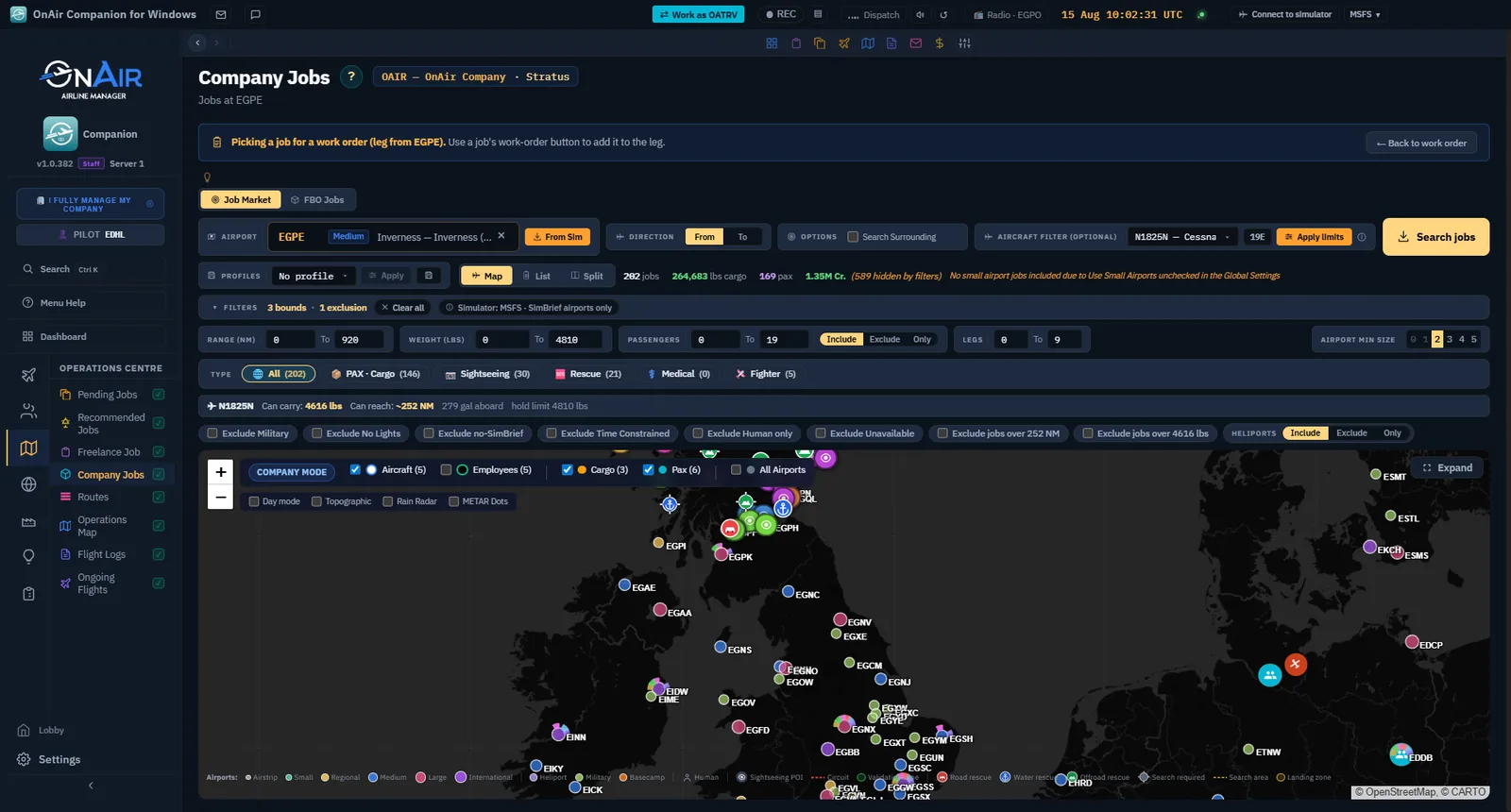
Recognise the job-picking context
When browsing jobs from a work order, read the handoff banner before selecting freight: it identifies the work-order context and provides the return action.

14.7 Activate & monitor
The order is built: aircraft, crew, legs, cargo. Now you activate it and watch it run.
Activate
Click Activate (the ▶ button, on the list row or inside the detail view). Before it starts, OnAir runs a validation pass. It will refuse to activate and tell you what's missing if any of these aren't satisfied:
- a pilot is assigned;
- an aircraft is assigned;
- a departure airport is set;
- a copilot is present if the aircraft requires one;
- required cabin crew and the booked passenger seat classes are available;
- every leg has a destination and a distinct alternate;
- every leg has enough fuel, including estimated carried-over fuel when Don't load fuel is set;
- every leg is within weight & balance;
- no crew or passenger conflicts.
Fix whatever it flags, then activate again. Once it passes, the order enters execution or waits behind another activated order on the same aircraft, and locks for editing. Maintenance, crew rest and missing Required freight can then cause waits shown in the status reason.
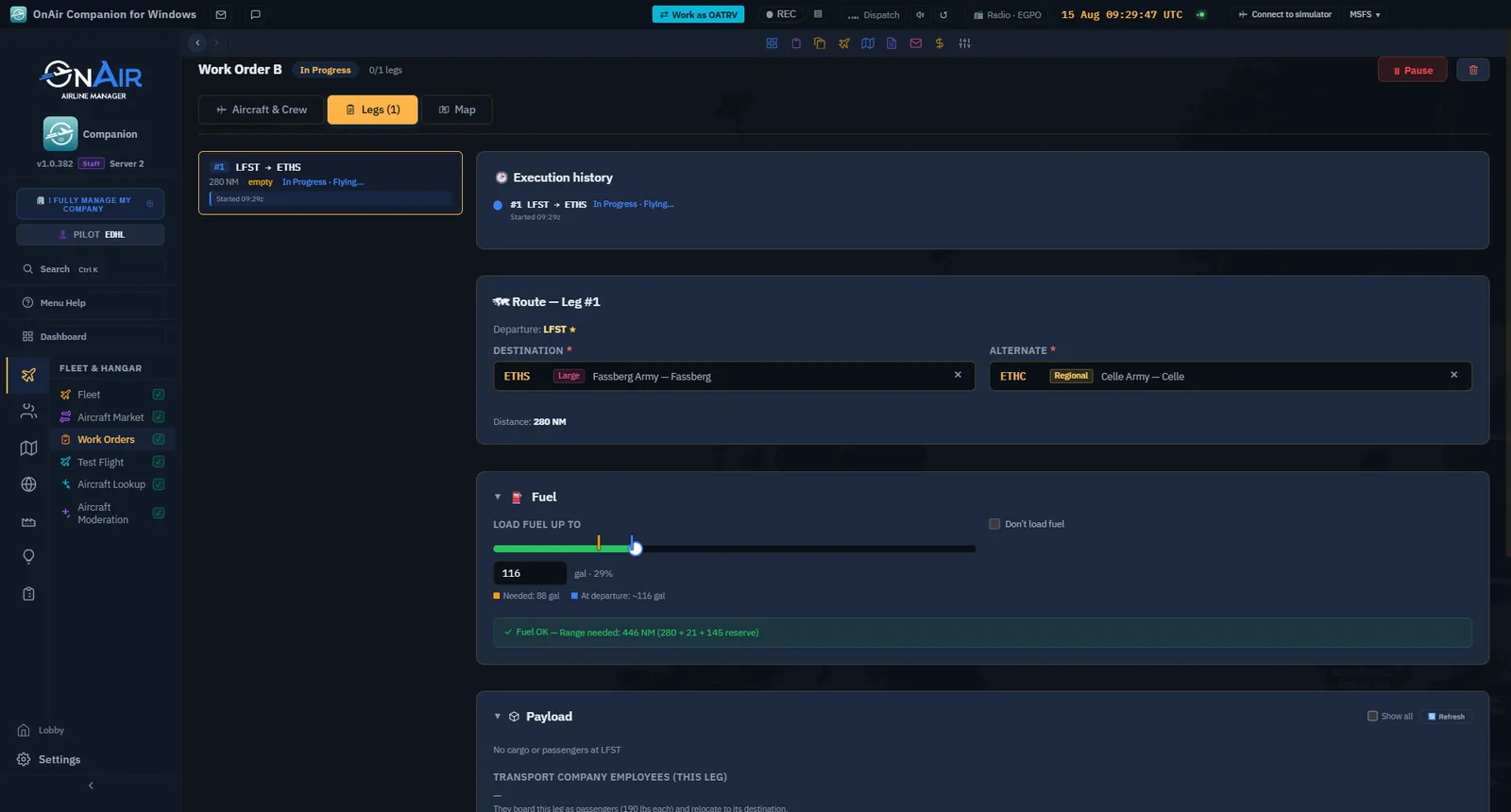
What runs, and where
Execution happens server-side, on a recurring tick — you don't need the Companion open or the simulator running for AI legs to progress. Each leg goes through the same internal steps:
- Start — checks the aircraft is at the leg's departure airport.
- Loading — loads the leg's cargo / charters / fuel and checks weight.
- Flight — creates the flight and either flies it (AI) or waits for you.
- Complete — leg finished; the order advances to the next leg.
When the last leg completes, the whole order turns Completed (green).
AI legs vs. hand-flown legs
- AI pilot — the leg flies itself in the background. You'll see the leg advance to Finished on its own, and your crew/aircraft move across the world.
- Hand-flown — the prepared leg waits for your simulator flight. Use Fly this leg to open flight preparation, check the aircraft, route and crew, then track and register the flight (chapter 3, Dispatch and Fly & register). Thunder uses this path; a NoSimulator company instead executes through the server where AI flights are allowed.
Reading progress
- The leg count ("3 / 5") and the progress bar on each card show how far along the order is.
- The next leg is surfaced on the strip (departure → destination, distance).
- The status reason is shown on the row when relevant (e.g. "Waiting for resting crew to start the leg"), so you can see why an order is where it is without opening it (§14.2).
- Per-leg status colours (§14.3) tell you which leg is active, finished, failed or diverted.
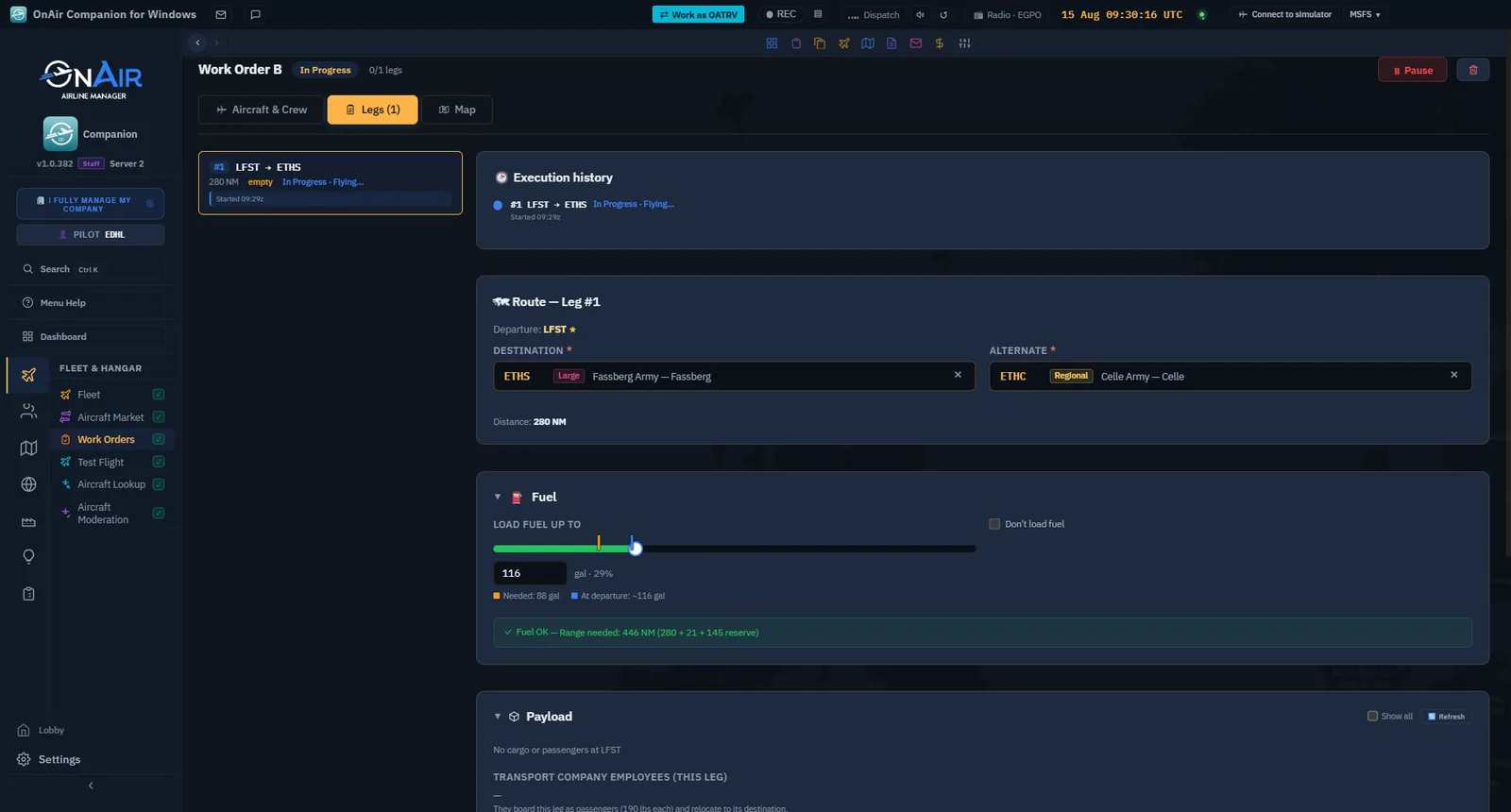
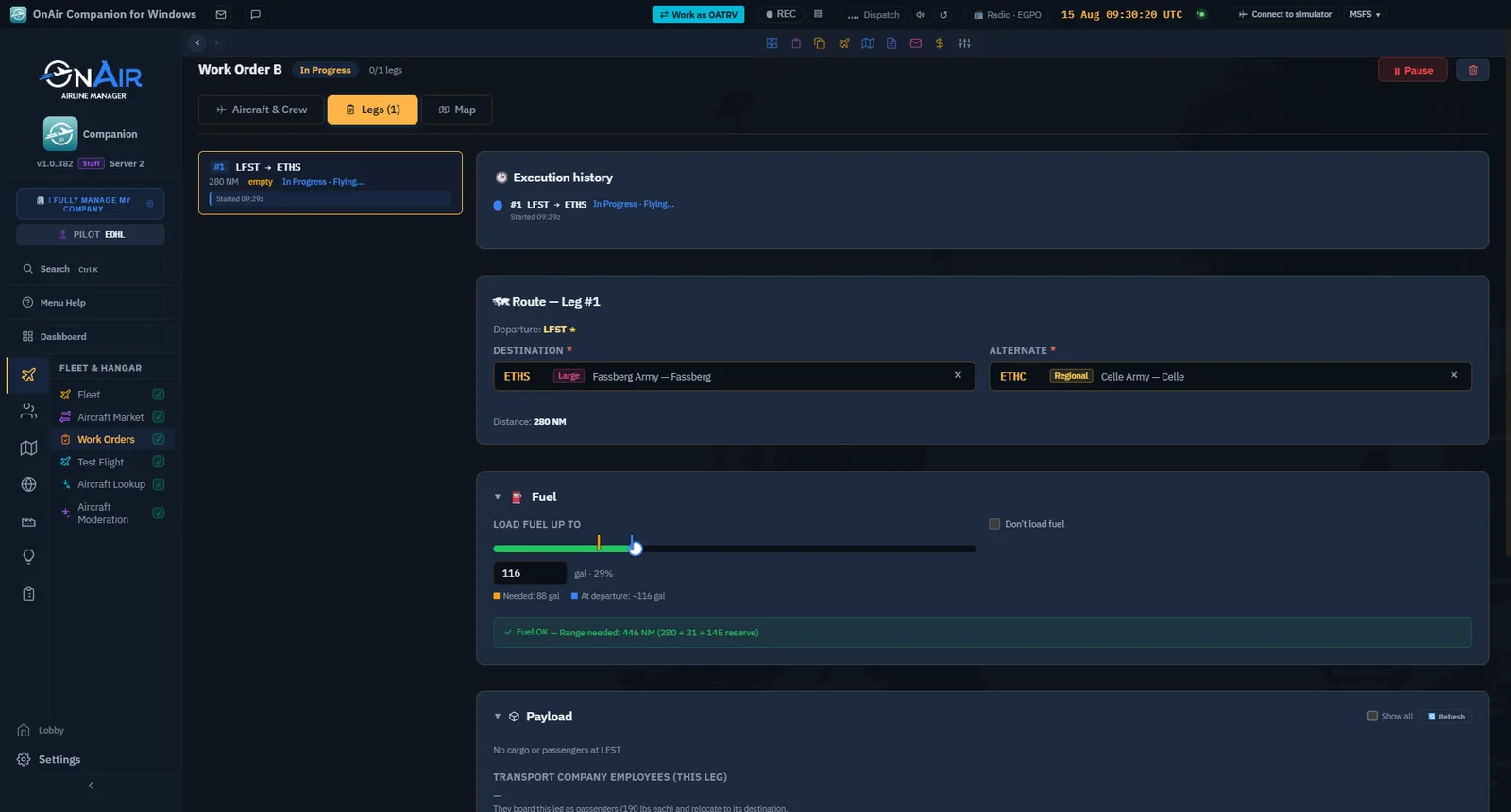
- An Execution history panel on the order's detail lists each leg with what happened and when — "#1 LFST → ETHS · In Progress · Flying… · Started 09:29z". It is the quickest answer to "what is it doing right now?".
One tick at a time — The server processes an aircraft's order on a timer and guards against overlap, so a leg won't start twice. If an order looks "stuck" for a few minutes it's usually just between ticks — give it a moment before assuming a problem (§14.9).
You now know how to…
- Activate an order and read the validation errors if it won't start.
- Understand that AI legs run server-side without the sim open.
- Tell AI legs from hand-flown legs (which wait for you in the simulator).
- Read leg count, progress bar and next-leg on a running order.
Next: pausing, queuing and cleaning up.
14.8 Pause, queue & delete
Work orders aren't fire-and-forget — you'll pause them to make changes, line several up on the same aircraft, and clear out the finished ones.
Pause (back to Idle)
Click Pause (the ⏸ button) on an In Progress order to send it back to Idle. Pausing is how you unlock it for editing — you can't change an order's legs, crew or aircraft while it's running.
Pause does not undo finished legs. When you activate again, the order resumes from the first unfinished leg (and resets any failed one — §14.9).
The queue — one aircraft, several orders
Because an aircraft runs one order at a time (§14.1), creating and activating a second order for the same aircraft doesn't double its workload. Instead:
- The first order runs In Progress.
- The others sit Waiting (yellow badge) behind it.
- When the running order finishes, the next Waiting order is promoted automatically and starts.
This lets you schedule a whole day — or week — of runs on one plane and let them roll through in order.
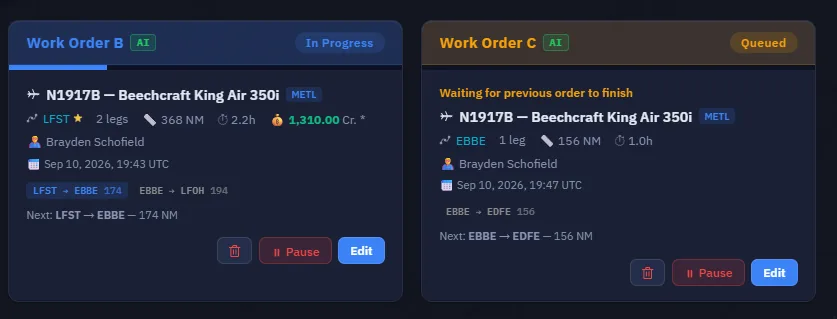
Queue order — Waiting orders are promoted by their start date — the earliest scheduled one goes next. Set start dates deliberately if the sequence matters.
Delete one order
Every row and card carries a trash button, whatever the status; the detail view has one too. A confirmation naming the order is asked before anything happens. Deletion is a soft removal — the order leaves your list.
Delete all completed
When you have finished orders cluttering the list, the red Delete completed button (top of the list, only visible when at least one is done) clears them all at once. It's the quickest way to keep the page tidy after a productive run.
Delete completed is bulk — It removes every Completed order in one click, not just the selected one. Anything still Idle, In Progress or Waiting is left untouched.
Automatic cleanup after 30 days — The server removes orders whose StartDate is more than 30 days old, regardless of status. Idle, Waiting and In Progress orders are not exempt. This is separate from the Delete completed button. Copy the crew or details you need before that deadline; do not treat an old order as permanent storage.
You now know how to…
- Pause an order to edit it, and resume it later from where it stopped.
- Queue several orders on one aircraft and let them promote automatically.
- Delete a single order (with confirmation) or bulk-clear all completed ones.
Last stop: when something goes wrong.
14.9 Troubleshooting
Work orders run on their own, so when one stalls the cause isn't always obvious. The cases below are the ones players hit most often — drawn from real support history and verified against the Companion.
"It's In Progress but my aircraft hasn't moved for days"
Start with the status reason. Two possible causes are a manual leg waiting for you and a crew-rest hold:
- The leg is waiting for a human flight. In a simulator-enabled company, your avatar waits for you to fly: use Fly this leg. Where AI flights are allowed, you can instead pause and assign an eligible employee. Thunder remains human-only. In a company configured without a simulator (NoSimulator), the server can execute an avatar's legs automatically; check the actual reason before changing crew.
- It's waiting for crew rest. A departed order that's holding between legs is usually waiting for the crew to finish a mandatory rest (especially if a leg had Force crew rest at end set). It's resting, not stuck — give it time, or plan crews so rest doesn't block the schedule.
Read the world and company settings as well as the badge. AI / YOU identifies the pilot; it does not override Thunder's human-only rule or the company's without-simulator setting.
The common cases
| Symptom | Likely cause | Fix |
|---|---|---|
| Won't activate (red toast with a message) | Validation failed | Read the toast — missing pilot, missing/duplicate alternate, overweight leg, no fuel. Fix and activate again (§14.7). |
| "Aircraft is busy" / "already at the destination" | A finished leg left the aircraft ahead of where the next leg expects it | Pause, check the leg chain against the aircraft's real position (Fleet page), fix the offending leg's departure/destination, activate again. |
| A leg goes Failed (red) | Aircraft not at the leg's departure, invalid flight setup or weight exceeded | Pause, fix the cause (reposition, drop a load, adjust fuel), activate again — it retries the failed leg. |
| A leg Diverted (purple) | Destination unreachable → landed at the alternate | The aircraft is now at the alternate. Decide whether to re-route the rest of the chain, then resume. |
| Required cargo never loads | The cargo is elsewhere or not yet available | The leg waits. Check its location and availability time; clear Required only if it is acceptable to fly without the load. |
| Order looks frozen for a few minutes | Just between server ticks | Wait a moment — execution is timer-based. Only worry if it stays put much longer (then see the "hasn't moved for days" case below). |
| Copilot required error | The aircraft type needs two pilots | Assign a copilot in the Aircraft & Crew tab. |
Cargo left behind on later legs
Transit freight must be attached to every leg that should carry it. At each stop, the server checks its location and availability time again. An absent Optional load can be skipped; an absent Required load makes the leg wait. A leg with no attached load can leave empty even if you intended to carry transit freight.
When a load must travel the whole chain, after building the legs re-open each leg and confirm the load actually appears on it before activating. If a later leg shows 0 cargo where you expected freight, fix it before launch rather than discovering it mid-run.
Re-check loads after any change — editing the aircraft (e.g. seating), running maintenance, or rebuilding the route can detach loads from a leg. Pause, reopen each leg, confirm the cargo/PAX are still attached, then activate.
Editing means pausing — including a crew swap
You can't change a running order. To fix legs, crew or cargo, Pause it back to Idle first (§14.8), make the change, then activate again. Finished legs are preserved.
This is also how you swap who flies: to take the AI out of the pilot seat so you can hand-fly a leg (or vice-versa), Edit → Pause → change the Pilot / Copilot → Activate. You can do this even when the current crew is resting.
Crew and aircraft must be in the right place
A common stall is position: the work order expects the aircraft (and crew) at a leg's departure airport, but they're somewhere else — often left at the end of a previous order. Check the Fleet page for the aircraft's current ICAO, and use deadheaders (§14.6) to reposition crew as part of the chain.
Automatic purchase cannot find enough fuel
At leg departure, automatic refueling needs one FBO with enough stock for the entire purchase. It chooses your own eligible FBO first, then your VA's, otherwise the cheapest eligible supplier. An empty or short FBO is skipped; stocks are not combined.
If none can supply the amount, the leg does not start and reports No FBO with enough fuel available at .... Check the departure airport's stocks and arrange supply. The leg's Don't load fuel option (the server's No fuel operation at leg departure) skips the purchase; use it only when you have already planned enough onboard fuel. It does not provide free fuel or remove the need to plan range and weight.
Fuel margins on "don't load fuel at departure" runs
When you tick Don't load fuel on a leg (e.g. a remote field with no fuel) and carry return fuel instead, leave a comfortable weight margin. If you plan right up to the limit, a leg can read as overloaded once the numbers settle, and the order stalls. The leg form's W&B breakdown (§14.5) shows the problem live — trim load or fuel, or use Find fuel stop to split the leg instead of riding the limit.
A newly hired pilot isn't in the dropdown
The Companion loads your employee roster when you open Work Orders, so a pilot you hired earlier appears normally. If you just hired one and they're not yet in the Pilot dropdown, hit the Refresh button in the top bar (or leave and re-open the page) to reload the roster.
Flying for a Virtual Airline — If you operate inside a VA with dispatcher rights, you can execute the VA owner's work orders too. The mechanics are identical; only the ownership differs.
You now know how to…
- Recognize a manual leg waiting for you and choose the correct path for your world and company settings.
- Tell "waiting for crew rest" apart from a real stall.
- Diagnose activation errors, Failed and Diverted legs.
- Stop cargo being left behind on later legs.
- Pause to edit (including swapping who flies), keep crew/aircraft positioned, and leave fuel-weight margins.
- Reload the roster when a freshly hired pilot is missing.
That's the full Work Orders workflow — schedule it, crew it, load it, run it, and keep it tidy.
Still stuck? Ask on Discord or open a support ticket.