
Supply Materials and Look After Workers
A factory can have the right layout and still produce nothing. This lesson checks four separate requirements: construction resources, operating ingredients, workers and food. Use the Food Mixer at LFPT from Chapter 18 throughout, checking the airport after every navigation.
Step 1. Separate the shopping lists
The unbuilt mixer needs two Builders, ten Lumber and two Steel Bars, plus its construction IP. The selected production recipe instead needs five Fruits and Vegetables and one Smoked Fish per cycle. Its staff settings currently show an unassigned Worker slot.
Use a short checklist with one row per material: quantity required, usable quantity at LFPT, quantity elsewhere, quantity in transit and quantity still to obtain. This prevents counting a delivery twice or buying production ingredients while the machine is still missing construction steel.
Step 2. Read the market location before buying
Open Trading Hall, select the material and inspect Supply. Read the distance reference above the board: it may use your nearest industry rather than the factory you are currently provisioning. Set a deliberate airport reference when comparing transport distances.
Compare quantity, unit weight, unit price and total value. Buying cheaper stock far away can cost more once it is delivered. If the material has an unlimited supply option, read the eligible airport requirement and enter the exact receiving airport; do not assume every material has that option.
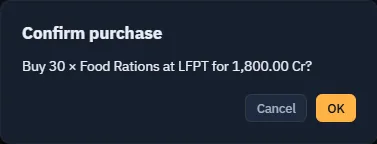
We used the system supply to buy 30 Food Rations at LFPT for 1,800 Cr., weighing 90 lbs. This purchases food for the site; it does not buy the Food Mixer's construction materials.
Step 3. Confirm that stock is usable
In My Goods, filter by airport and material. Read the Location column. Goods at another airport, in flight or in transit do not satisfy a requirement for goods on the ground at LFPT. Goods loaded in a parked aircraft may need Unload or Deboard before they are available to the factory.
Use the displayed quantity and total weight to plan movement. A delivery ETA is useful for scheduling, but it remains a pending delivery until the server records arrival. Chapter 21 follows the transport choices.
Step 4. Provide the operating workers
Reopen the machine settings and inspect its staff section. Our Food Mixer says No staff awaiting assignment at this airport and its Worker slot is Unassigned. Buying or transporting the appropriate industrial workforce is separate from hiring a pilot in Crew Market.
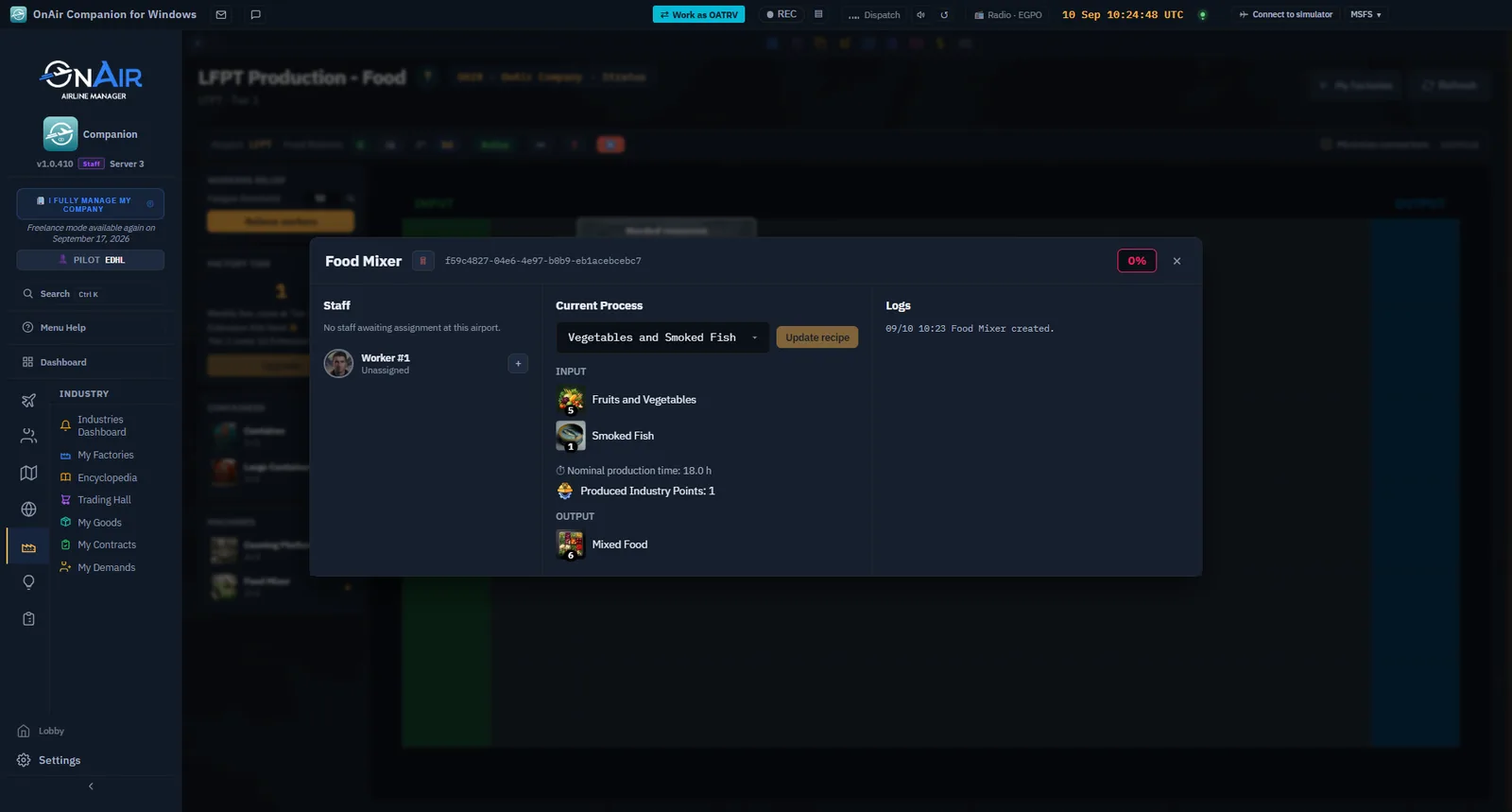
Bring the required worker group to the factory airport, use the slot's assignment control, and verify the resulting staff, availability and efficiency. Follow the actual group quantity shown by the selected machine rather than assuming every machine needs one person.
Screenshot placeholder MW04 — workforce assignment. Capture the available group at LFPT, its selection in the Food Mixer and the resulting staff display. Include the food/fatigue indications. Do not present an unassigned slot as a staffed machine.
Step 5. Maintain food on site
The factory header shows Food Rations and offers a cart shortcut to the Trading Hall. At capture time LFPT has zero rations. Each active worker needs one ration daily, so budget for the airport's entire active workforce and the replenishment delay.
In the observed Food Rations board, system supply costs 60 Cr. per unit at eligible airports of size 2 or above. Recheck the actual purchase quote before committing. A prepared purchase is not stock: verify the completed transaction and the factory's updated ration count.
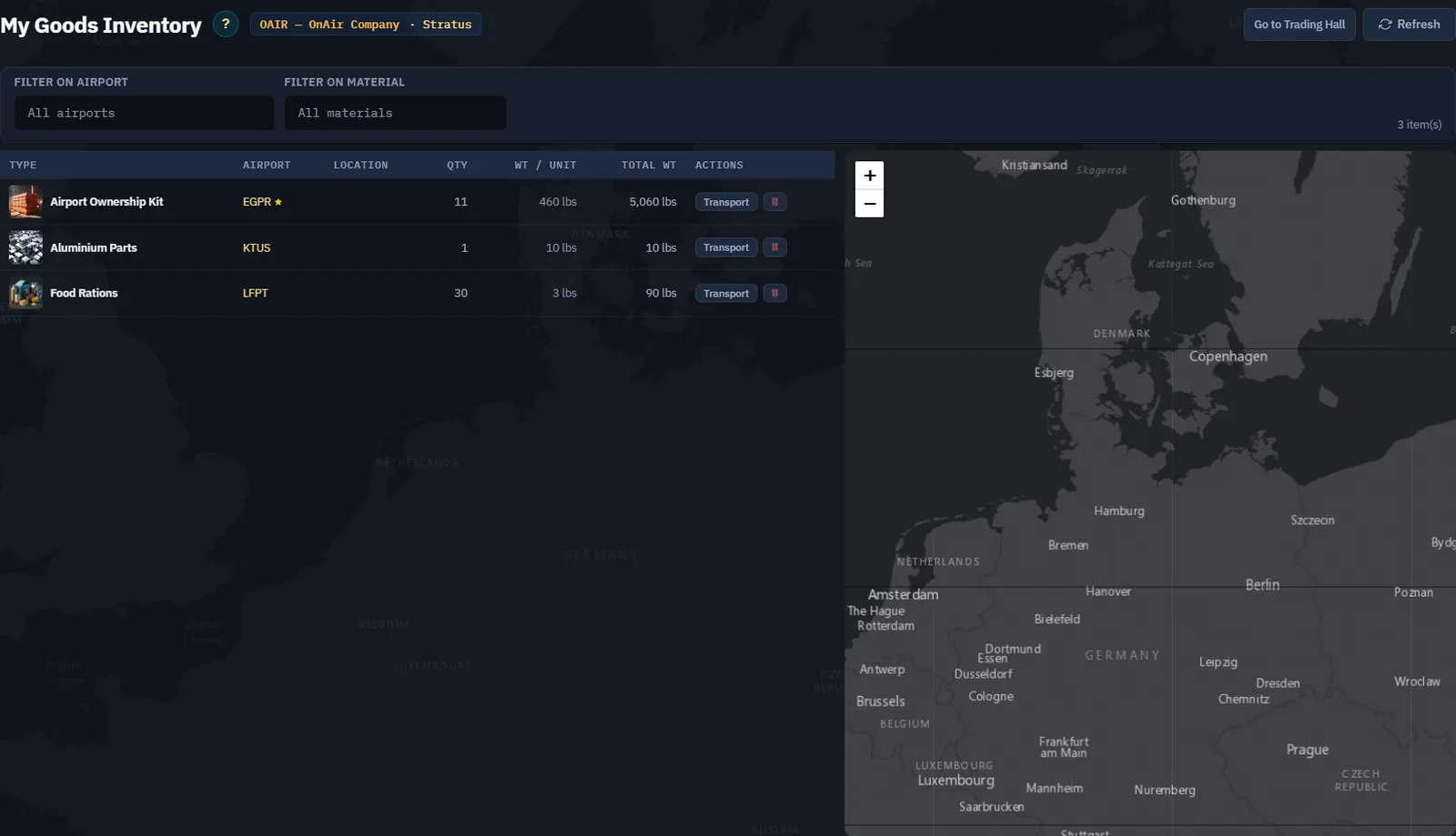
The mixer remains unbuilt and unstaffed, so this is a stock reserve, not evidence of active workers being fed. Once staff are assigned, divide the available rations by the airport's actual daily workforce requirement and set a replenishment margin.
Step 6. Plan relief before exhaustion
Read worker fatigue and efficiency in machine settings and the Industries Dashboard. Use the relief control to examine replacement options and cost. The available choices can include flying staff yourself, ground/water transfer or automatic relief; choose according to the actual quotation and location.
A relief already travelling is not a fresh group already working. Avoid ordering duplicate replacements while an earlier one is pending. If flying the relief, use the corresponding mission and register the actual flight normally.
Screenshot placeholder MW06 — actual worker relief. When fatigue warrants relief, capture the current group, quote, chosen transport and final replacement. For a simulator delivery, add the mission and registration evidence; leave those images pending until the flight is completed.
Step 7. Check the machine after replenishment
After a normal server update, verify that the original blocker has cleared. If it remains idle, inspect recipe inputs, connections and output capacity instead of buying another worker blindly. The next chapter distinguishes purchases, customer contracts and your own supply demands.