
Complete Your First Freelance Charter
The Freelance Job page (sidebar: Operations Centre → Freelance Job) is your mission entry point — the single screen where every paid flight you can take as a freelance pilot is reachable in two clicks. This chapter walks you through the four cards of the hub (Charters, Regular Routes, Virtual Airlines, Tours), the deep-search pages they open, the All Pending Jobs queue where everything you've accepted waits to be flown.
3.1 Find your first job — the Freelance Hub
Welcome banner — Step 2 This section completes Step 2 of the welcome banner on your Dashboard. Once you've finished it, the step turns green automatically — as soon as a single job lands in any of the four categories.
The Freelance Job page — 4 cards explained
The sidebar entry is Freelance Job, but the page itself is titled Freelance Pending Jobs, with the subtitle "Freelance opportunities — charter flights, regular routes, and more." A Last freelance flight strip runs across the top — where you last went, how long it took, and a link to its log — then a collapsible How Freelance Jobs work panel, then a 2×2 grid of four cards, one per source of paid flying:
- Charters — one-shot cargo or PAX missions you pick yourself.
- Regular Routes — scheduled flights for a real-world airline.
- Virtual Airlines — flights assigned by a VA you've joined.
- Tours — themed sequences of legs flown at your own pace.
Each card has the same skeleton: an empty state with a single CTA when you have nothing in progress, and an active state with a flight ticket, data blocks, and actions once something is underway.
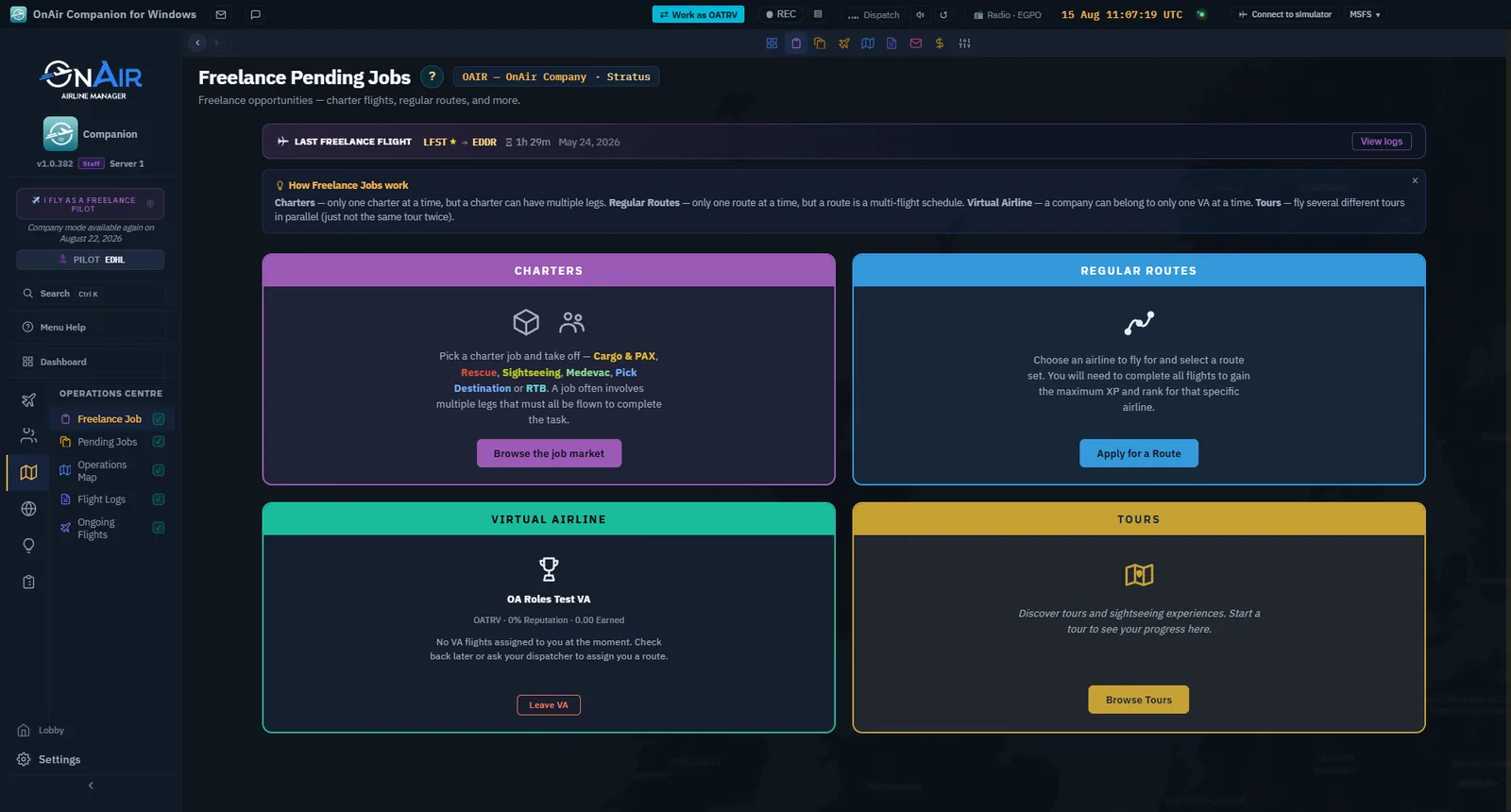
Each card answers a different question. The empty CTA sends you to a deep-search page (covered in sections 4.2 through 4.5). The active state shows what's in progress and lets you fly, abandon, or view legs without leaving the page. If a card holds more than one item (several charters, several tour legs), the header shows arrows (◀ 1/3 ▶) to flip between them.
Tip — Combine all four — Nothing stops you from holding 1 charter, 1 route, and 2 active tours at the same time. Start simple, then layer.
Charters — Browse, Take & Fly, Add to Pending
Click Browse the job market on the Charters card. You arrive on Browse freelance jobs, a compact one-pager where everything you need fits in a single viewport — no scrolling required to start a mission.
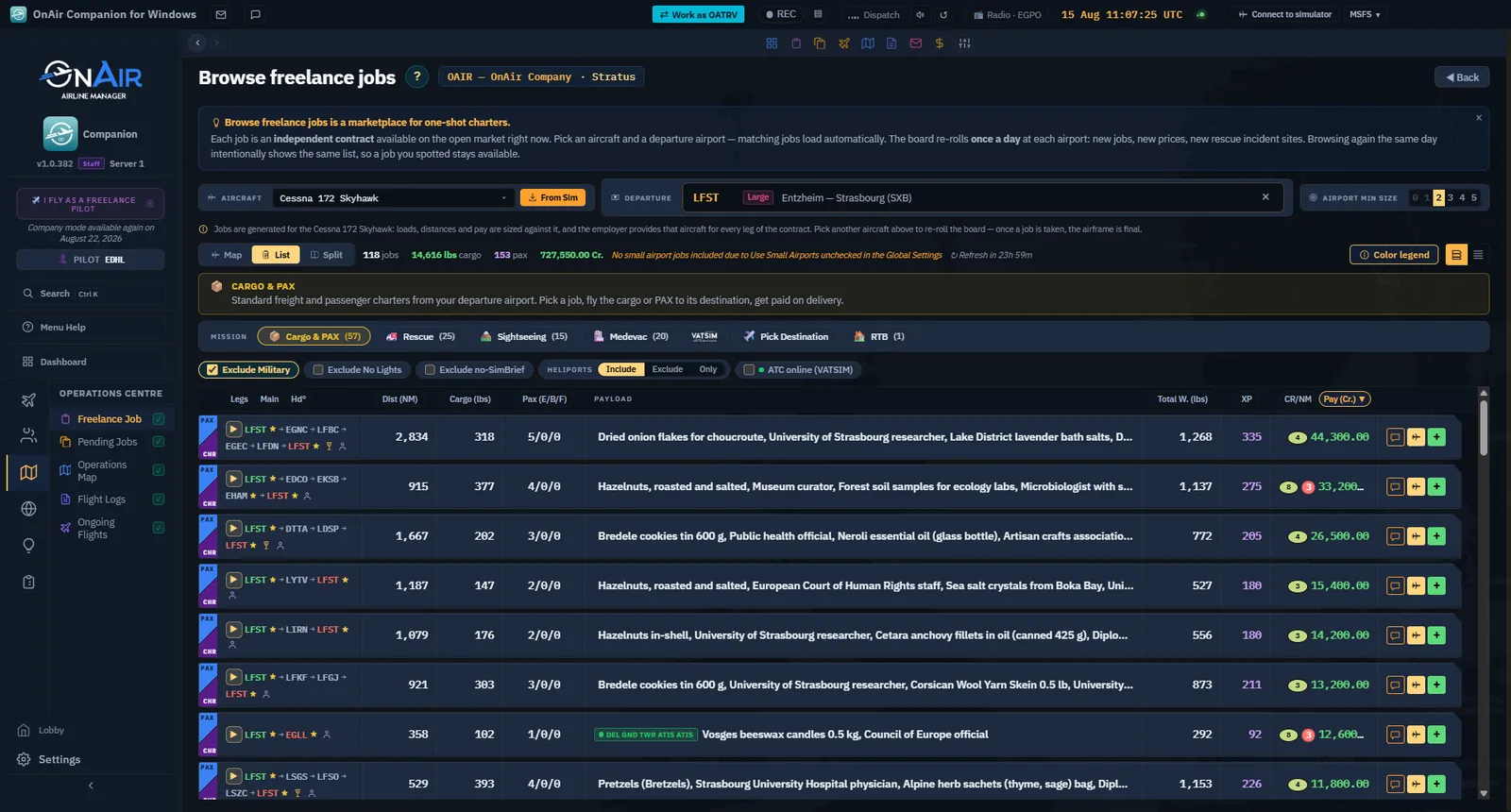
Step A — Pick an aircraft. The Aircraft field is a single dropdown that merges four sources, deduplicated by aircraft type:
- Your fleet — listed bare (no suffix). If you own one, it's the default pick.
- From previous flights — types you've flown before, with the suffix
· From previous flights. - From simulator — the type currently loaded in your sim, with the suffix
· From simulator. - Browse all aircraft types — opens the full catalogue (search by name
or ICAO, filter by class). Pick any type to see the jobs it would unlock: you do not need to own it, to have flown it, or to have the simulator running. Use it to answer "what would I be able to fly if I bought this?" before spending a credit. The type you pick is remembered and joins the dropdown with the suffix · catalogue.
To the right of the dropdown, an inline orange "Sim" pill runs a one-shot import from the running simulator — it identifies the aircraft (server-side hash on masses + fuel capacity) and resolves the departure airport closest to your GPS position. One click, both fields filled.
Step B — Confirm the departure and minimum runway size. Type 3–4 letters in the Departure field; autocomplete suggests airports. Min Size is a segmented control 0 → 5 (0 = grass strip, 5 = international). Sizes below your aircraft's minimum, or below your company's UseSmallAirports policy (see the Daily Tools reference — Settings essentials), are locked grey and unclickable.
Step C — Pick a mission category. Seven chips, all live — some are gated by the aircraft you picked (a chip greys out when your aircraft doesn't qualify):
| Chip | Aircraft gate | Notes |
|---|---|---|
| 📦 Cargo & PAX | none | Default. Generates ~25 mixed cargo + PAX legs around your departure. |
| 🚑 Rescue | ≤ 18 seats | Urgent medical evacuations with a search-and-rescue flavour. |
| 🏔 Sightseeing | ≤ 24 seats | POI overflight circuits — bonus for flying low and slow over the sights. |
| 🏥 Medevac | ≤ 21 seats, < 50 000 lb | Time-critical patient transport — +50 % pay, but a late-delivery penalty. |
| ✈️ Pick Destination | none | Single leg, you choose the destination ICAO inline (free flight). |
| 🏠 RTB | none | Single leg back to your declared home airport. |
| 📡 VATSIM Events | none | Charters generated around live VATSIM events — the departure picker becomes a VATSIM airport search. |
Step D — the list fills itself. There is no "search" button to press: missions load automatically when you enter the page, and reload whenever you change the aircraft, the departure, or the category. Change a filter, watch the list refresh.
Each chip carries the count of what is on offer right now — Cargo & PAX (57), Rescue (25) — so you can see where the work is before clicking.
The board re-rolls once a day, per airport — and this is the single most useful thing to know about this page. Browsing the same airport again the same day shows you the same list on purpose: a job you spotted at breakfast is still there at dinner. New jobs, new prices and new rescue incident sites arrive on the next roll, and a countdown in the toolbar (Refresh in 23h 59m) tells you when. So there is no point re-opening the page hoping for something better — but there is also no rush to grab a job before it evaporates.Step E — Read a flight strip. Each mission renders as a strip with a two-tone color stripe on the left edge: the top half is the goods type (perishables, dangerous goods, mail, generic cargo…), the bottom half is the source family (Charter here, but the same rule lets you scan All Pending Jobs at a glance — see the All Pending Jobs section below). A Color Legend page reached from the page header documents every color used.
Two action buttons sit on each mission:
| Button | Effect |
|---|---|
| Take & Fly (cyan jet) | Accepts the mission and opens Flight Dispatch directly with the aircraft prepared. |
| Add to Pending (green +) | Accepts the mission, you stay on the list to take more. The mission lands in All Pending Jobs. |
A Map | List | Split toggle above the list switches between the strips, a world-map view with arcs between airports — click an airport to filter, click an arc to see mission details — and a split view showing both at once.
A row of narrowing switches sits under the mission chips: Exclude Military, Exclude No Lights, Exclude no-SimBrief, a Heliports Include / Exclude / Only selector, and ATC online (VATSIM). They filter what is already on screen; they do not pull a new board.
Only one active charter mission at a time — If you click Take & Fly with an already-active mission, the Companion will first ask you to abandon or complete the old one.
Regular Routes — Apply for a schedule
Click Apply for a Route on the Regular Routes card. You arrive on Freelance Routes, where you select a real-world airline and accept one of its scheduled sequences (generated from FlightRadar24 data).
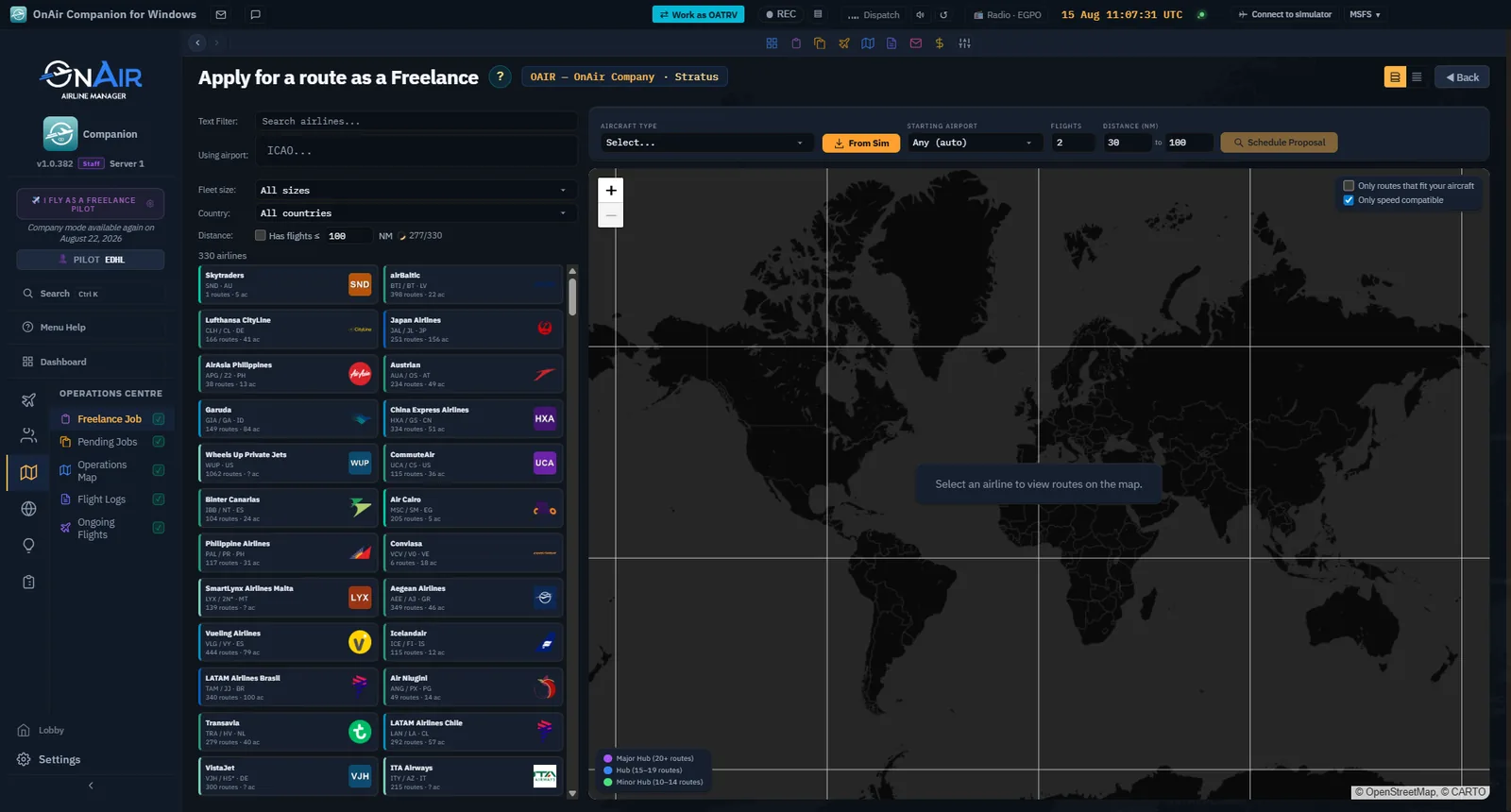
Step A — Choose an airline. The screen lists worldwide airlines — the five you used most recently are pinned at the top so returning to "your" carrier is one click. Two filters narrow the list:
- By origin hub — enter your home airport ICAO to see only airlines departing from your location.
- Distance ≤ N NM — a numeric cap on each route's leg distance. The page auto-scans silently on mount with the persisted value (default 100 NM, stored locally), with a small spinner while the scan runs. Change the value and the scan re-runs; subsequent sessions are near-instant thanks to the IndexedDB cache.
Step B — Choose a schedule. Click on an airline: the Companion generates a few schedule proposals (typically 5–10 flights over 1–7 days), with for each:
- The number of legs and total distance.
- The proposed aircraft type.
- A possible red speed triangle if the aircraft's cruise speed can't hold the schedule. You can still fly the leg, but you lose the on-time rank bonus.
Click Accept Schedule on the proposal you like: the server saves the schedule, creates the freelance aircraft, and the first flight goes to InProgress. You're redirected back to the Freelance Job page, and the Regular Routes card now displays your next flight to fly: airline panel (logo, rank), flight ticket (flight number, aircraft type, times, METAR), data blocks (Pay, Duration, Avg Speed, Distance), and four actions — Skip, Show legs, Route Map, Fly Now.
Rank grows leg by leg — On-time flight = +10 (or +12 on an official schedule). Late flight (more than 20 min) = +5 or +6. Skipped flight = no gain.
Virtual Airlines — Apply & join a VA
From the Virtual Airlines card click Browse VAs. You arrive on the Apply VA page — a directory of Virtual Airlines accepting freelance pilots.
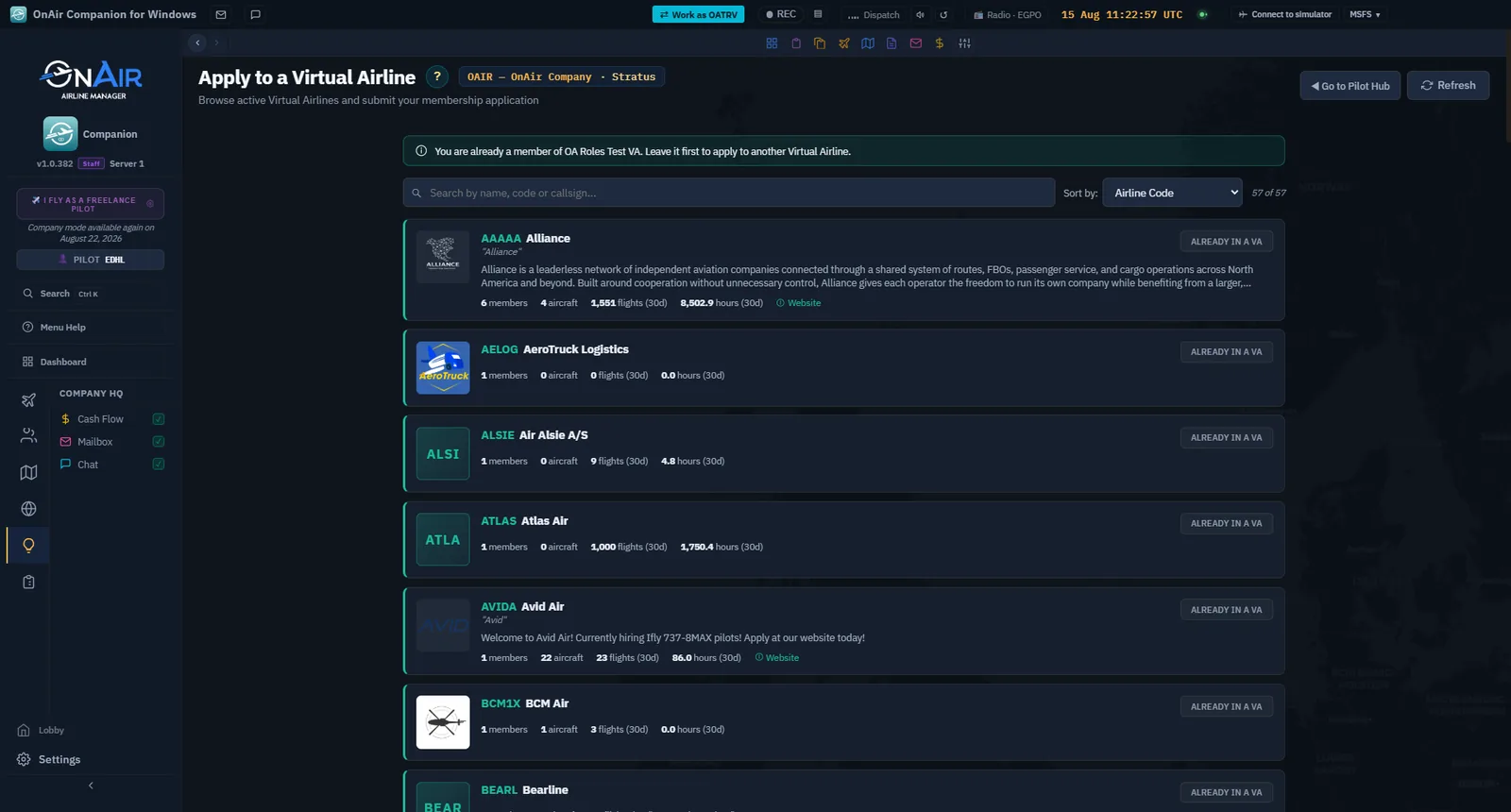
Browse the VAs, click on one you like, read the description, and apply. The VA owner receives your application and accepts or rejects it.
Once accepted, you no longer choose your flights: the VA assigns you missions according to its schedule. The card shows the ticket for the next assignment with a Fly Now button (and a Ferry option when the aircraft isn't where it should be). If you have a pending application, the card displays its status with a Withdraw button.
VA = a more structured commitment — Unlike charters where you choose each mission, in a VA you fly what the VA assigns. It's more social (shared roster, common livery, internal ranking) but less flexible. Switching between your personal company and the VA happens via the clickable pill in the top bar.
Tours — Multi-leg adventures
Click Browse tours on the Tours card. That opens the Activities page (Tours have no rail entry of their own).
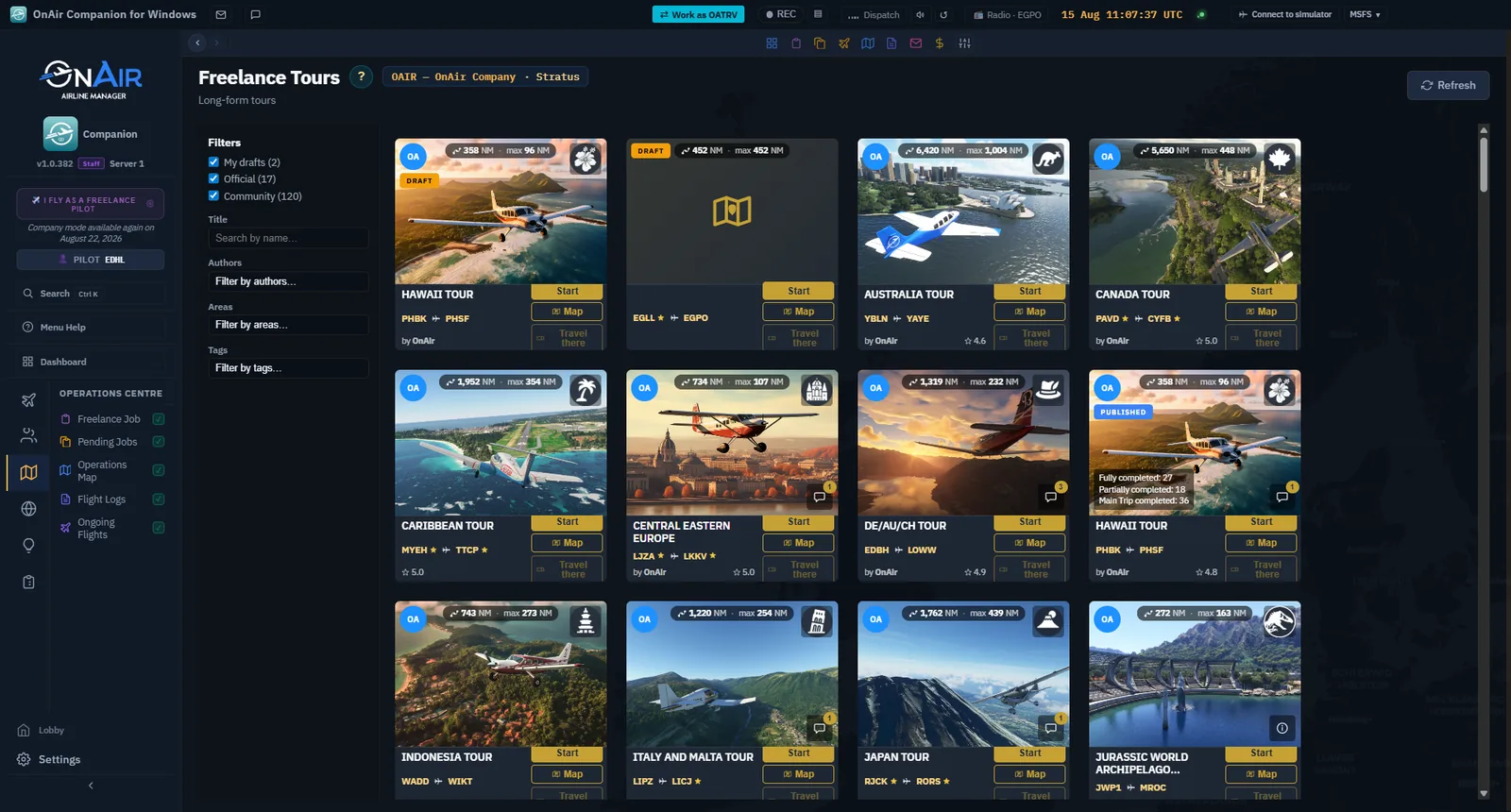
Tours are themed multi-leg POI itineraries — volcanic islands, alpine passes, former military bases, coastal lighthouses. The page is more than a grid: a filter sidebar splits the catalog into Official, Community and VA tours, with a title search and Authors / Areas / Tags filters to dig through the community library. Cards carry ratings and comment counts, and show how far the tour's start is from you.
Choose one that tempts you and click Start tour — it goes to InProgress and you're taken back to the Freelance Job page, where the Tours card now shows it. From there a Fly button launches the next suggested leg, a Description button opens the tour brief, and a Browse More button in the card header lets you start another tour in parallel.
You fly the legs in any order, at your own pace. Progress is tracked per leg.
Tip — Travel tokens — If a tour starts far from where you are, the tour card offers a transport-to-start button that spends a travel token to reposition you instantly. Tokens are a limited resource shown in your Company details (§1.3).
No late penalty on a Tour — Take six months to finish a 30-leg tour if you like. It's exploration, not a race.
Later, in Advanced Career: Find Similar Jobs
Find Similar Jobs is not available in Freelance mode. You will not find this button in Search Charters or All Pending Jobs.
Later, in Advanced Career, open an aircraft's flight preparation screen. In the charter cargo section, a small target icon offers a search for additional jobs to an existing load's destination. It is shown only for an undelivered load whose destination is known and differs from the departure airport. Clicking it opens a window over dispatch to search the market for the same departure and destination. Use Add to flight on a suitable offer. After successful acceptance, the airport Cargo / Passengers list refreshes without leaving dispatch. Acceptance does not itself load the aircraft: check the selected load, capacity, restrictions and expiry before flying. In the older client, the same target icon instead opens the jobs page filtered for that departure and destination.
All Pending Jobs — your accepted-jobs backlog
Where the Freelance Job page is where you pick jobs, All Pending Jobs (sidebar: Operations Centre → Pending Jobs) is where you manage everything you've already accepted. It's the unified queue: every charter, every route leg, every tour leg you've taken but not yet flown lands here, in one sortable list.
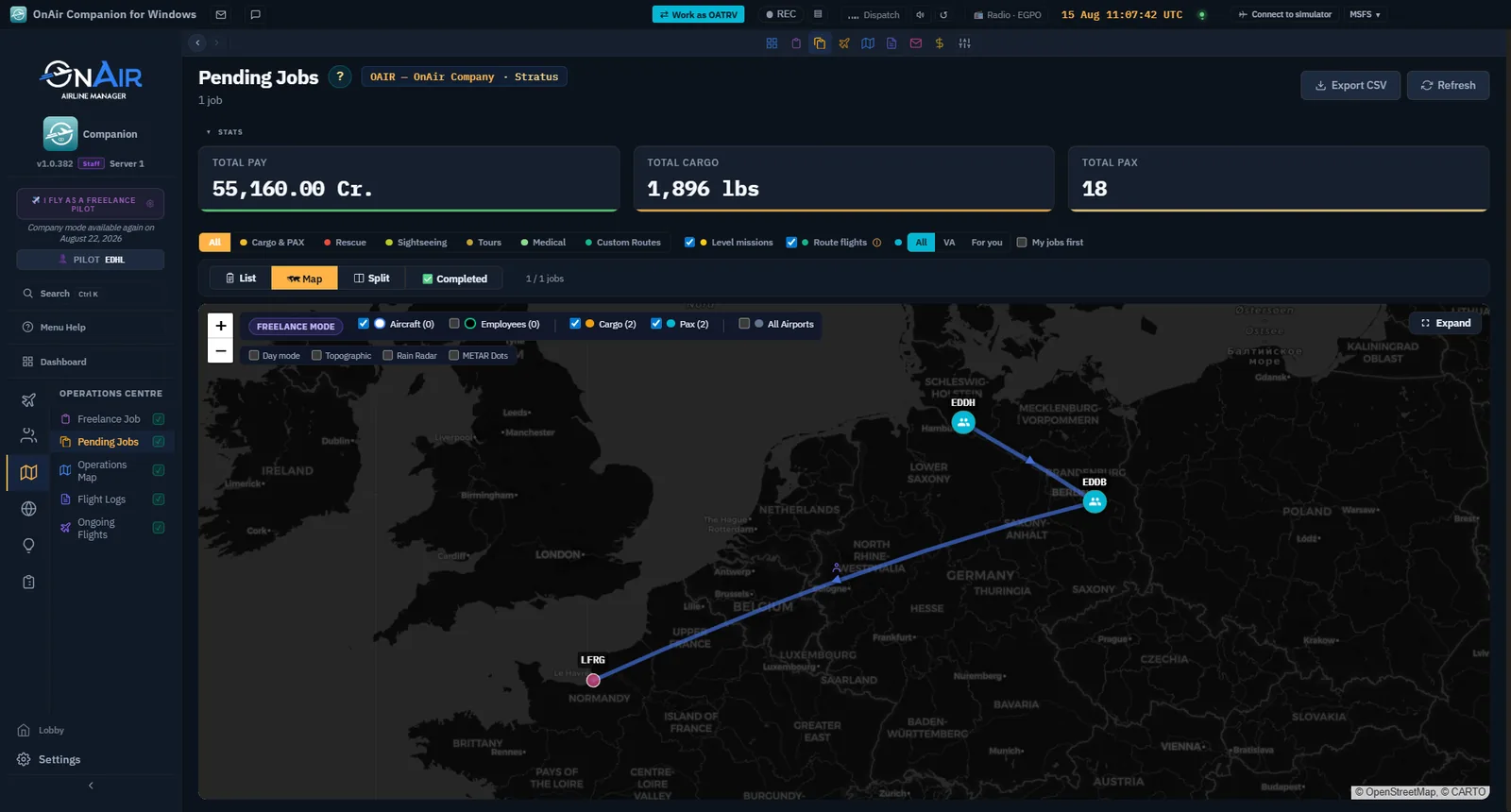
Filter pills — by mission type. The pills at the top filter by what the mission is, not where it came from: All / Cargo & PAX / Rescue / Sightseeing / Medical / Tours / Custom Route, plus a Level missions checkbox to show or hide the level-up missions the game offers as you progress.
Source badges — where it came from. To the left of each mission, a lettered badge identifies its source family (the same family that colours the bottom half of the stripe):
| Badge | Source |
|---|---|
| CHR | Freelance Charter (a classic charter mission). |
| RTE | Regular Route (one leg of an airline schedule). |
| TR | Tour leg. |
| LVL | Level mission (offered by the game as you level up). |
In Career mode more families join the list (Company Jobs CJ, FBO-generated FBO, Custom Route CR…). The Color Legend page (button in the page header) documents the full mapping.
Reading a row. Beyond route and pay, rows carry a payload description, total weight, an expiry badge, and small constraint flags when the load is special — fragile, perishable, medical, dangerous goods, time-constrained, human-only. Worth a glance before you dispatch: those flags are the difference between a routine hop and a race against a countdown.
Per-mission actions. The main buttons on each row:
- Fly (plane icon) — opens Flight Dispatch on this mission. If the aircraft is already airborne (a flight you started elsewhere), this jumps you straight to the tracker instead — the same shortcut as the top-bar Tracking pill.
- Briefing (📄) — opens the mission's narrative briefing (see the Dispatch section for briefings at dispatch).
- Map — shows the mission's legs on a map.
- Decline (red cross) — declines the mission.
Decline on an RTE (Regular Route) leg — The cross is replaced by a Route button that takes you back to the route schedule. Declining a single route leg can corrupt the schedule (the aircraft may be deleted early). To drop a route leg, use Skip (per leg) or Abandon (the whole route) from the Route Map, not Decline.
Multi-leg groups. When a row is a multi-leg group (a Regular Route schedule, a Tour) and you expand it, the legs are listed individually underneath with their own values. The Legs badge on the parent shows the total leg count.
Color stripes. Every row carries a two-tone color stripe on its left edge — the same visual language used on Search Charters (above): top half = goods type, bottom half = source family. One glance tells you what kind of cargo and what kind of job you're looking at, without expanding the row.
You now know how to…
- Reach the Freelance Job hub and recognize the four cards (Charters, Regular Routes, Virtual Airlines, Tours) and their empty / active / in-flight states.
- Generate and accept a charter mission on the compact Search Charters page, using the unified aircraft dropdown, the orange Sim import pill, and the chip-based mission selector.
- Read a flight strip's two-tone color stripe and open the Color Legend page.
- Apply for a Regular Route from a real-world airline schedule.
- Join a Virtual Airline and understand the commitment that comes with it.
- Start a themed Tour and fly its legs at your own pace.
- Recognise that Find Similar Jobs belongs to Advanced dispatch, not Freelance charter search.
- Manage your accepted-jobs backlog from All Pending Jobs, tell sources apart with the CHR / RTE / TR / LVL badges, and avoid the Decline trap on route legs.
Now to turn that accepted job into an actual flight in your simulator.
3.2 Dispatch — prepare the flight
You have a job in hand. Now you head to Flight Dispatch to prepare the flight: confirm the aircraft, set the route, size the fuel, brief yourself on what you're carrying — then launch into the tracking conditions, the pre-flight checklist that must turn green before the tracker arms. Dispatch is the gate between "I accepted a job" and "I'm tracking a real flight".
Welcome banner — Step 3 This section is the first half of Step 3 of the welcome banner on your Dashboard. The second half (the flight itself + the register) is in the Fly & register section. Once you start tracking and land successfully, the step turns green automatically.
Opening the Dispatch screen
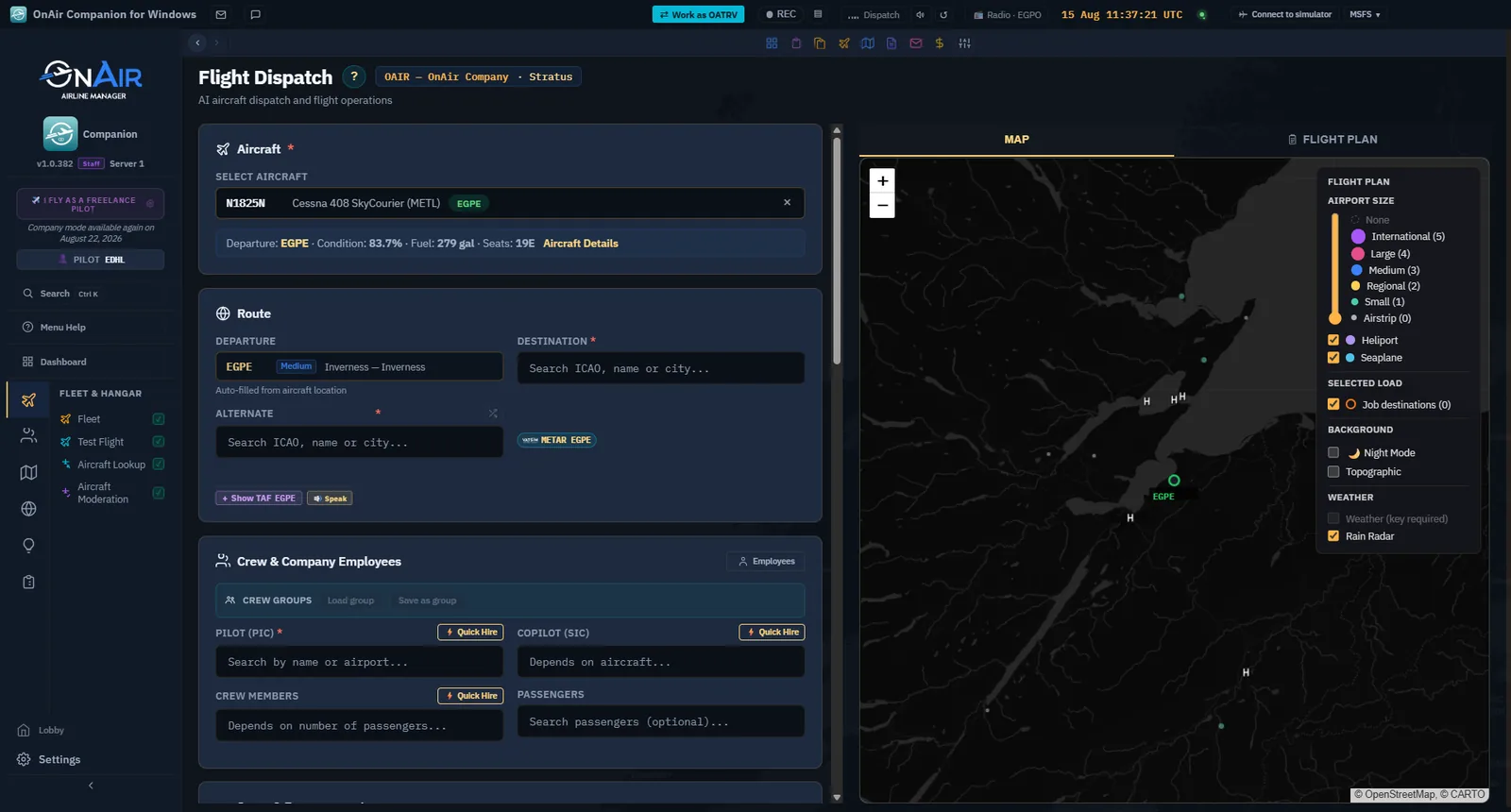
Flight Dispatch is not in the sidebar — it always works on a specific aircraft, so you reach it through an aircraft's action buttons:
- Take & Fly / Fly Now on a job card or a Pending Jobs row — Dispatch opens with the aircraft and the route already filled in.
- The Dispatch button on a Fleet row — that is its label there, one per aircraft (
Dispatch N1825N). Resume replaces it while a flight of that aircraft is in progress.
When you arrive via Take & Fly, most of the form is already populated — you review, tweak, and launch.
Already-flying aircraft go straight to the tracker — If you click a Fly / Track / Resume button on an aircraft that's already in the air (e.g. a flight you started in the sim from another screen), the Companion takes you straight to the tracking view rather than the dispatch form.
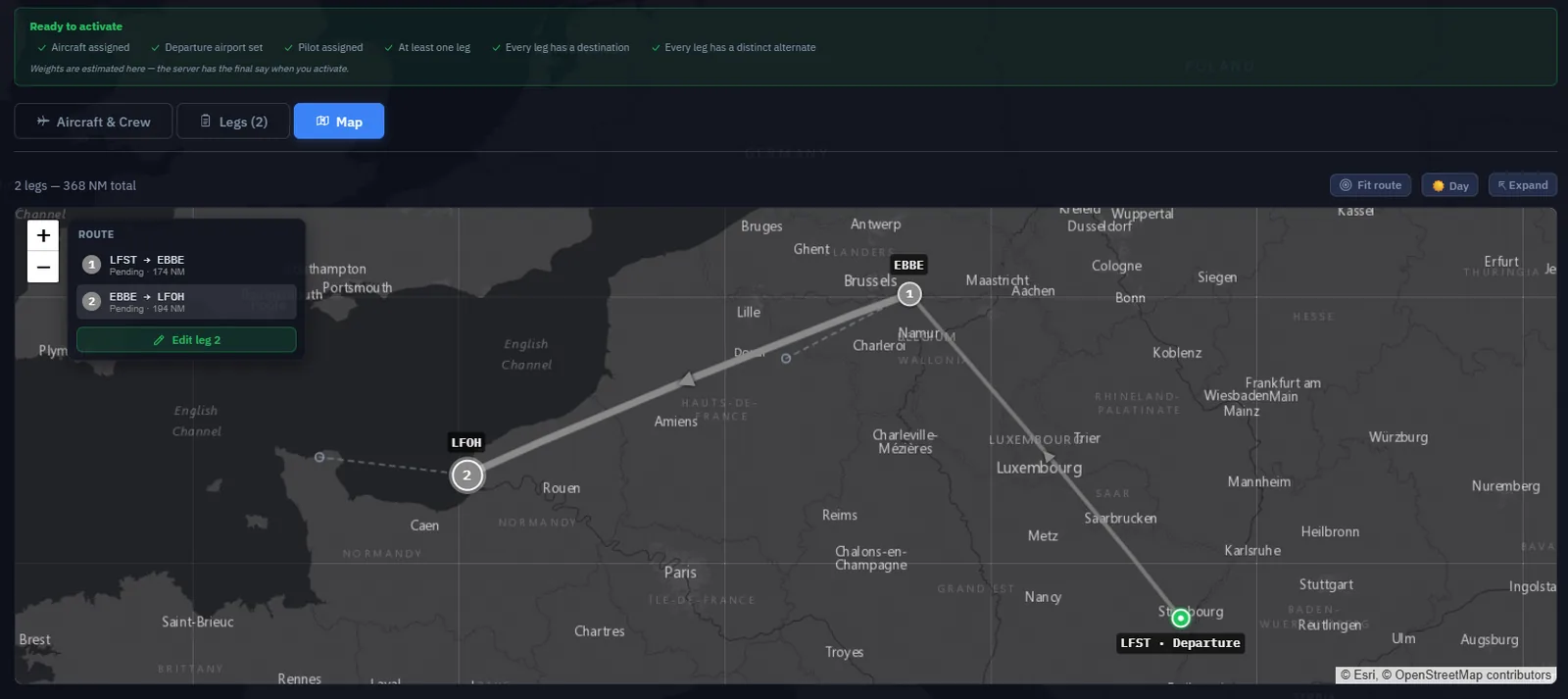
The dispatch map
The right half of the screen is a live map of your flight plan: departure, destination and alternate joined by great-circle legs — and once you've pulled a SimBrief OFP (see below), the actual navlog waypoints replace the direct leg. The map carries the same comfort features as the big world map: day/night terminator, topographic overlay, rain and cloud overlays, and an airport-size slider to declutter.
It's not just decoration: one glance confirms you're about to fly the leg you think you're flying — the right direction, the right distance, the alternate on the sensible side.
Pick your aircraft (or follow Take & Fly)
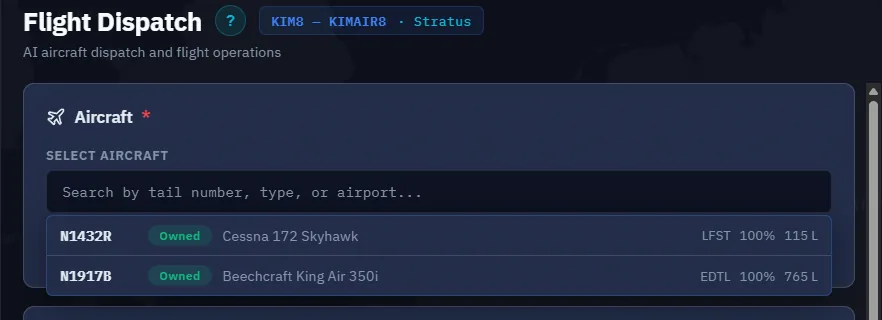
The Aircraft dropdown lists every aircraft in your fleet that is idle and not currently being tracked. An aircraft mid-flight in another session is filtered out, so you can't accidentally re-launch over an active tracker.
In freelance mode there's usually exactly one entry — the aircraft loaned by your contract.
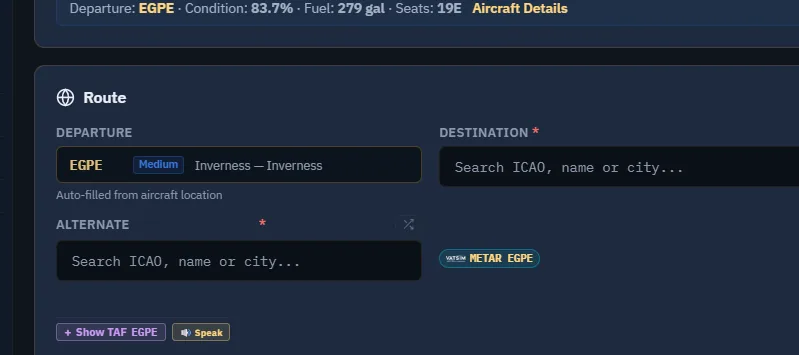
Route — Dep / Dest / Alternate
The route block has three ICAO fields:
- Departure — pre-filled from the aircraft's current parking position.
- Destination — pre-filled from the job. For multi-leg charters, Dispatch shows the next leg; override the Destination if you need to divert (fuel stop, weather).
- Alternate — required. It's auto-suggested when you set the destination, and a small randomize button picks another sensible field nearby if you don't like the suggestion. It must differ from the destination — the flight won't be created without a valid alternate.
How the suggestion is now chosen. The auto-suggested alternate is no longer simply the nearest qualifying field. In preference order it takes a
civilian airport at least 50 NM away — what a dispatcher would actually file — and only falls back to a closer civilian one, then to a military field, when nothing better exists within 500 NM. A military field is never offered while a civilian one is available, and an alternate closer than 50 NM is flagged rather than silently accepted. The screen tells you which rule it applied, so a surprising suggestion explains itself.
Flying a Regular Route? Dispatch now files the alternate the route declares, instead of picking a nearby field of its own. The server already used that alternate for the AI version of the same flight — and sized the fuel against it — so the two flights of one route no longer diverge.
Each field validates against the airport database as you type.
Fuel & Weight-and-Balance
The Fuel & W&B panel computes everything you need:
- Fuel needed — from the route distance, the aircraft's burn rate, plus reserves. A ⛽ Fill for trip button sets the slider to exactly that; the percentage it will load is written on the button itself (
Fill for trip (20%)). You can still slide manually to carry extra (long alternate, holding, ferry).
Which FBO serves the fuel. The picker no longer offers you the cheapest FBO regardless of what it holds. It now selects one that can actually serve the quantity you are ordering, and the dropdown shows each FBO's stock next to its price — so the number that decides the choice is visible before you choose, not after. If Order Refuel & Loading is greyed out, the reason is written underneath it: nothing to order, not enough fuel at that FBO (with the shortfall in figures), or an order already under way.
- Weight breakdown — empty weight, payload, fuel, gross weight vs MTOW, updated live as you move the slider. Over the limit = red; fix it before launch.
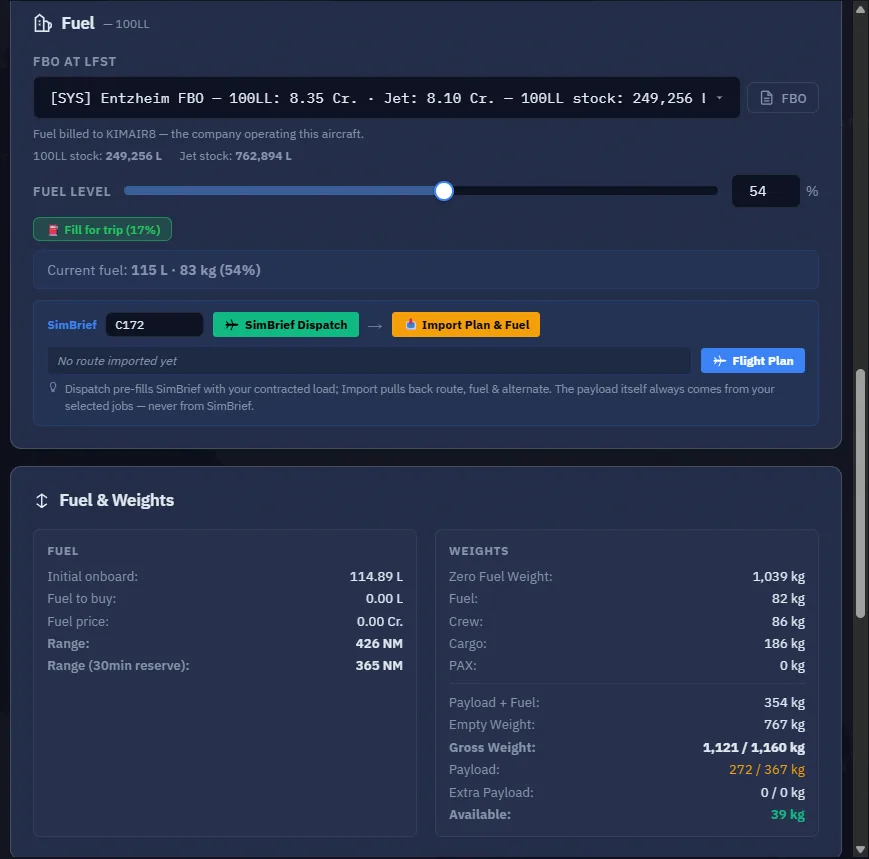
Freelance fuel — provided by the employer — In freelance mode fuel is paid by the client, and each new contract re-rolls the aircraft's fuel state (typically 20–40 % on handover — it does not carry over between missions). The panel shows a reconciliation line comparing the sim's current fuel % to the contract's, so you always know what the auto-set will change. Likewise the crew section collapses to a simple "crew provided by employer" banner — nothing to pick.
Some complex addons block auto-set — Aircraft like PMDG, Fenix, or INI Builds expose a DisableAutoSet flag. The Companion detects it and shows an amber "set fuel & payload manually" banner: use the addon's own EFB/tablet to load fuel and weights, and the Manual Fuel & Weight Balance helper to align the numbers. The Auto-set checkboxes in the conditions panel below are greyed out for those aircraft.SimBrief & the flight plan file
If you plan with SimBrief, the fuel row carries a SimBrief block with an aircraft-type field and two buttons:
- Dispatch — opens SimBrief's dispatch page pre-filled with your route, so you can build the OFP there.
- 📥 Import Plan & Fuel — pulls your latest OFP and applies its planned fuel to the slider, back-fills the route and alternate, and feeds the navlog to the dispatch map. Drain-protection is smart: it keeps your current sim fuel unless that would make you overweight, in which case it trims to just under MTOW.
The payload never comes from SimBrief — the row says so itself. Dispatch sends SimBrief your contracted load so the OFP is planned around it, and Import brings back route, fuel and alternate. What you actually carry is always what your selected jobs contain; SimBrief cannot change it.
To use it you need either a SimBrief username in Settings or a linked Navigraph account (then no username is needed — the OFP comes through your Navigraph login).
Want the plan inside your aircraft's FMS/GPS? Open the Flight Plan modal (next to the SimBrief buttons) and click Save to sim — it writes the flight-plan file where your simulator picks it up (e.g. MSFS's fms_downloads). The same modal is reachable later from the tracking header, and the full OFP text is available as a tab during the flight (the Fly & register section).
Know your load — briefings
Two briefing layers tell you what you're actually carrying:
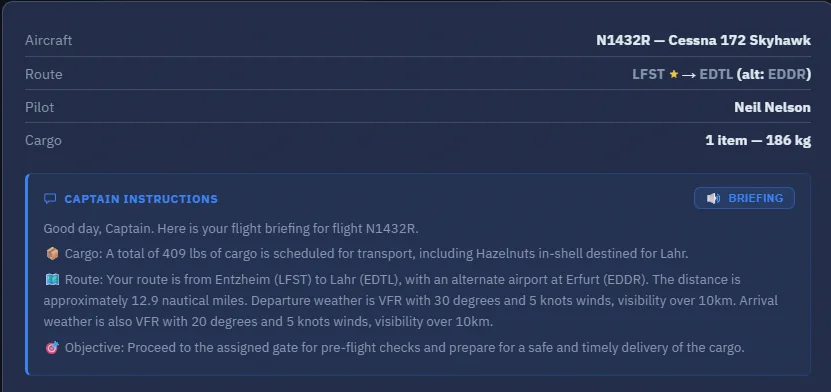
- Captain Instructions — an aggregate briefing block on the dispatch form: a per-destination recap of the passengers and cargo on board, with a 🔊 Play button that reads it to you in the radio voice. It never auto-plays — click when you want it.
- Mission Briefing — each cargo/charter row carries a briefing button opening the mission's narrative: who's flying, what the cargo is, why it matters. Pure flavour, zero mechanics — but it's what turns "350 lb, KSEA→KBOI" into a story.
In Advanced dispatch, Find Similar Jobs can help fill spare capacity. It is not available in the Freelance charter workflow; see the Find your first job section for this distinction.
Launch — the tracking conditions
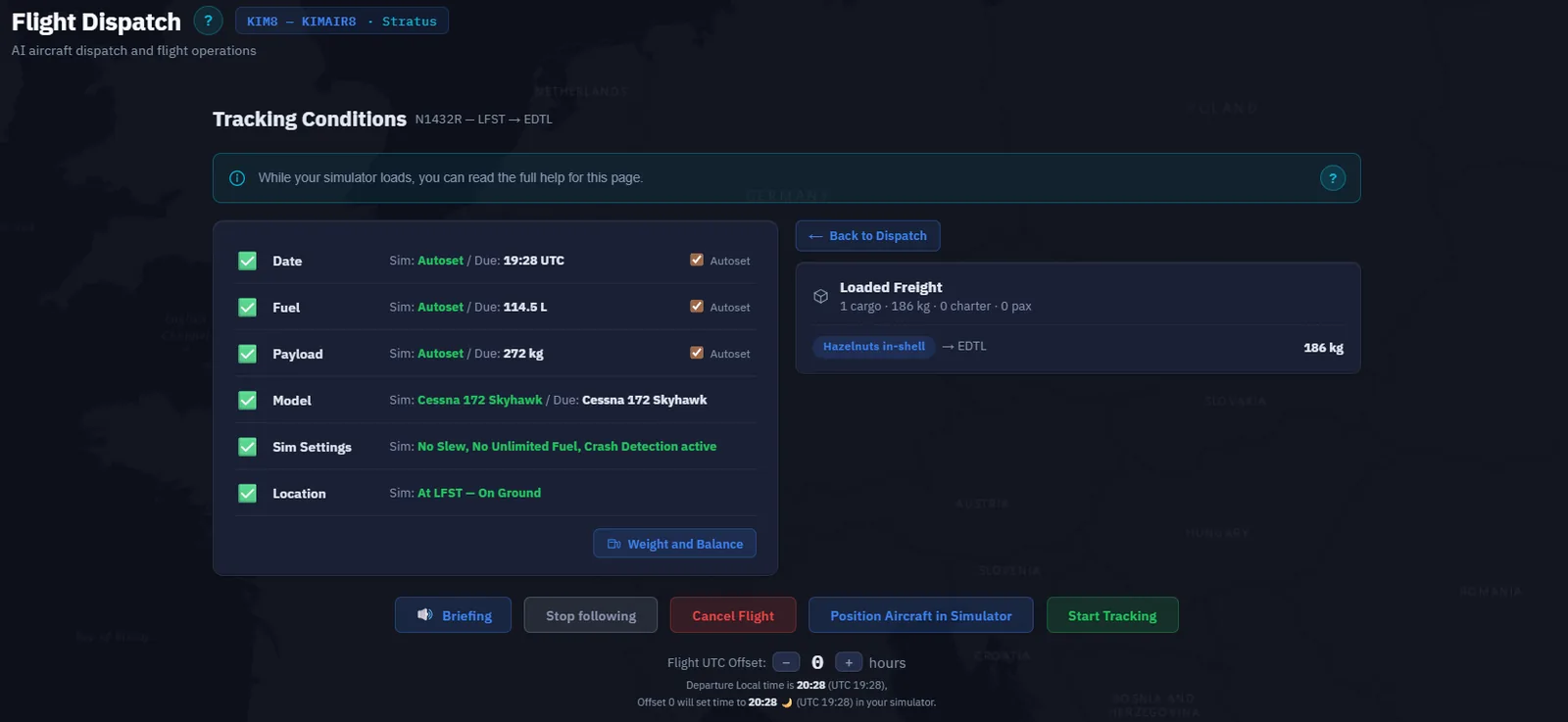
Click Fly in Simulator at the bottom of the form. The Companion creates the flight server-side and the page switches to the tracking conditions panel — six rows, re-checked every second, whose applicable checks must pass before the tracker arms:
| # | Condition | What's checked | Auto-set |
|---|---|---|---|
| 1 | Date | When enforced, the sim date/time must match the expected clock within tolerance. | ✅ checkbox |
| 2 | Fuel | Sim fuel within tolerance of the planned quantity. | ✅ checkbox |
| 3 | Payload | Sim payload covers the due payload (small margin). | ✅ checkbox |
| 4 | Model | The aircraft loaded in the sim matches the dispatched aircraft. | ❌ load the right aircraft |
| 5 | Sim Settings | No slew, no unlimited fuel (and crash detection on, on survival worlds). | ❌ fix in the sim options |
| 6 | Location | Sim within ~4 NM of the departure airport, on the ground. | ❌ be at the field, on the ground |
Date-check exceptions — Outside a Resume flow, the date check is disabled for gliders and when the company does not force simulator time. A disabled check does not require you to change the sim clock. Resume has its own time and position requirements.
You never have to start on a runway. The Location row asks for one thing: on the ground, within ~4 NM of the departure airport. Every gate, stand and apron of that airport is inside those 4 NM, so wherever you parked is the right place. As soon as the row is green, you are done — do not move the aircraft.
How the panel works:
- Auto-set checkboxes sit on the Date / Fuel / Payload rows — tick them and the Companion writes the right values into the sim when you click Start Tracking (greyed out on
DisableAutoSetaddons, see above). - The Model row shows the detected aircraft name and a Diagnostic button if the match fails — load the right aircraft in the sim and the row re-greens within seconds.
- A Loaded Freight side panel recaps what will be on board, and warns in amber if freight from a previous flight is still loaded.
- Position in simulator — optional, and only for when you are somewhere else: parked at the wrong airport, or rejoining an interrupted flight. It never needs to be pressed when you are already at the departure field. The picker offers the real parking stands read out of your own scenery, the runway ends (with the into-wind one marked), where your aircraft actually is, and the airport reference point — pick one and the aircraft is placed there, Location row green a second later. Resuming an interrupted flight, it targets the last known position instead.
- Leaving slew afterwards — on MSFS / Prepar3D / FSX the positioning goes through slew mode, which keeps the airframe from being damaged while the scenery loads. Until you leave it, the Sim Settings row stays red. The slew toggle is
Shift+Zon MSFS 2024, andYon MSFS 2020, Prepar3D and FSX; the dialog tells you which one applies. X-Plane is repositioned directly, with no slew involved.
Sim paused / in a menu — If MSFS is paused or in a menu, an orange badge appears top-right and Start Tracking stays blocked even with all six rows green. Unpause first.
Once everything is green and the sim isn't paused, Start Tracking enables. Click it: the Companion runs the ticked auto-sets, waits a couple of seconds for the sim to settle, and switches to the Tracking view — the flight is officially in progress.
Changed your mind? Cancel Flight aborts without penalty — the mission stays pending and you can come back later.
You now know how to…
- Reach Dispatch from a job card or an aircraft's Fly button (it's not a sidebar page).
- Read the dispatch map — legs, alternate, and SimBrief navlog at a glance.
- Set the Departure / Destination / Alternate route (alternate required, randomizable).
- Size the fuel with the slider or Fill for trip + reserve, and read the W&B breakdown.
- Pull an OFP with Adjust Fuel, build one via Dispatch, and Save the flight plan to the sim.
- Brief yourself with Captain Instructions and the per-job Mission Briefings.
- Run the 6 tracking conditions (Date, Fuel, Payload, Model, Sim Settings, Location), use the Auto-set checkboxes, and — only if you are at the wrong airport — reposition the aircraft.
- Click Start Tracking once everything lines up.
You're ready to fly.
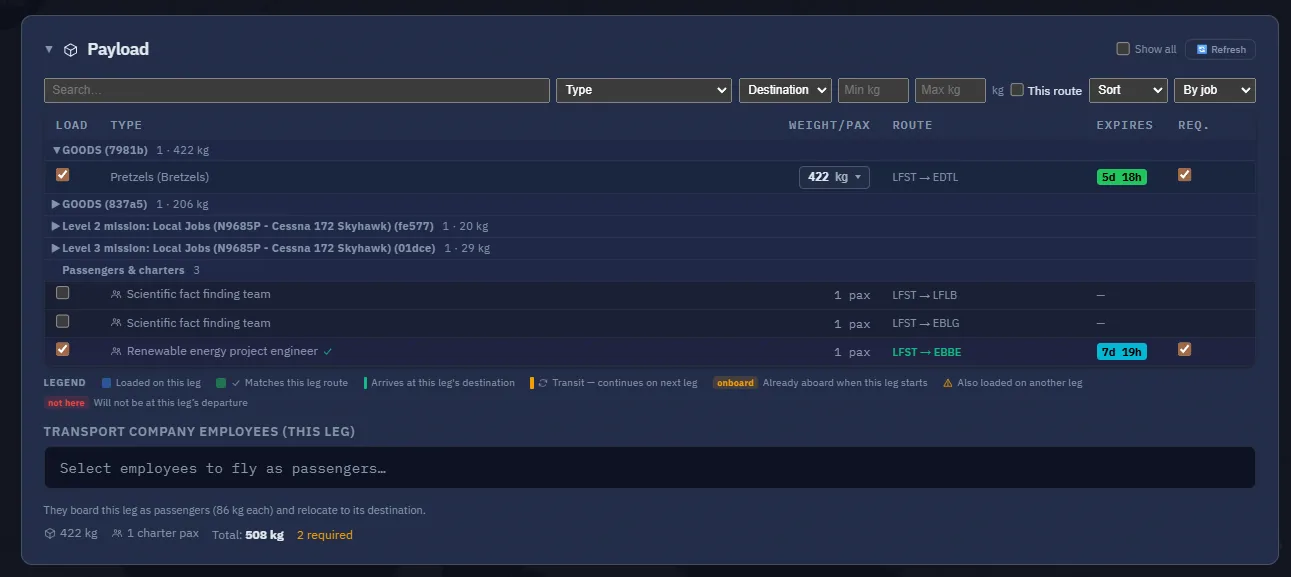
Reading the payload in an Advanced example
3.3 Fly & register the flight
Tracking has started — off you go. This section covers what happens during the flight (including a few things that may happen to you mid-air), the possible interruptions, and the key moment at the end: registering the flight server-side so your pay, XP, and reputation are credited.
Welcome banner — Step 3 This section completes Step 3 of the welcome banner on your Dashboard. Once you've finished it, the step turns green automatically.
The Tracking view — the tabs
Once tracking is started, the Companion shows the Tracking view on the Flight Management page. The tabs across the top:
| Tab | Purpose |
|---|---|
| Overview | The current flight phase in large type + live metrics (altitude, IAS, GS, fuel, heading) + elapsed time. |
| Map | Trajectory drawn live, your aircraft dot, mission airports — with the event timeline in a side pane (takeoff, gear, lights, exceedances…). |
| Score | Your live flight score — the phase-by-phase marks that will feed the debrief (smoothness, procedures, landing). |
| OFP | The full SimBrief OFP text, if you pulled one at dispatch — your paper briefing, readable in flight. |
| Cargo & PAX | What's on board, when the flight carries a payload. |
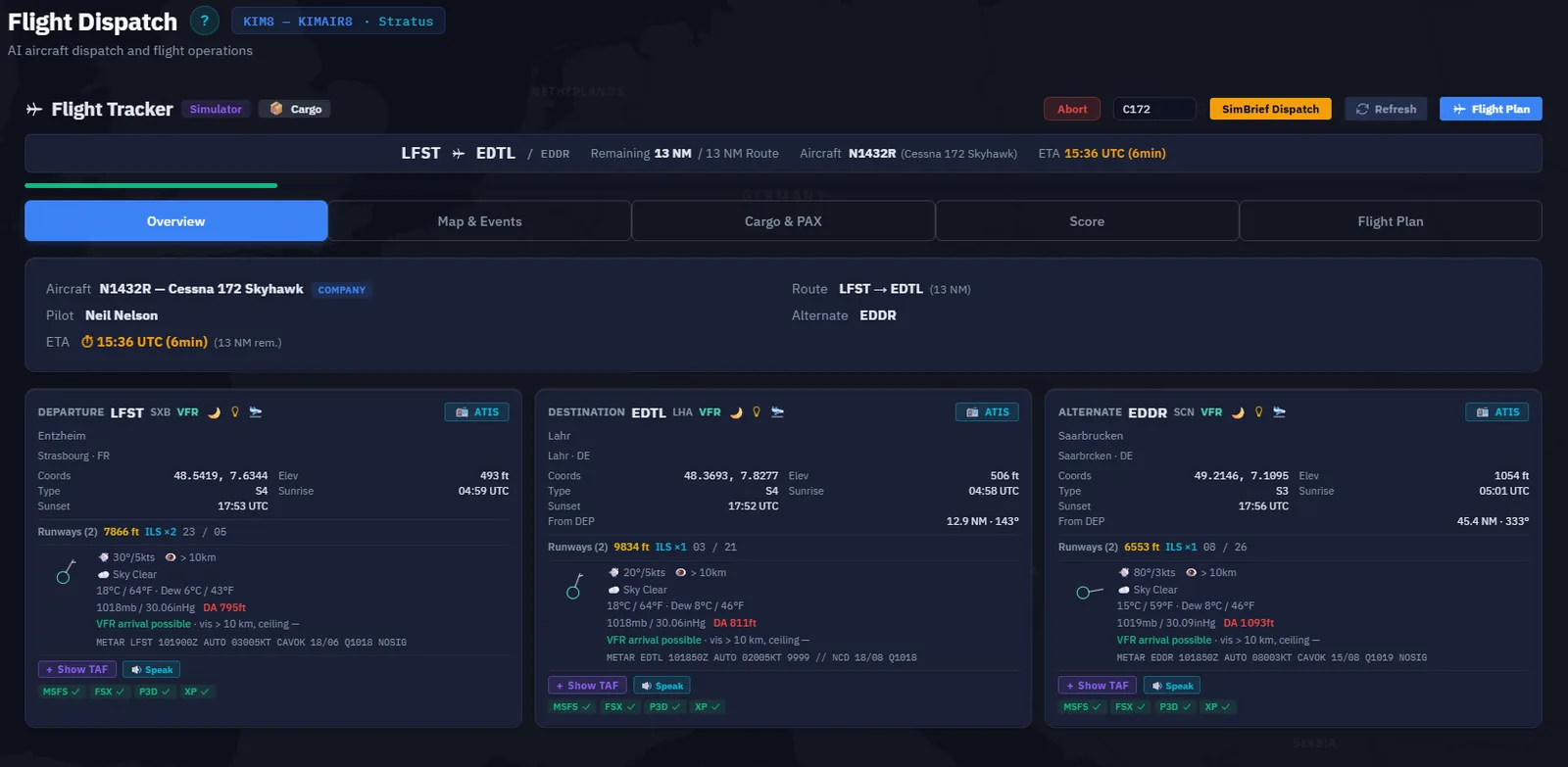
The tracker tabs are visible in the Overview example below.
A. The Overview tab
The current phase (Taxi, Climb, Cruise, Descent, Approach…) in large type, with the live numbers under it. Each phase transition plays a short discreet sound — you can disable them in Settings → Sound & Voice.
B. The Map tab
The trajectory drawn live on the world map: a dot for your aircraft (correctly oriented), a polyline trail behind, the mission airports marked — and the event timeline alongside, logging every detected event with its UTC timestamp: engine on/off, gear up/down, flaps, lights, takeoff, landing, exceedances (overspeed, stall, excessive G). That timeline is exactly what gets sent to the server at registration.
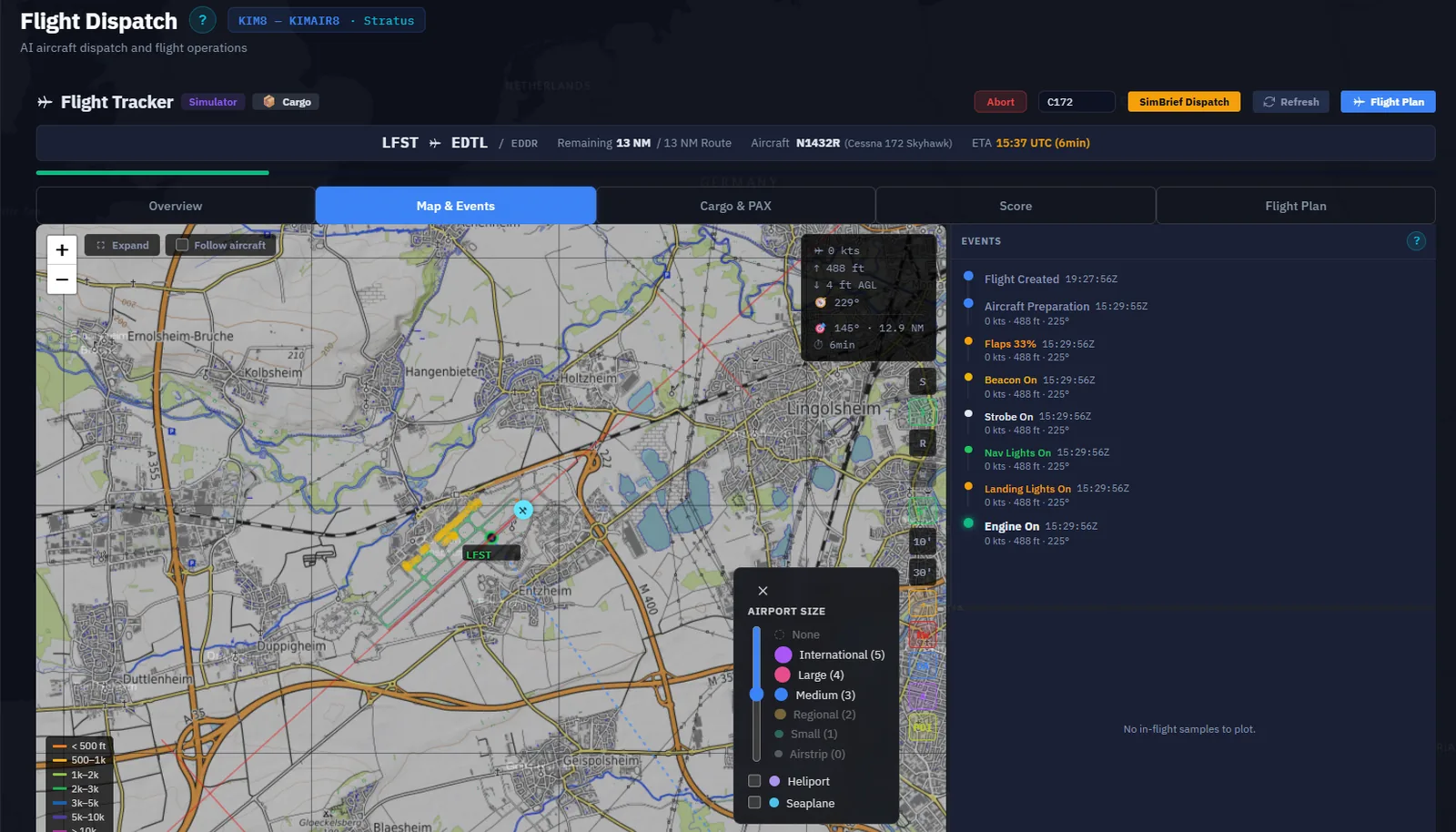
The trail survives quit / relaunch — Events are persisted to disk every second. If you close the Companion mid-flight and relaunch it, the trail is rebuilt from the events file. You don't lose your trace.
C. The Score and OFP tabs
- Score — the live scoring of your flight, phase by phase. Watch it if you're chasing a clean score; ignore it if you're just hauling boxes. The final score lands in the debrief below and in Flight Logs.
- OFP — the SimBrief operational flight plan you pulled at dispatch, as text. Handy for cruise-level checks without alt-tabbing.
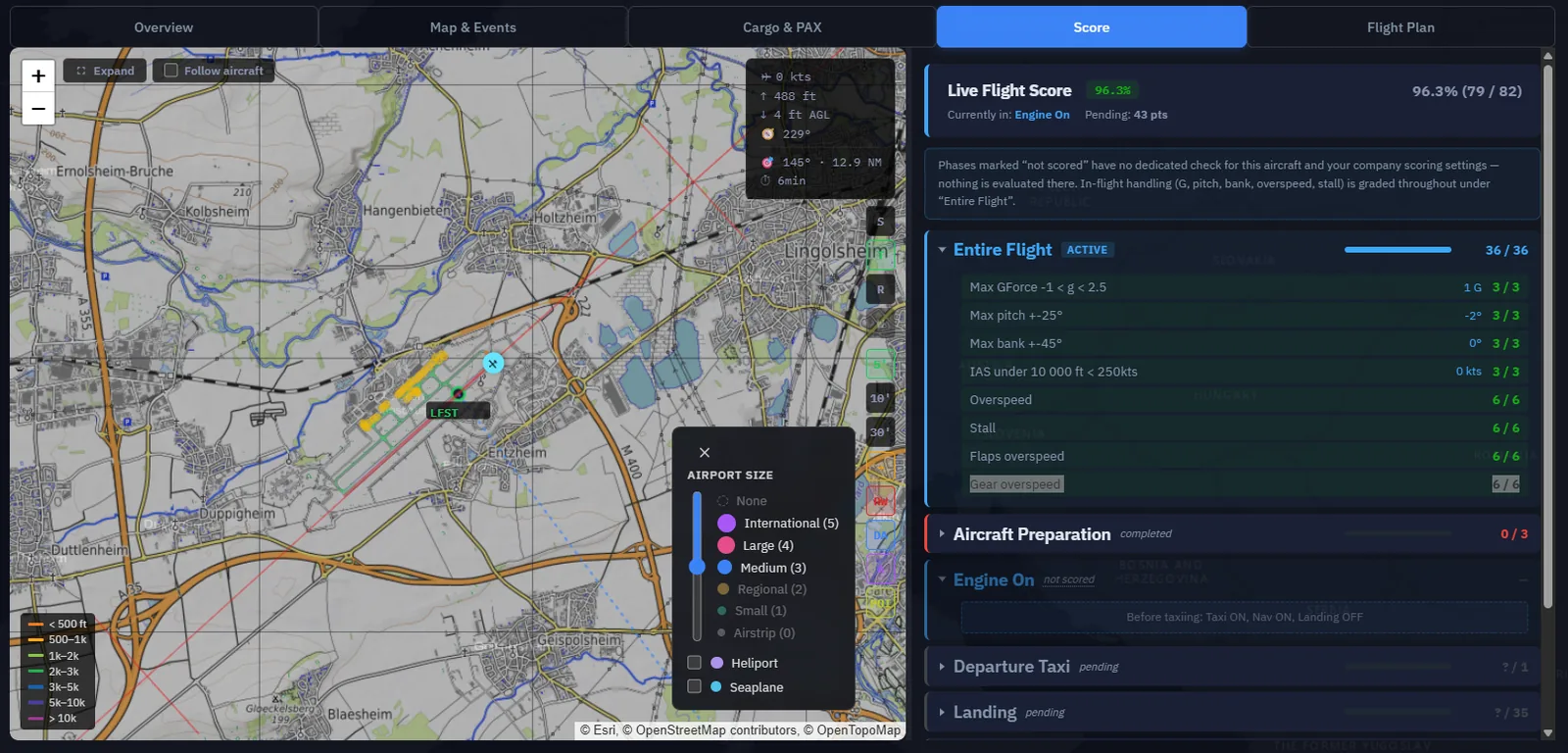
D. Reaching the tracker from any page — the Tracking pill
You don't have to stay on this page. As soon as tracking starts, an orange pulsing Tracking pill appears in the top bar. It is visible on every page — Pending Jobs, Freelance Job, Operations Map, Settings, even the lobby if you relaunch mid-flight.
- The pill's label reads "TRACKING IN PROGRESS · <PHASE>" with the color matching the current flight phase.
- One click takes you back to the Flight Management page in tracking view — the dispatch form is left untouched in the background.
- The pill is disabled while you're already on the tracking view, and disappears when the flight ends (Register, Cancel, Abort).

The Companion talks to you — watches & warp
Three in-flight assists run quietly in the background:
- Warp banner — MSFS, FSX, and X-Plane let you accelerate sim time. When simRate > 1, a yellow warp banner shows the current rate and the real-clock time left to destination. Freelance-category flights are exempt from the server's delayed-credit warp rule. For eligible non-Freelance flights with simulator time enforced, acceleration beyond the tolerance can hold the aircraft in Warp and delay pay and XP until the real-time gap is closed. The banner clears at 1×.
- Weather watch — if the destination METAR degrades while you're in cruise (VFR → MVFR → IFR…), the radio voice announces it, once per downgrade. No more discovering the fog on final.
- Deadline watch — if the soonest cargo/charter deadline on board approaches, you get spoken T-30 and T-10 minute reminders. Time-constrained loads stop being a surprise.

Sim paused / menu — your tracker is frozen, not interrupted
When the sim reports a pause, an active pause, or a menu / loading screen, the Companion freezes the tracker rather than interrupting it. Phase detection, max-value trackers, and elapsed time hold in place until you unpause. A short low chime plays when the pause starts, a high chime when it ends (mutable in Settings → Sound & Voice). On unpause the tracker resumes exactly where it was — no phase reset, no event re-fire.
Pause detection is most reliable on MSFS; on FSX it falls back to detecting a frozen sim rate, and X-Plane has no pause badge for now.
In-Flight Emergencies — when the cabin calls
Every so often — and only when the conditions are right (airborne for a while, passengers on board, still far from destination) — the cabin may call the cockpit: a passenger is unwell, a medical situation is developing. It plays out like this:
- A cabin chime rings, and the cabin crew speaks the situation over the radio voice.
- A banner + a modal describe the emergency and suggest a diversion airport nearby.
- You decide: divert to the suggested (or any) airport, or press on to destination.
The outcome appears in the debrief. There is no direct XP or money penalty simply for pressing on. A qualifying medical diversion on a Standard or Freelance flight can instead earn a separate flat XP bonus: the server requires an actual arrival different from the intended destination, at least 30 NM from the declaration point, and a reaction time of 3 to 180 minutes. Its reward calculation is bounded between 25 and 75 XP; not every diversion qualifies. Cargo delivery and deadlines still follow their own mission rules.
Emergencies are off by default and require an explicit opt-in. The toggle and a frequency slider live in Settings → Flight Sim → In-Flight Emergencies (the Daily Tools reference).
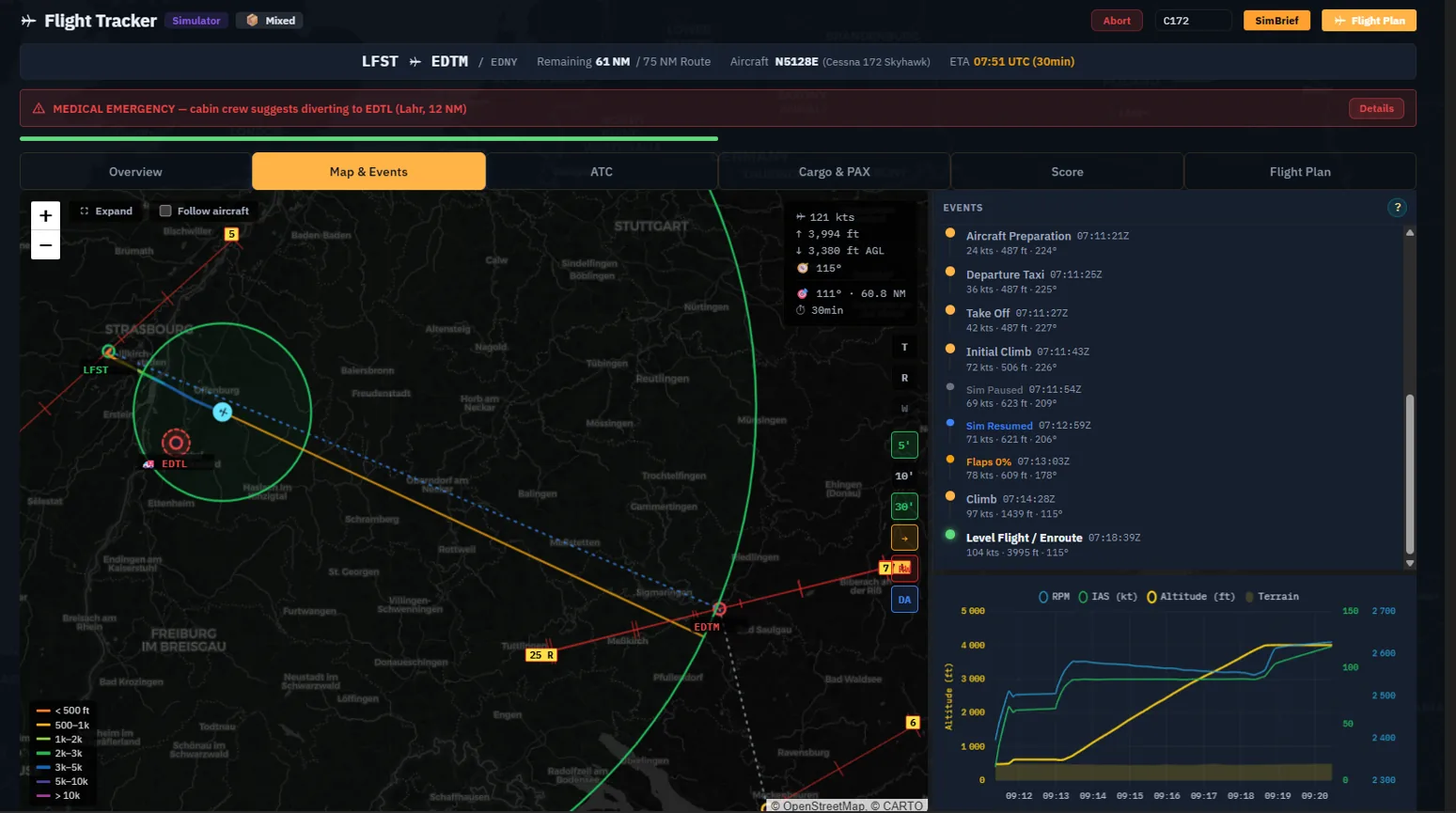
When tracking gets interrupted
The Companion continuously re-checks (about once per second) that your flight stays "clean". These checks can trigger an automatic interruption:
| Detection | What the Companion does |
|---|---|
| Slew enabled | Immediate interruption with a "Slew detected" message. |
| Unlimited fuel enabled | Immediate interruption — turn it off in the sim's realism options. |
| Aircraft model changed | Immediate interruption (a different aircraft was loaded mid-flight). |
| Fuel jumped (beyond tolerance) | Immediate interruption — protects against mid-flight refuels. |
| Payload jumped | Immediate interruption — protects against mid-flight payload edits. |
| Sim time jumped (> 30 min forward or > 1 min backward) | 3 auto-resync attempts, then interruption if the sim keeps drifting. |
When an interruption fires:
- A red banner displays the reason above the tracking view.
- The view switches back to the conditions panel so you can see which check broke and fix it sim-side.
- Your last known position is memorized so a Resume can put you back where you were.
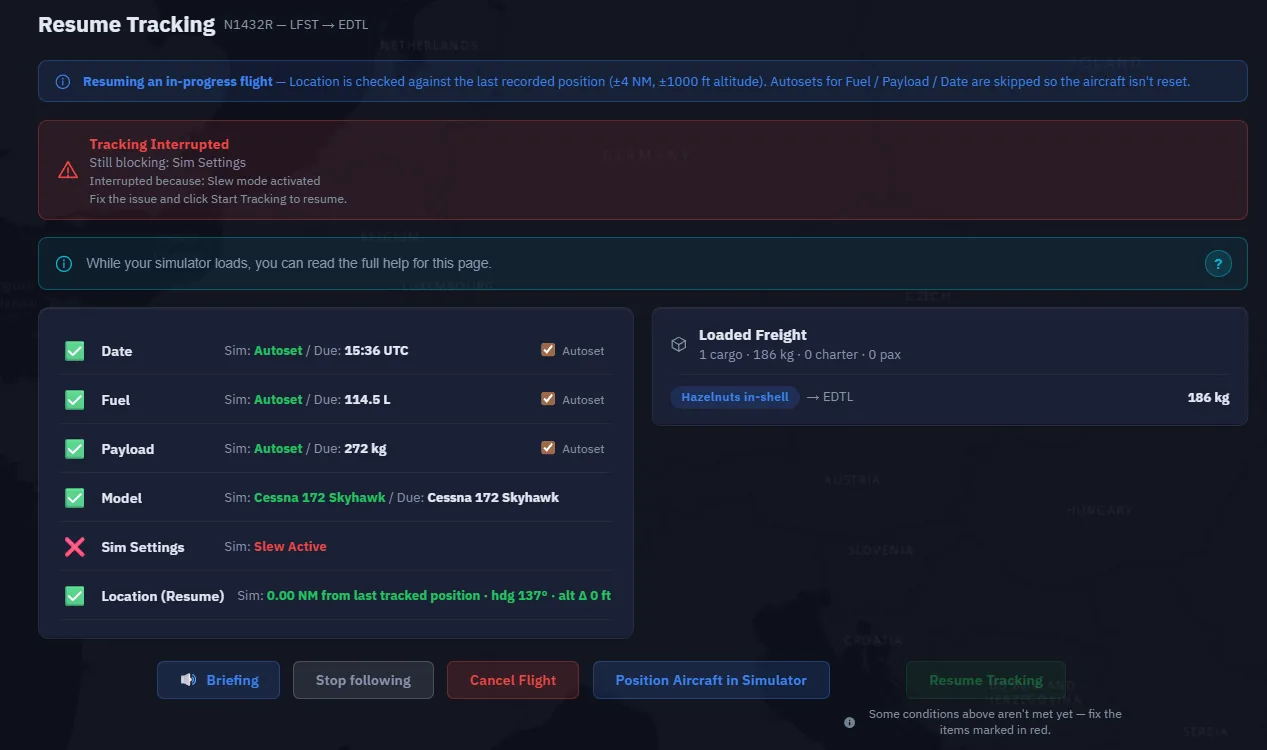
A crash ends the flight — On worlds with crash detection, crashing the aircraft doesn't "interrupt": it cancels the flight automatically. There's nothing to resume — the mission goes back to pending and you'll dispatch again.
Resume tracking after an interruption
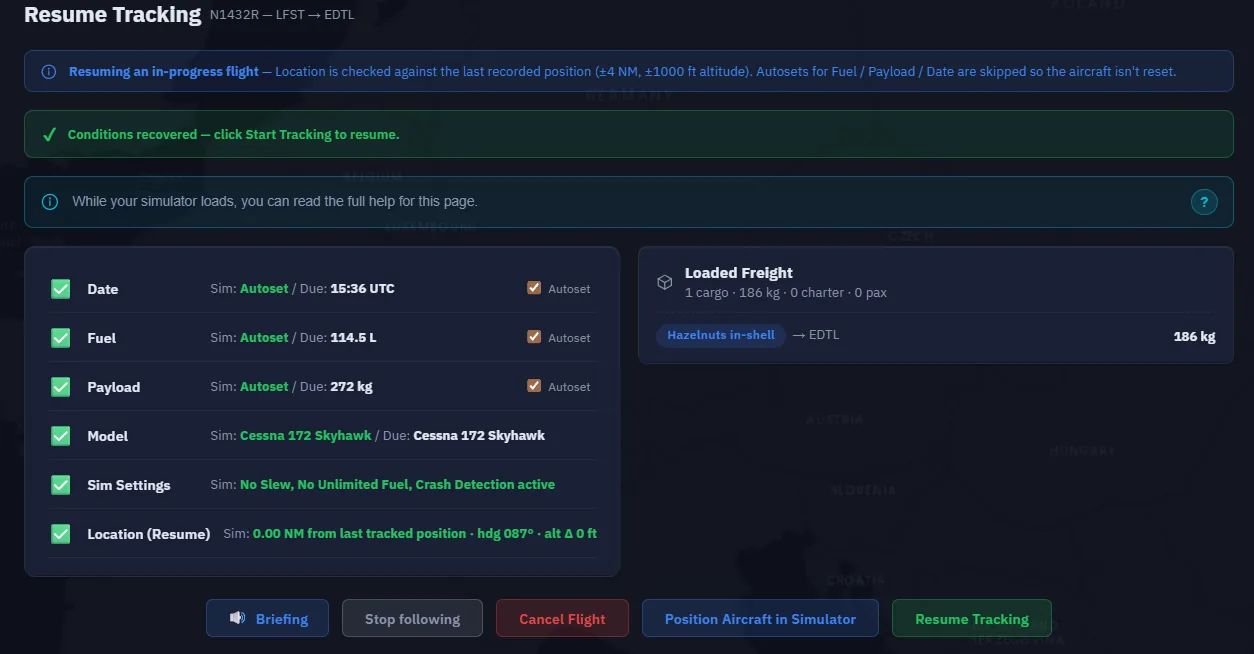
- Fix the issue on the sim side (disable slew, reload the right aircraft, undo the refuel…).
- The conditions panel turns green again.
- Click Resume Tracking — the flight continues from the phase it was in. No phase reset.
- If you were airborne, Position in simulator uses the last known position (not the departure airport) to put you exactly where you were.
Resume after a crash or restart
The Resume above handles a running interruption. Different case: the sim crashed, or you closed and relaunched the Companion mid-flight. The in-memory tracker is gone — but your events were persisted to disk every second.
On the next launch, the Companion detects the orphaned flight and shows a Resume Tracking banner on the Dashboard:
- Resume — rebuilds the in-flight state from the events file (phase, max values, fuel snapshot, last known position) and takes you straight back to the Tracking view. The trail on the Map tab is reconstructed too.
- Discard — drops the orphaned flight and frees your dispatch slot.
Tip — Relaunch the sim first if it crashed, then the Companion. The Resume flow expects a live sim connection so it can reseat you at the last known position.
The flight is complete — Register
Land, taxi off, shut down — when the tracker reaches EngineOff, a full-width green pulsing Register banner replaces the tracking actions. One click sends everything to the server.
In a hurry on arrival taxi? The End & Register Flight button appears once you're taxiing on the ground at low speed: it injects the engine-off event and chains the registration automatically — one click total, no second step.

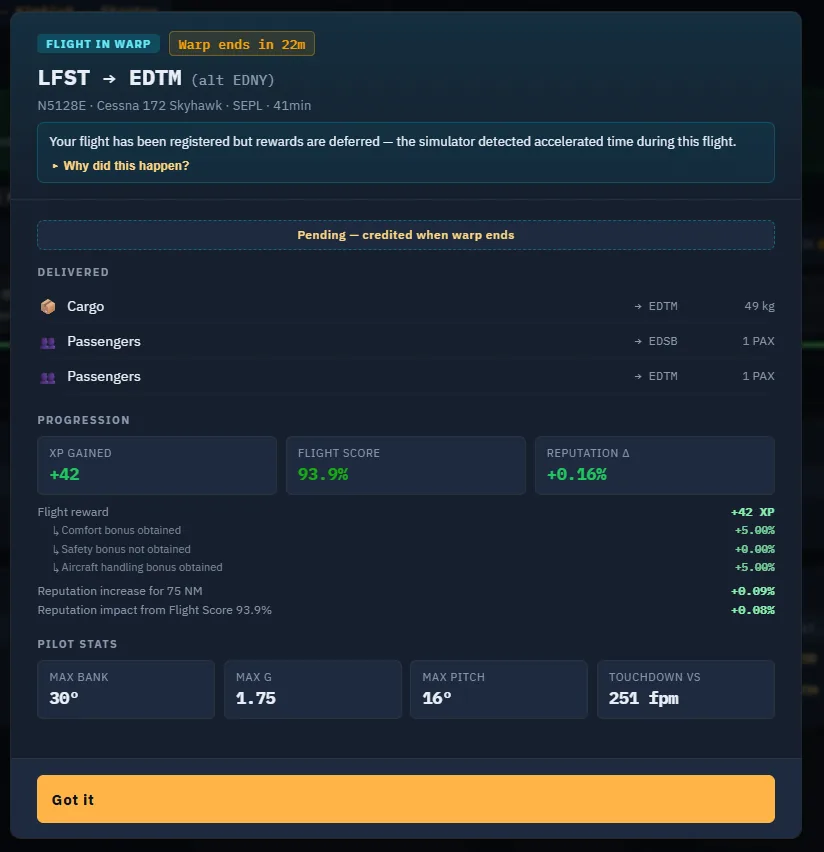
What happens under the hood: the Companion snapshots the aircraft (remaining fuel, condition, position), assembles the flight's performance metrics (max bank, max G, landing rate, exceedances) and your flight score, zips the event log, and sends it all to the server, which credits pay and XP, unloads the cargo/pax, and completes the missions whose full load you delivered.
The debrief then recaps:
- Pay credited — plus the on-time rank bonus on a Regular Route leg.
- XP gained — with itemized bonus lines when you earned them: soft landing, IMC conditions, short runway, flight-score bonus, airport boost…
- Reputation impact — on-time and complete deliveries push it up; lateness and incidents pull it down.
- Flight score — the final mark from the Score tab.
- Missions completed — and, for multi-leg missions, how many legs remain.
The freelance aircraft disappears — Once the mission is completed, the loaned freelance aircraft is deleted server-side; it leaves your fleet at the next refresh. For multi-leg Regular Routes, the aircraft is kept between legs and only deleted at the end of the schedule.
Tricky cases — what to do if…
| Situation | Action |
|---|---|
| The sim crashes mid-flight | Relaunch the sim, then the Companion. The Resume Tracking banner in Resume after a crash or restart restores the flight from the on-disk events. |
| You close the Companion but not the sim | Same — relaunch the Companion. The tracker reconnects and rebuilds the trail from the events file. |
| You crash the aircraft | On crash-detection worlds the flight auto-cancels — the mission returns to pending. Dispatch again when ready. |
| You want to divert | Land at a suitable airport and register. Review the debrief and the remaining delivery legs: a diversion does not by itself complete loads bound elsewhere. Continue their delivery and check their deadlines. The medical-emergency bonus has its own qualifying conditions described above. |
| You landed at the wrong airport by mistake | Register the actual flight, review the result and plan onward delivery for loads still pending. Do not assume every diversion carries the same penalty. |
| You picked the wrong aircraft or mission at dispatch | Cancel Flight from the conditions panel as long as you haven't pushed the throttle. Once airborne, land and register (or divert). |
| You toggled slew by accident | Disable slew, then Resume Tracking from the conditions panel. |
You now know how to…
- Follow your flight via the Overview, Map, Score and OFP tabs.
- Reach the tracker from any page through the top-bar Tracking pill.
- Read the warp banner, and let the weather and deadline watches talk to you.
- Handle an In-Flight Emergency — divert or press on, and tune the feature in Settings.
- Use the sim's pause safely — the tracker freezes and resumes without losing state.
- React to an interruption (slew, unlimited fuel, fuel/payload jump, model swap, time jump) and recover after a crash or relaunch.
- Register with one click — including the End & Register taxi shortcut — and read the full debrief (pay, XP bonuses, reputation, score).
➡️ the Daily Tools reference — Daily tools — Operations, World, Settings
Still stuck? Ask on Discord or open a support ticket.