Generate Recurring Jobs from Your FBO
Once an FBO is operational, its Logistic Queries can bring back work suited to a chosen area and load profile. A query produces offers; you still inspect, accept and dispatch them. This exercise uses the existing OnAir Company Base at EGPO, while the new EDHL facility from Chapter 12 remains under construction.
Step 1. Open the operational base
In My FBOs, choose the base's Configure FBO action, then Logistic Queries. Confirm the airport in the page heading. Read any construction or skill gate before changing a query.
Our example has one slot, Q1. The current screen identifies FBOs Agreement as the skill that increases slot availability, with levels providing 1, 3, 5, 8 and 10 slots. Read the actual skill description in your company before spending points. Additional query output depends on separate capabilities shown by the preview.
Step 2. Define a modest operating area
Choose direction and range before the load. We set SE, 50–200 NM, airport sizes 2–5, cargo 0–0 lbs, passengers 1–2, and preferred seats Eco.
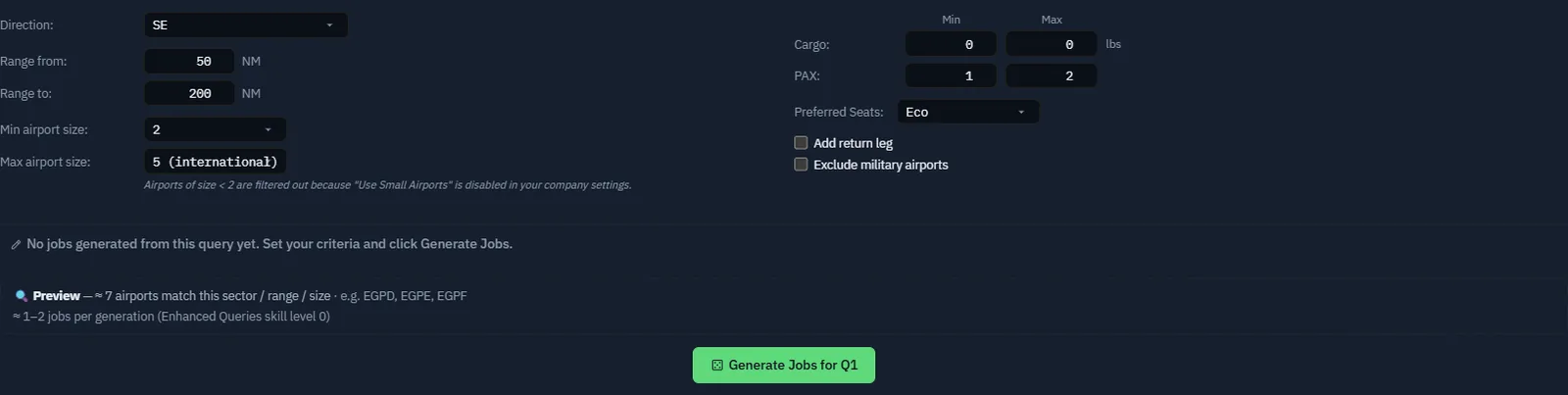
Other directions target selected FBOs or owned FBOs within range. Use those when a deliberate network exists. Check return-leg and military-airport settings individually. A company setting can also exclude small airports even if the query's size fields appear broad enough.
At least one cargo or passenger bound must request work. With all four values at zero, the screen warns that the server will not generate jobs. Avoid combining an extremely narrow sector, distance and size range before checking whether any airports match.
Step 3. Read the preview and save
The example preview finds approximately seven airports, including EGPD, EGPE and EGPF, with an estimate of one to two jobs per generation at the current Enhanced Queries skill level.
Use Validate to save the edited slot. Check that the unsaved-changes indication disappears. The preview helps identify impossible or narrow criteria; it is not an accepted mission or a guaranteed result count.
Step 4. Generate once and read the cooldown
Choose Generate Jobs for Q1 when available. Our actual generation returns one mission and places Q1 on cooldown, displayed as about 4 days 21 hours at capture time.
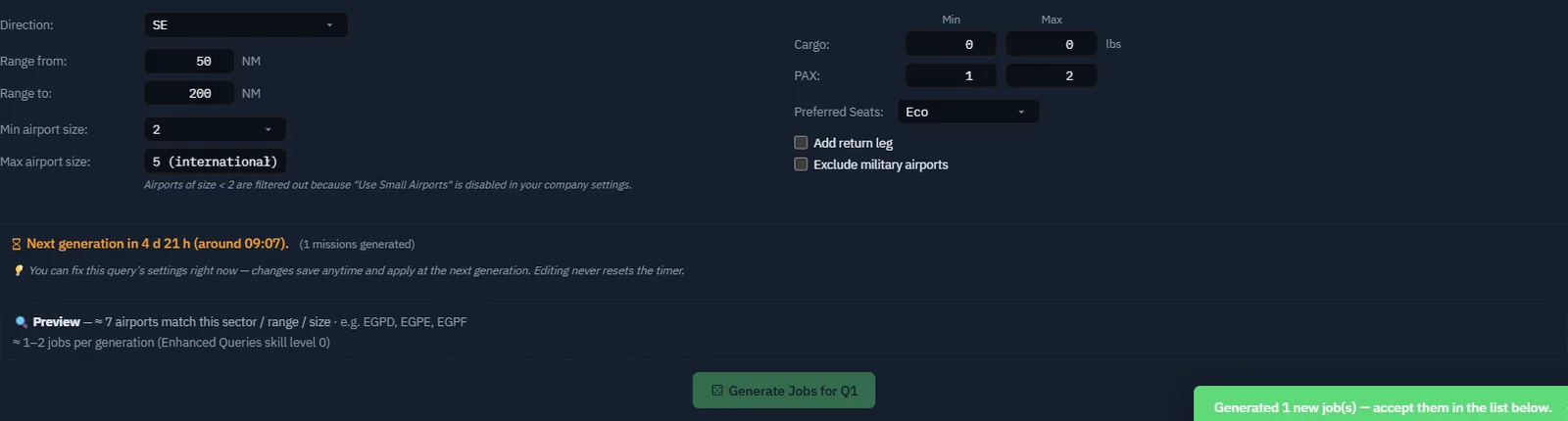
Read the current per-slot timer instead of assuming every slot refreshes on the same schedule. Avoid repeated clicks while a generation is processing. For an empty result, inspect the preview, bounds, airport exclusions and server message before concluding the feature is unavailable.
Step 5. Inspect the generated offer in Company Jobs
Use Open in Company Jobs. Confirm the FBO Jobs source and the intended base. Generated work waits here for acceptance; accepted work moves to Pending Jobs.
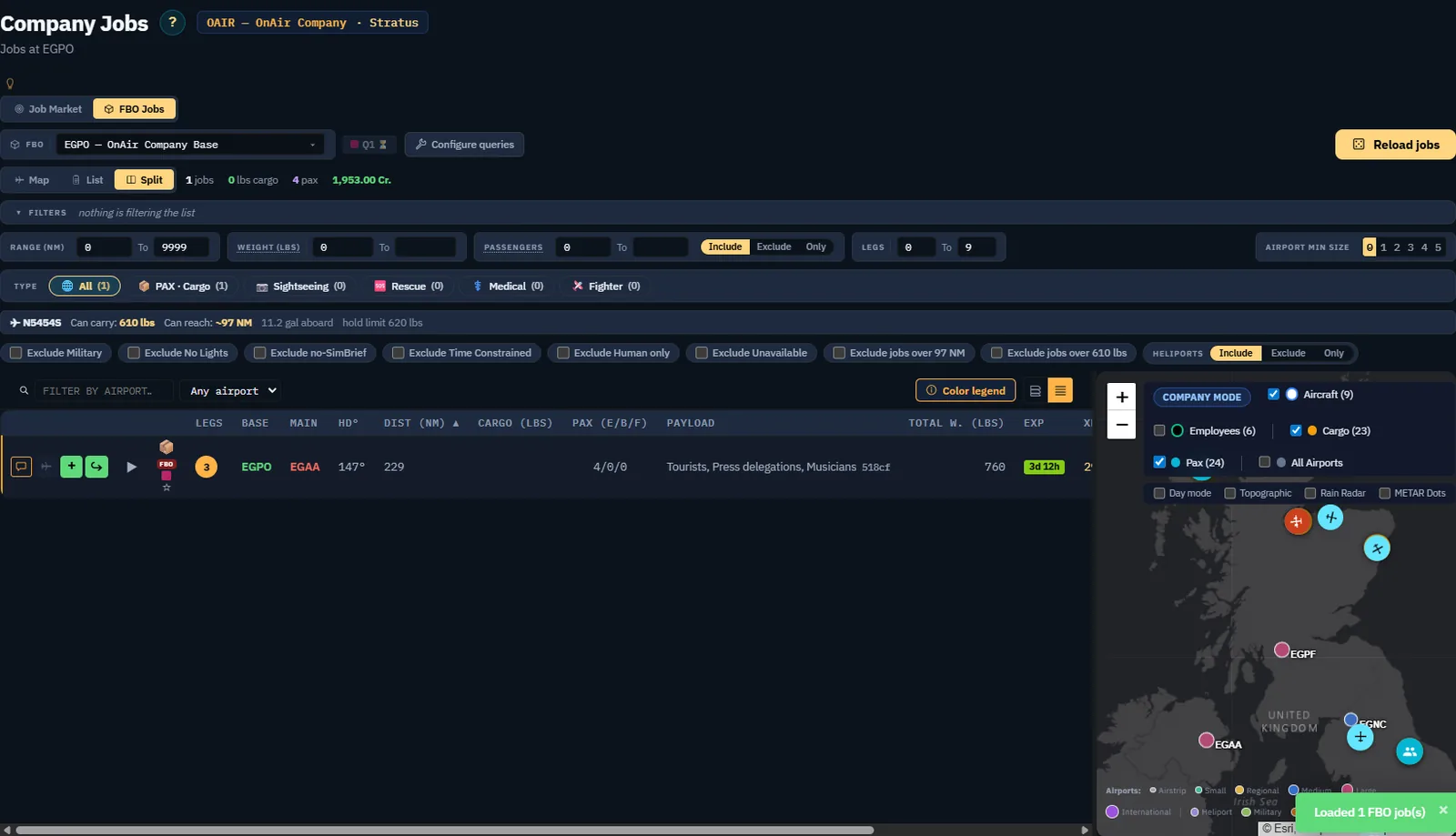
This is a useful result to inspect precisely because it differs from the simple query preference. The list shows three legs, a 229 NM distance and four passengers in aggregate. Expand the legs and inspect their individual loads, airports and deadlines before deciding whether any aircraft can operate the complete mission.
The retained N5454S filter also shows its current fuel/range assumptions. A mission remaining visible is not proof it fits those limits: review which exclusions are enabled, then validate the actual dispatch. We did not accept this generated offer, because the purpose here was to demonstrate generation and screening rather than add a multi-leg commitment to the first-flight exercise.
Step 6. Accept only work you can operate
For a suitable offer, use Add to pending jobs or Take job & fly, as in Chapter 8. Inspect the whole mission, not just the first leg's payment. Account for the aircraft's position, crew, passenger classes, fuel and deadline on subsequent legs.
Screenshot placeholder FQ06 — suitable generated job accepted and dispatched. Choose a genuinely compatible offer after inspecting every leg. Capture the expanded offer, its acceptance in Pending Jobs and the resulting dispatch. If a different aircraft is used, identify it explicitly and explain the change from the Cessna example.
Step 7. Keep regeneration under control
The Query Assistant can notify or regenerate while Companion is open. Regeneration replaces leftover offers from the query except those marked to keep with the star in Company Jobs. Understand that behaviour before enabling automatic regeneration or using Generate all ready.
Assign a clear purpose to each additional slot instead of duplicating every criterion. After actual operations, compare the generated work with your fleet's practical capacity and adjust the next request.
Screenshot placeholder FQ07 — completed recurring operation. After real flights, capture delivery and payment for the same accepted FBO mission, then document any change made to its query for the next cycle. Keep generation, acceptance and completion as three separate milestones.
The next chapter uses work orders to organise multiple legs and loading actions. A work order cannot make an unsuitable generated mission fit an aircraft; perform that screening first.
Additional views: FBO jobs and facilities
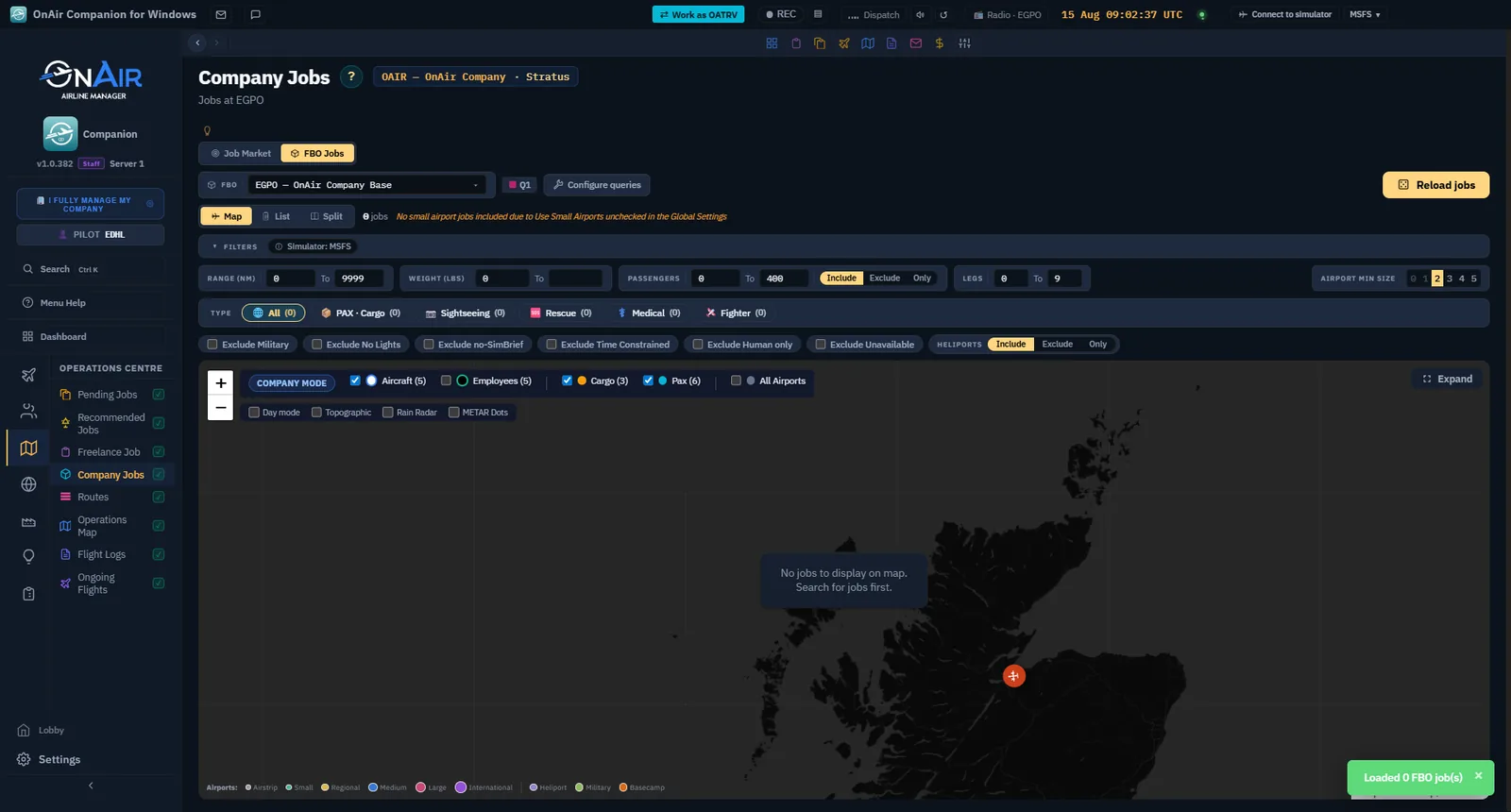
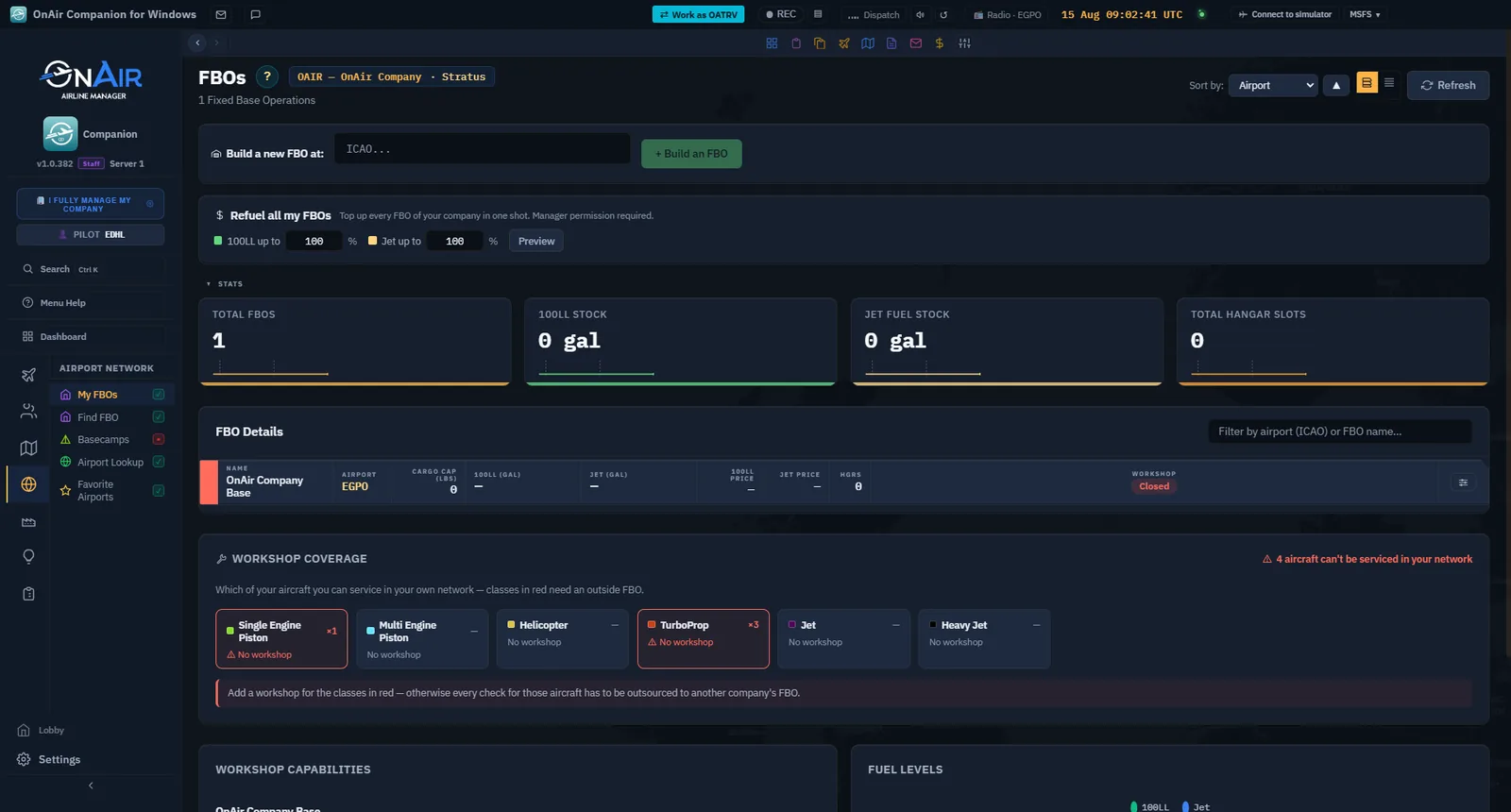
These earlier views complement the FBO exercise. A filtered or empty result is an observed state, not proof that a query has generated jobs.