
Hire and Organise Your First Crew
Your first company job can use your own pilot. Hiring becomes useful when you want another pilot available, or when an aircraft needs additional crew. Check your world's rules before building a plan around AI flights: availability of an employee does not by itself authorise every kind of operation.
Step 1. Decide what the next flight needs
Start with the aircraft and departure airport, not the longest list of certificates. Our tutorial Cessna N5454S is at EDHL and needs a pilot qualified for SEPL. We do not add a copilot or cabin crew to this small exercise. Larger aircraft may need both; check their requirements in dispatch before hiring.
Read your existing roster first. A qualified employee already at the right airport may avoid a new recurring commitment. Your own pilot also remains an option for a simulator flight.
Step 2. Evaluate a candidate
Open Employee Management, choose Hire, then use Crew Market. This market recruits people; it is different from the Job Market source on the Company Jobs page.
Use Evaluate on a suitable candidate. Read the role, certificates, flight experience, punctuality, stress resistance and contract terms. Compare the guaranteed weekly amount and the flight-hour rate. A cheap hourly rate alone is not enough to choose a contract.
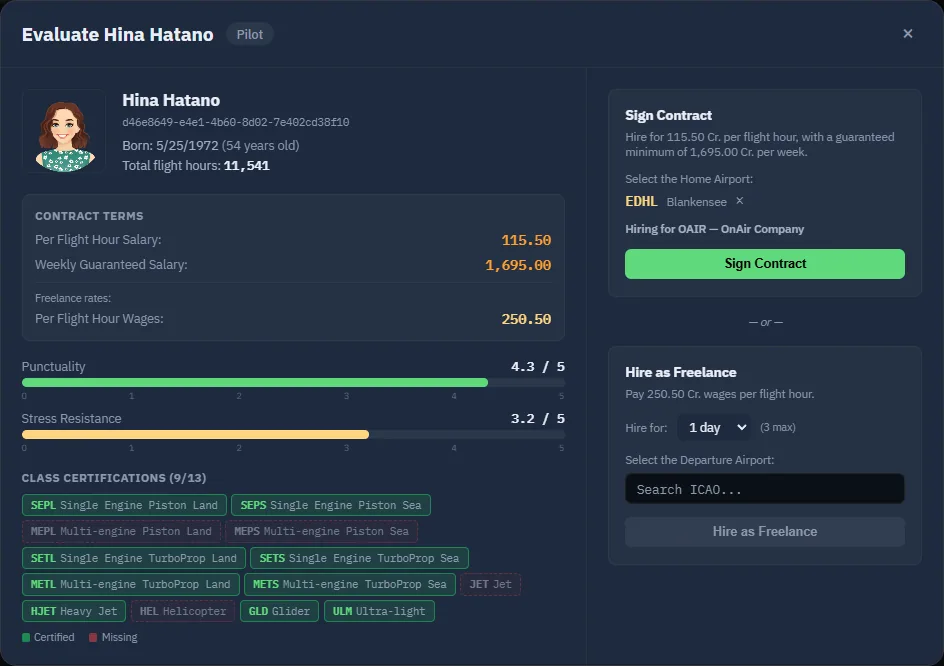
The evaluated permanent contract showed 115.50 Cr. per flight hour and 1,695 Cr. weekly guaranteed. Keep the two labels distinct when budgeting; do not describe the guarantee as a one-time hiring price. Review the alternative Freelance terms separately if considering temporary employment.
Step 3. Set the home airport and sign
For this exercise, select EDHL as the home airport and verify the airport suggestion before signing. Sign Contract commits the company to the displayed employment terms.
We actually hired Hina on 10 September 2026. After returning to Employee Management, select the new employee in the left-hand list; the previous employee can remain selected after hiring.
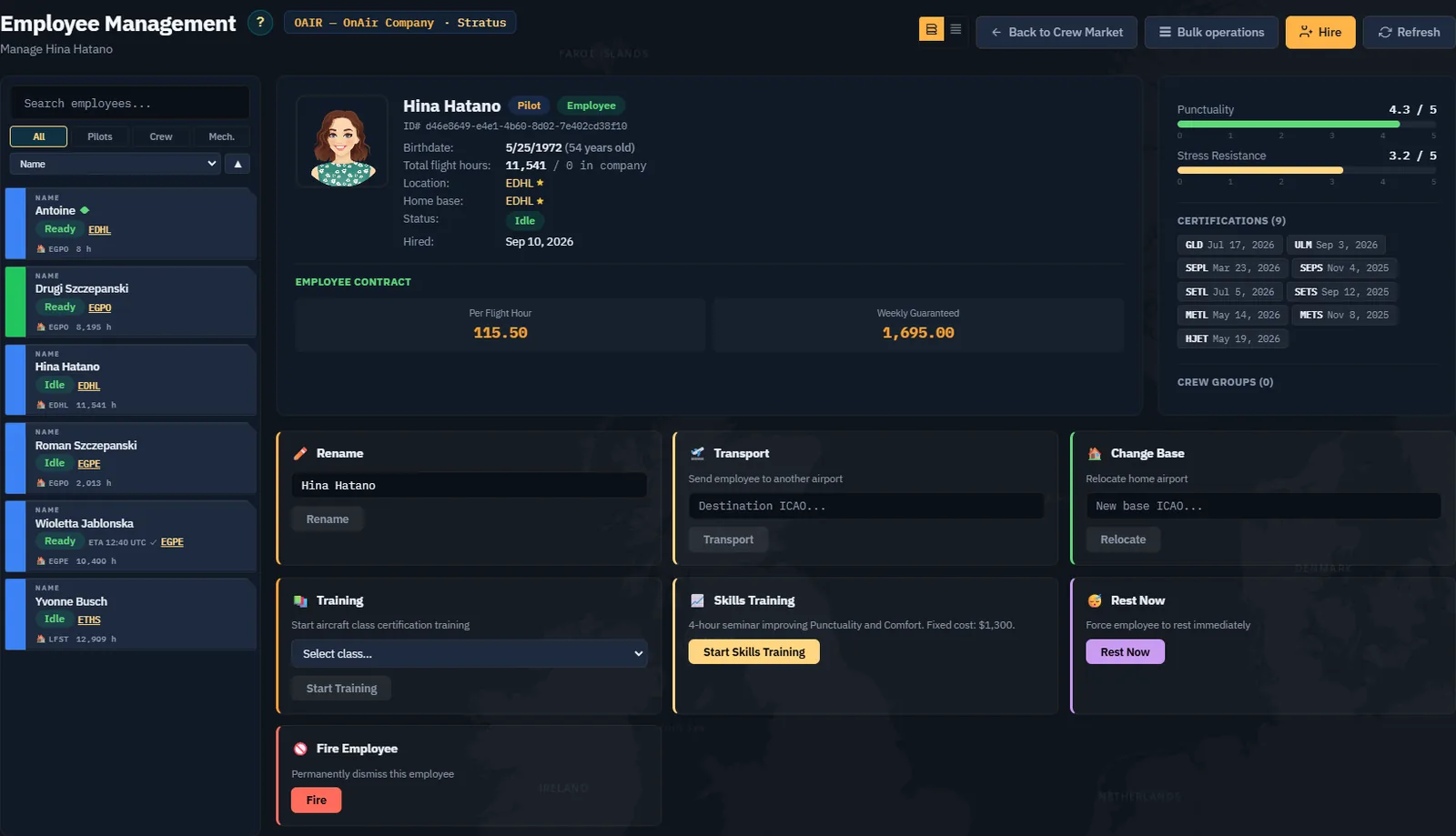
Checkpoint: the roster contains the intended person, contract, certificates and airport. A successful confirmation alone is not the full check.
Step 4. Resolve location and availability
Compare the employee's actual location with the aircraft's departure airport. Our example needs no transport because both are at EDHL. If yours differs, use Transport, select the destination, and read the quotation and arrival time before confirming. Wait for arrival before planning the person as available there.
Inspect status as well as location. A person who is resting, travelling, training or already busy is not interchangeable with an idle person at the aircraft. Change Base changes the home airport; do not assume it instantly transports the employee to the next flight.
Use certificate training when a required class is missing. Read its terms and duration and allow for the absence. Skills training serves a different purpose from aircraft-class certification. Neither should be started merely to dismiss a dispatch warning whose cause has not been identified.
Step 5. Save a reusable crew group
Open Crew Groups, enter a recognisable name and choose Create. We created Academy C172, chose Hina as Pilot, and selected N5454S as Preferred Aircraft. Copilot and cabin-crew fields remain empty because they are not needed for this example.
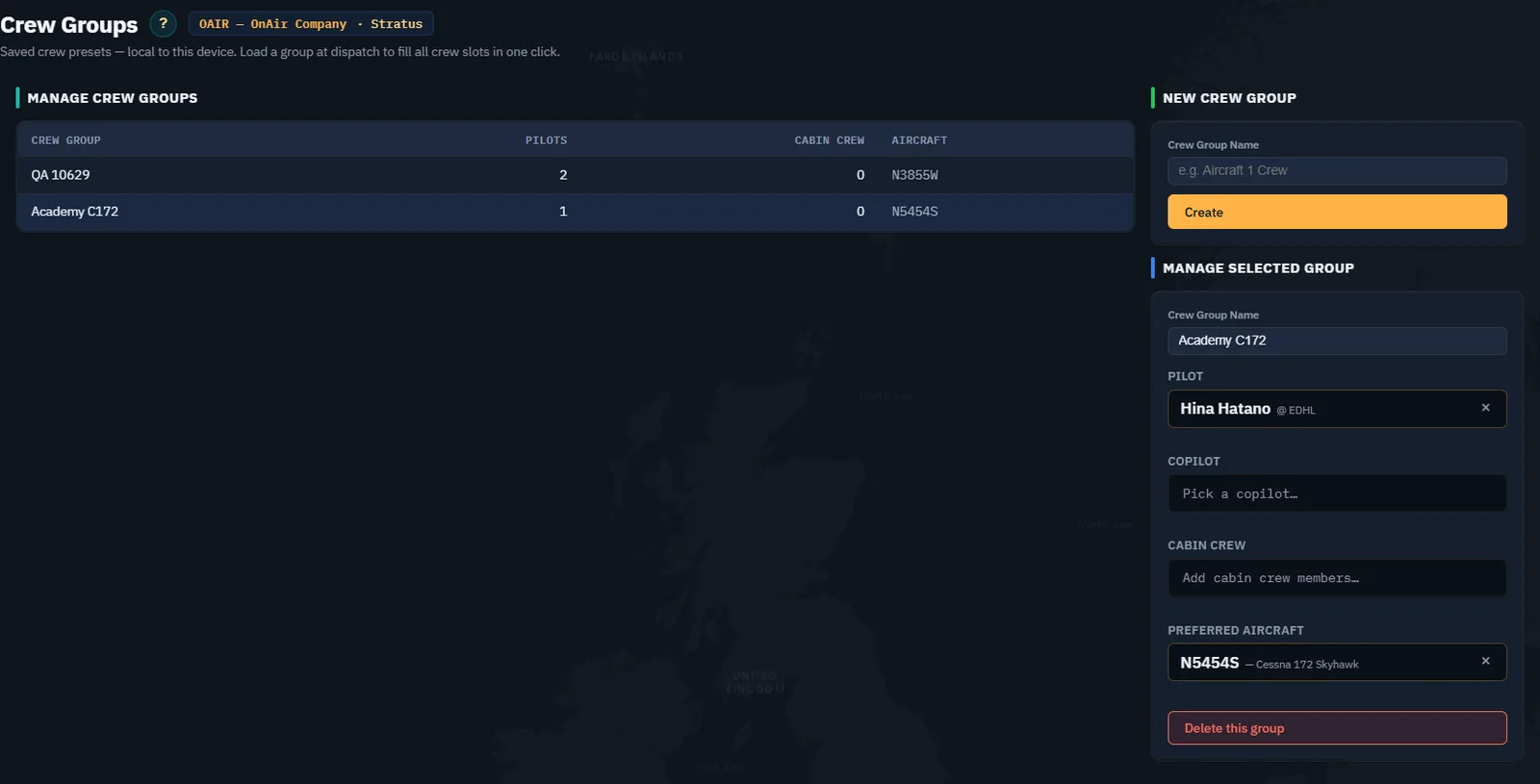
Load the group when preparing an appropriate dispatch, then recheck every person. A saved group cannot make an absent employee present, restore duty availability, or supply a missing certificate. On another device, do not assume the preset exists automatically.
Step 6. Validate the actual flight
In dispatch, verify the selected aircraft, crew names, locations, qualifications and available duty/rest information. Recheck weight after changing crew: people contribute to the aircraft's load. Keep the player pilot selected for the simulator exercise in Chapter 8 unless deliberately preparing a separate AI operation supported by your world.
Screenshot placeholder CR04 — first operation with the hired pilot. When an appropriate real operation is ready, capture dispatch with Hina selected, the complete crew validation and the actual start action available in that world. Then capture the flight's resulting status. Do not label a saved group as a completed assignment or substitute a player flight as proof of AI operation.
Step 7. Review after the operation
Return to Employee Management after the flight. Check location, status and flight hours. Before scheduling the next leg, account for rest and repositioning. Do not repeatedly force rest or transport as a substitute for reading a blocking message.
Screenshot placeholder CR05 — post-flight availability. Capture the same employee after the operation, including changed location and duty/rest state. Add the flight reference so readers can follow the transition from CR04.
You are ready to continue when you can identify a qualified, available crew at the aircraft and explain the recurring cost of retaining them. The next chapter applies the same readiness check to the aircraft itself.