
Work with a Virtual Airline and Partner Companies
Cooperation becomes easier after you can dispatch and account for your own company's activity. Before taking shared work, establish whose aircraft, employees, jobs and money you are using.
Step 1. Inspect membership and roles
Open the VA console. Our example uses the existing OA Roles Test VA, code OATRV, with OAIR as its one founder member.
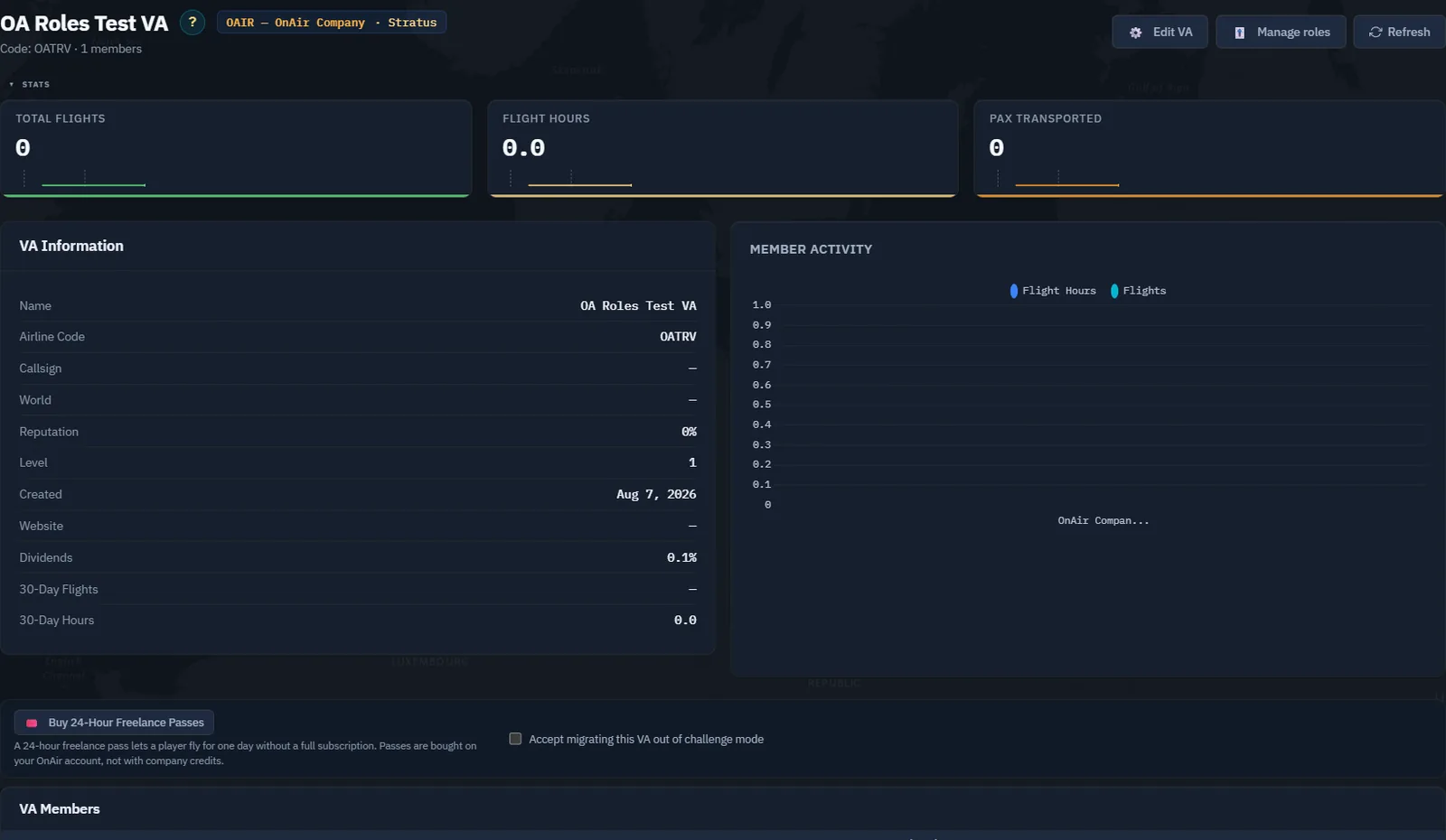
If not already a member, inspect the available VAs and their requirements before applying. Creating a VA is a separate company-management commitment with starting equity; joining an existing one does not require creating a duplicate organisation.
Step 2. Identify the operating company
For roles that permit it, Work as switches operations to the VA. Read the visible company indication before each purchase, hire, job acceptance or dispatch. In VA context, assets and expenditure belong to the VA rather than automatically to your personal company.
Return to personal-company context before continuing the personal Cessna exercise. Never infer the payer from the aircraft's familiar registration alone.
Screenshot placeholder VA02 — authorised VA operating context. When ready to perform a real VA operation, capture the Work as indicator, the VA-owned aircraft and dispatch. Show the return to the personal company afterwards. No shared expenditure is demonstrated here.
Step 3. Check permission to use assets
Inspect your role and the aircraft/employee permissions granted to your membership. A listed aircraft is not necessarily one you may use. Ask the VA's manager to resolve access rather than changing another member's allocation while troubleshooting.
For administrators, role pay models and job-loading permissions need deliberate configuration. Read whether a figure is a percentage, hourly amount or weekly amount. A value of 10 in a percentage field represents 10%, not ten credits.
Step 4. Follow assigned work
A dispatcher may assign a VA job to a member. Check its assignment and loading restrictions before dispatch. Verify aircraft, crew, load, fuel and registration just as for a personal-company job.
Screenshot placeholder VA04 — assigned job completed. Capture a genuinely assigned VA job, permitted loading, actual flight registration and resulting VA activity. A personal-company flight is not evidence of a VA flight.
Step 5. Inspect partnerships separately
Open Partnerships. The company has no active partners in this capture; the Received tab shows one item requiring inspection by the owner if relevant.
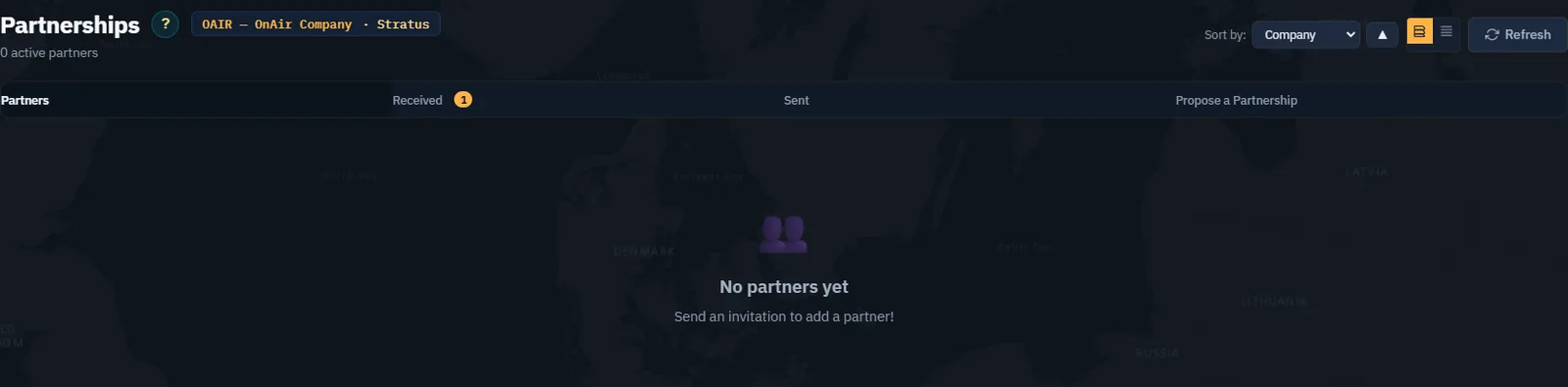
A partnership is an agreement between companies in the same world. It is separate from VA membership. Read the current available features and terms; this area is still evolving.
Step 6. Send invitations only when intended
Use Company Lookup to identify the right company before proposing a partnership. Verify the airline code, world and any accompanying message. Sending an invitation contacts another operator; it is not a private draft action.
Screenshot placeholder VA06 — agreed partnership. With the owner's explicit approval to contact the chosen operator, capture the prepared invitation, sent status and eventual accepted relationship. No invitation or message has been sent for this tutorial.
Step 7. Review shared obligations
Check outstanding assigned jobs, role payments and shared asset availability regularly. Leaving a VA, removing a member or dissolving a partnership has operational consequences. Keep those actions outside the first cooperation exercise unless there is a real reason and the appropriate authority.