
Move Industrial Goods to Where They Are Needed
Industrial stock belongs to a location. This chapter follows the decision from goods already owned to goods usable at their destination. Buying something does not automatically deliver it to your factory.
Step 1. Identify the stock and destination
Open My Goods, find the merchandise and read quantity, unit weight, total weight, airport and Location. Use the airport/material filters to isolate the intended row. Our company holds a historical unit of Aluminium Parts at KTUS and the newly bought rations at LFPT.
Do not move the ration reserve away from LFPT while provisioning that factory. We use the older Aluminium Parts row only to inspect a transport quote.
Step 2. Compare ground transport with flying
For goods at an airport, choose Transport to inspect truck/boat transport. Enter the exact destination and quantity. The example quotes moving one Aluminium Parts unit from KTUS to KPHX at approximately 512 Cr. and 5.3 hours.
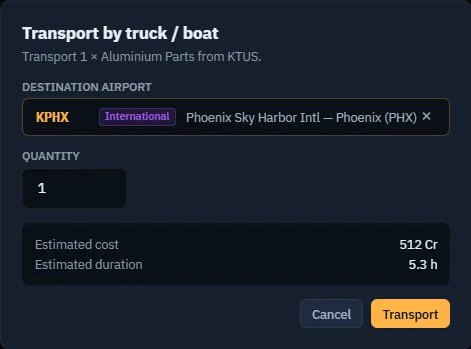
Compare the quote with the whole cost of flying, including any aircraft repositioning. A ten-pound item does not automatically justify a dedicated flight. Conversely, a time-sensitive or inaccessible destination may need a different solution.
Step 3. Confirm and track an actual transfer
When the quote suits a real requirement, confirm Transport. Check that My Goods shows the resulting transit status and destination. Treat goods as unavailable during transit; wait for arrival before using them for construction or promising them as already delivered.
Screenshot placeholder GT03 — completed ground transfer. For a genuine material requirement, capture the accepted quote, in-transit row and arrived stock. Include timestamps and quantity. The KTUS quote above is not proof of a completed transfer.
Step 4. Prepare an aircraft shipment
To fly the goods, select an aircraft at their airport and prepare dispatch. Ensure the relevant factory-goods visibility setting is enabled. Select the actual merchandise or generated transport mission and inspect its quantity and weight in the load.
Check fuel and aircraft limits with crew aboard. Larger industrial units can exceed a Cessna's capacity even when only one unit is requested. Split quantities only when the interface supports it and the unit itself fits; do not assume one heavy unit can be divided into arbitrary lighter parcels.
Screenshot placeholder GT04 — goods loaded for flight. Capture the stock before loading, dispatch with the selected industrial goods, aircraft registration and full weight check. Use a larger suitable aircraft if required and explain why the Cessna exercise no longer fits.
Step 5. Fly and register normally
Complete simulator tracking and registration as learned in Chapter 3. For an AI operation supported by the world, follow the actual server flight status. A route preview, saved work order or selected cargo does not prove transport occurred.
Screenshot placeholder GT05 — actual freight flight. Capture tracking, arrival and accepted registration for the same shipment. Keep this placeholder until a real flight has been performed.
Step 6. Make goods available after arrival
Return to My Goods and inspect Location. If goods remain aboard the parked aircraft, use the appropriate Unload or Deboard action. Verify the intended quantity is at the destination airport, then check the factory's resource panel or the customer's contract progress after a normal server update.
Screenshot placeholder GT06 — arrival to usable stock. Show the aircraft-held row, unloading/deboarding and resulting ground stock or automatic contract delivery. Explain where the goods went if the server immediately consumed them for a contract.
Step 7. Automate only a proven movement
After completing one shipment, consider a work order or a factory output transport mode. Verify destination, threshold and capacity and decide whether a missing load should make the aircraft wait. A saved automation must preserve the same physical location and weight checks as the manual operation.