Complete Your First Company Job
Your aircraft is ready at its starting airport. Now choose one mission you can complete with it. Unlike a Freelance charter, this job does not supply the whole operation: your company provides the aircraft, pilot and fuel and carries the operating costs.
Step 1. Search from the aircraft
Expand your aircraft in Fleet and choose Find Jobs. Check the resulting Company Jobs page: the departure airport, From direction, Job Market source and aircraft filter should match your intention.
Our example uses the newly purchased Cessna N5454S at EDHL. It is a small first exercise; do not buy another aircraft if a suitable one is already available.
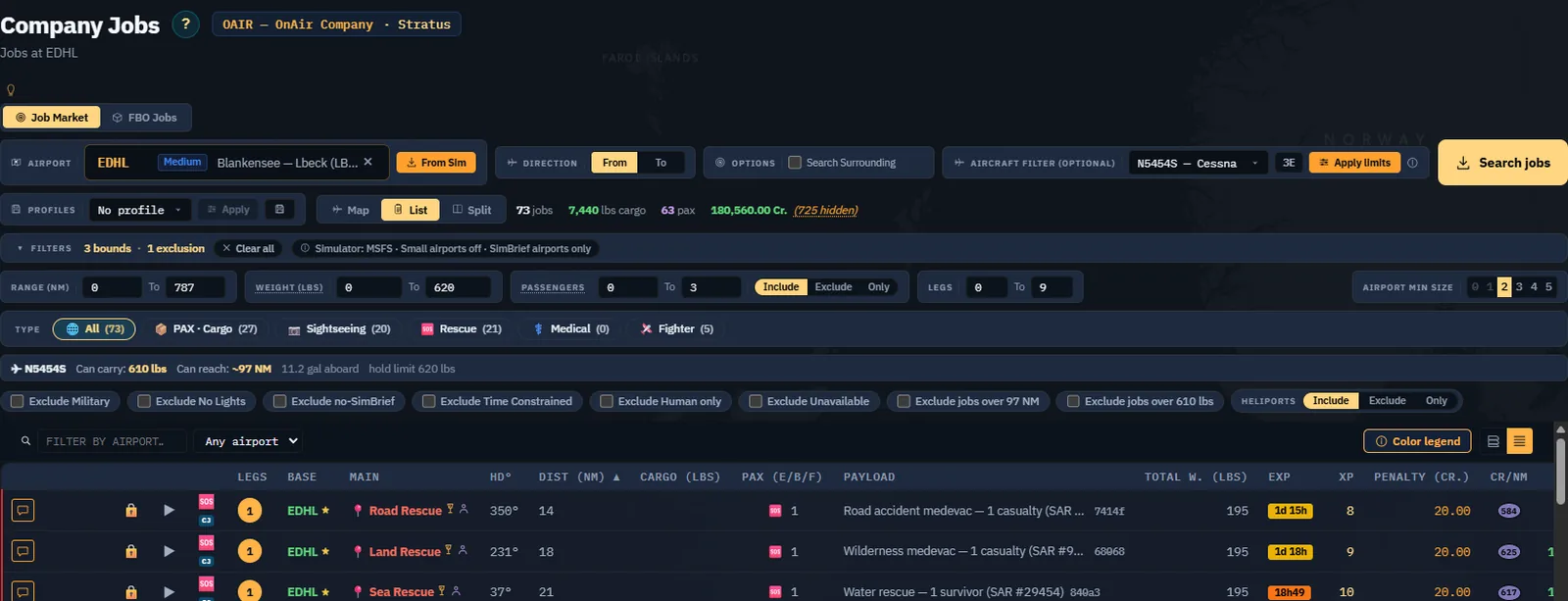
Read any applied filters. The range indication depends on the current aircraft/fuel assumptions, and a filter can hide otherwise relevant work. Inspect Apply limits, the visible range and weight bounds, passenger count and airport restrictions before interpreting an empty result.
Step 2. Select one uncomplicated mission
For a first flight, choose a short ordinary passenger or cargo mission with a comfortable deadline, suitable destination and manageable load. Avoid adding urgency, specialised handling and several destinations to the same first exercise.
We chose Librarian or Archivist Traveling for Archives, one passenger from EDHL to EDDH, about 27 NM, with a displayed 570 Cr. payment and more than two weeks remaining at acceptance.

Read the source marker, legs, passenger or cargo quantity, destination, deadline and eligibility indications. A locked action needs its actual explanation investigated; a high payment does not remove the qualification or aircraft requirement.
Checkpoint: you know what must arrive, where it must arrive and why the aircraft can carry it.
Step 3. Accept and open dispatch
Use Take job & fly to accept the chosen job and open dispatch. Add to pending jobs accepts work for later; it is not a preview button. For this exercise, take only the selected mission so the later loading check is easy to understand.
If acceptance fails or the offer has disappeared, inspect the message and refresh the available work. Do not assume an unaccepted job has been reserved merely because it remains visible on your screen.
Step 4. Verify route and alternate
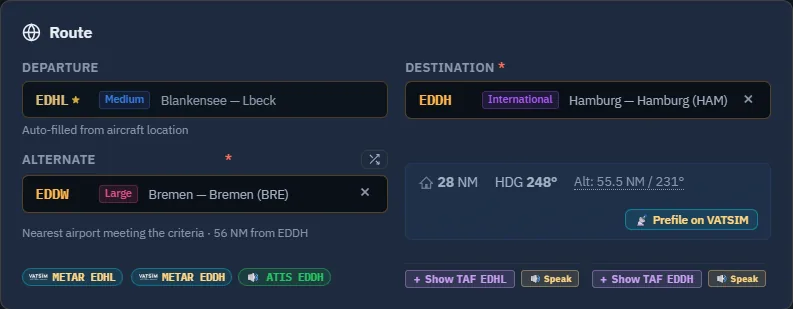
Check that N5454S is selected and that dispatch starts at EDHL. Confirm EDDH as destination. Inspect the proposed alternate and choose a suitable one for the actual aircraft, weather and fuel plan. The captured default was EDDW.
Step 5. Assign the pilot
Under Crew & Company Employees, select your own qualified pilot. Verify location and availability. In the exercise Antoine is at EDHL. The first dispatch opened with no pilot assigned; selecting the pilot changed the weight calculation.
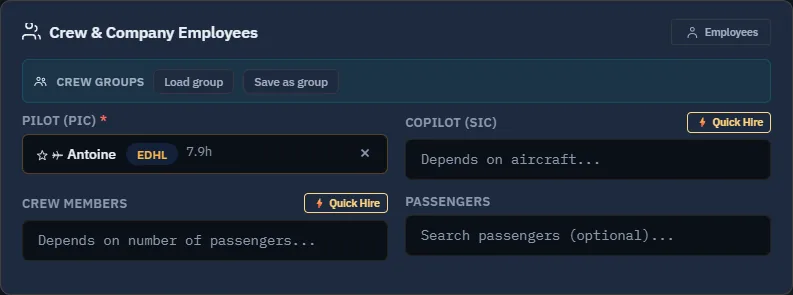
Do not use Quick Hire merely to clear a field when your own pilot is the intended operator. Hiring creates an employee commitment and is taught in the next chapter. A larger aircraft may also require a copilot and cabin crew.
Step 6. Verify the selected load
Inspect Cargo & Passengers at Airport. Confirm that the correct passenger job is selected and that its destination agrees with the flight. The captured load is 1 passenger, using one of the aircraft's three passenger seats.
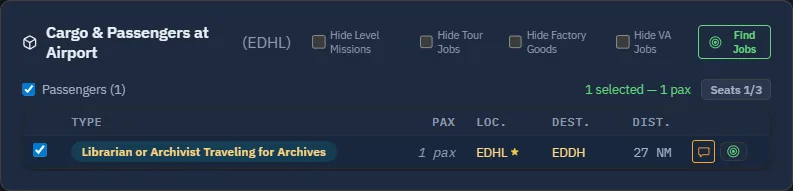
Accepted work is not necessarily loaded aboard merely because it appears in the list. Dispatch selection, preparation and the eventual flight determine what is carried. If several jobs are visible, read their destinations rather than selecting all of them automatically.
Optional later exercise: Find Similar Jobs
For the first flight, keep the single selected mission. Once you are comfortable with dispatch in Advanced Career, you can search for additional loads heading to the same destination.
In the charter cargo section of flight preparation, hover the small target icon beside an undelivered load to identify Find Similar Jobs. The action appears only when the load has a known destination different from the departure airport. It is not available in Freelance mode or as a button on the Search Charters and All Pending Jobs rows.
Click the icon to open a window over dispatch. The search uses the dispatch departure airport and the selected row's destination, so the offers follow the same route. The existing load need not already be aboard. Review remaining capacity, restrictions and deadlines, then use Add to flight on the chosen offer. After successful acceptance, the airport Cargo / Passengers list refreshes without leaving dispatch. Accepting extra work commits the company to delivery but does not itself load it aboard: recheck selection, loading and complete weights before departure.
Coming from the older client? Its target icon opens the jobs page filtered by departure and destination. In the Companion, the search stays in a window over dispatch and the accepted job becomes available in the refreshed cargo/passenger list.
Step 7. Review company fuel and complete weights
Inspect the fuel supplier and the billing explanation. Here the system FBO at EDHL offered 100LL; fuel is billed to OnAir Company, the company operating this aircraft.
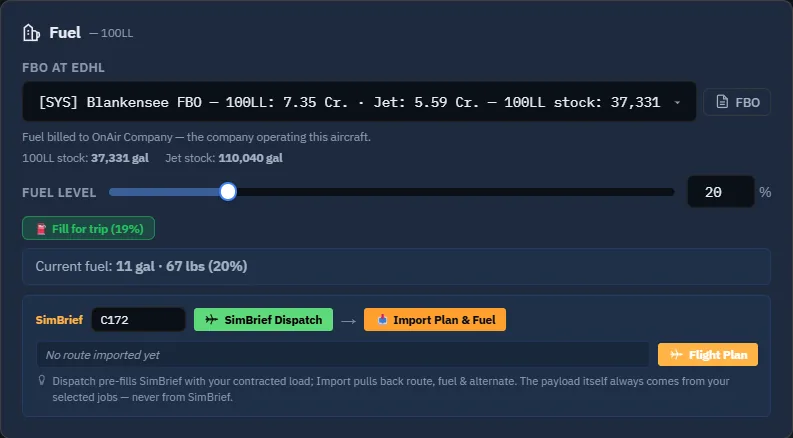
Choose fuel for the sector, alternate and appropriate reserve. Fill for trip is a preparation aid; it does not replace your aircraft's operational planning or a check of current conditions.
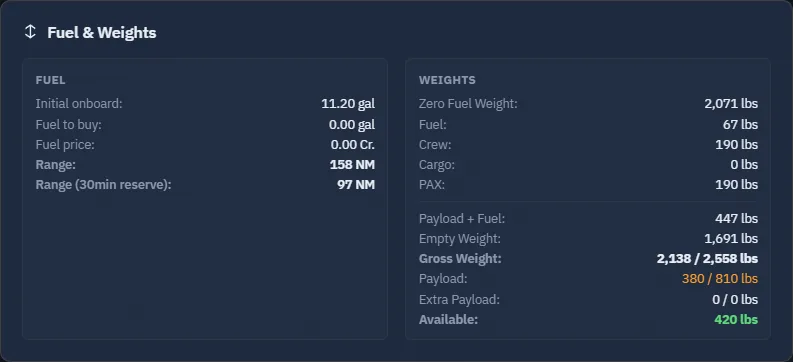
Checkpoint: there is a pilot, the intended passenger is selected, and fuel and weight have been checked together.
Step 8. Fly and register
For this first company mission, fly it yourself using the simulator procedure already learned. Read the briefing, resolve all launch conditions, and use Fly in Simulator when ready. Order Refuel & Loading prepares the aircraft without itself completing the flight; the launch actions explain their automatic preparation behaviour in dispatch.
CAPTURE TO COMPLETE — simulator required, CJ-08. Load the matching Cessna at EDHL, finish the operational fuel/weather review and start a genuine tracked EDHL–EDDH flight with the selected mission. Capture the successful tracking state and a representative flight view. The manuscript preparation stopped at dispatch; no flight was launched.
CAPTURE TO COMPLETE — delivery required, CJ-09. Land and register the flight, then capture its debrief, the mission's delivered/completed state and the resulting income entry. Show matching route and date. If the passenger is not delivered, investigate the actual destination, selected load and registration result before writing a successful outcome.
Step 9. Review the operation before expanding
The quoted 570 Cr. is revenue, not profit. Compare the completed result with fuel, aircraft and other applicable costs. Decide how the aircraft and pilot will return or find useful onward work. A short first mission teaches the controls; it is not a promise of an optimal business model.
The captured mission remains accepted for the future real-flight exercise. Do not discard it simply to reproduce the original empty queue. Continue to crew management after understanding this manually flown company operation.
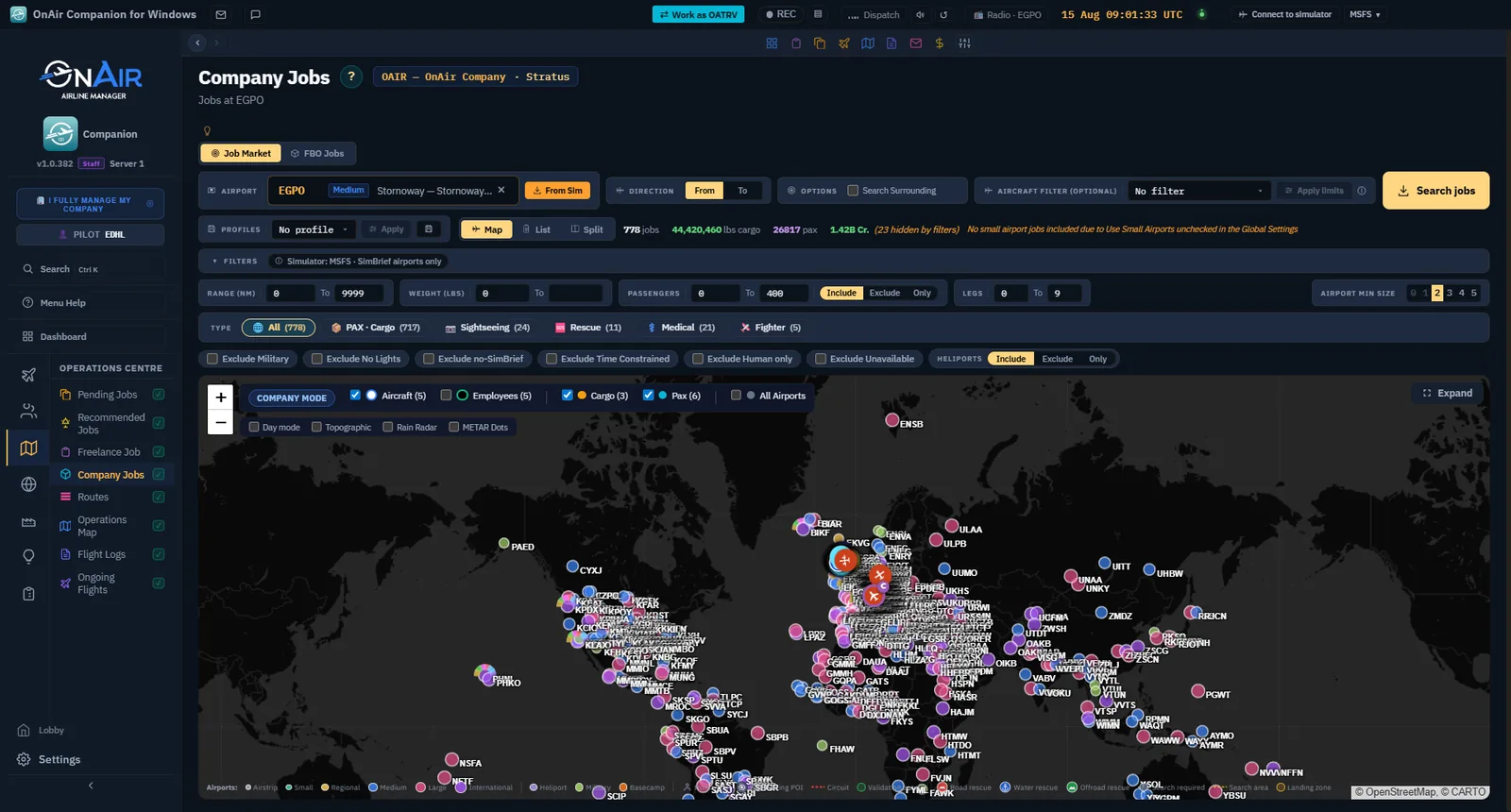
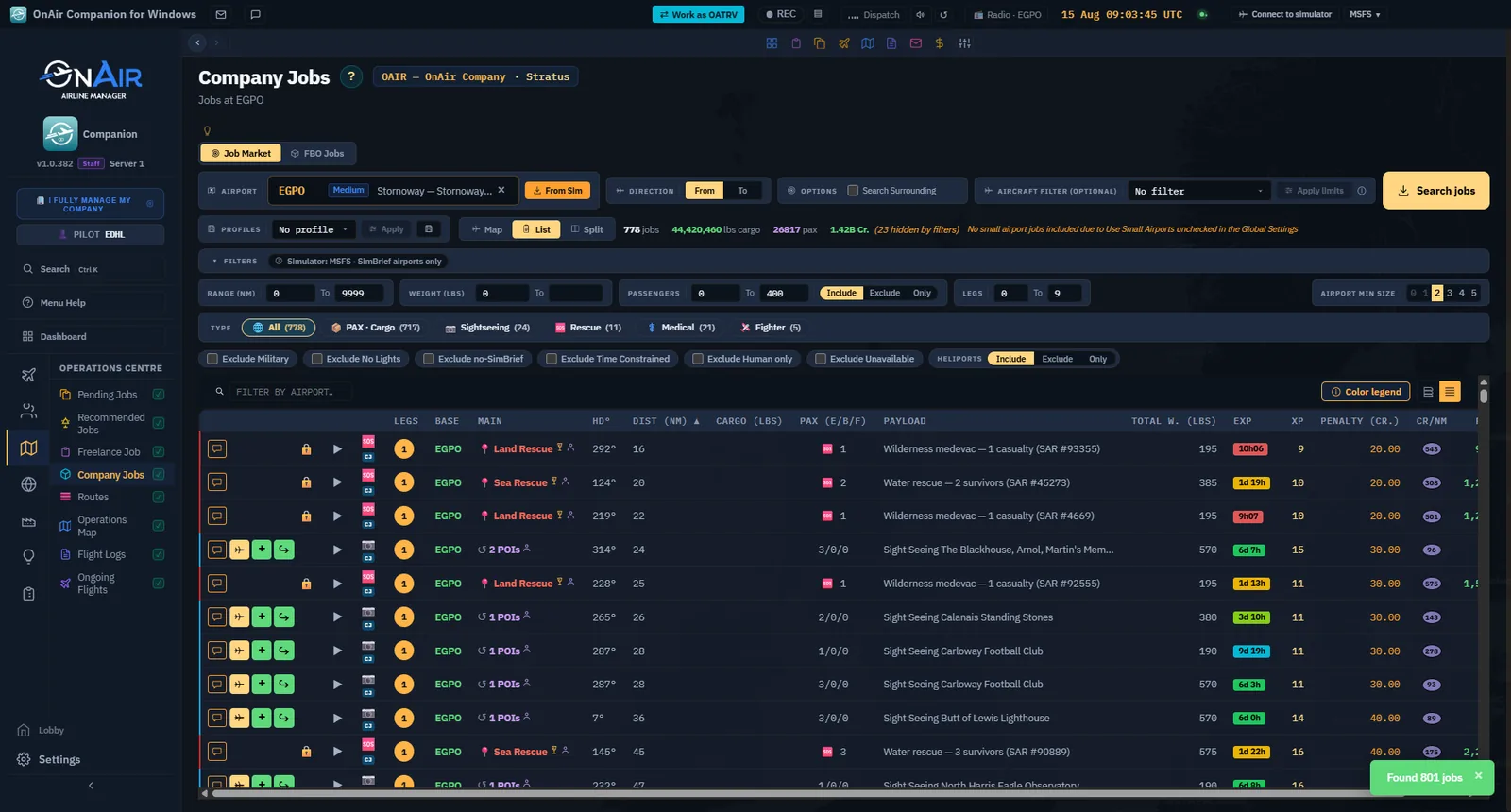
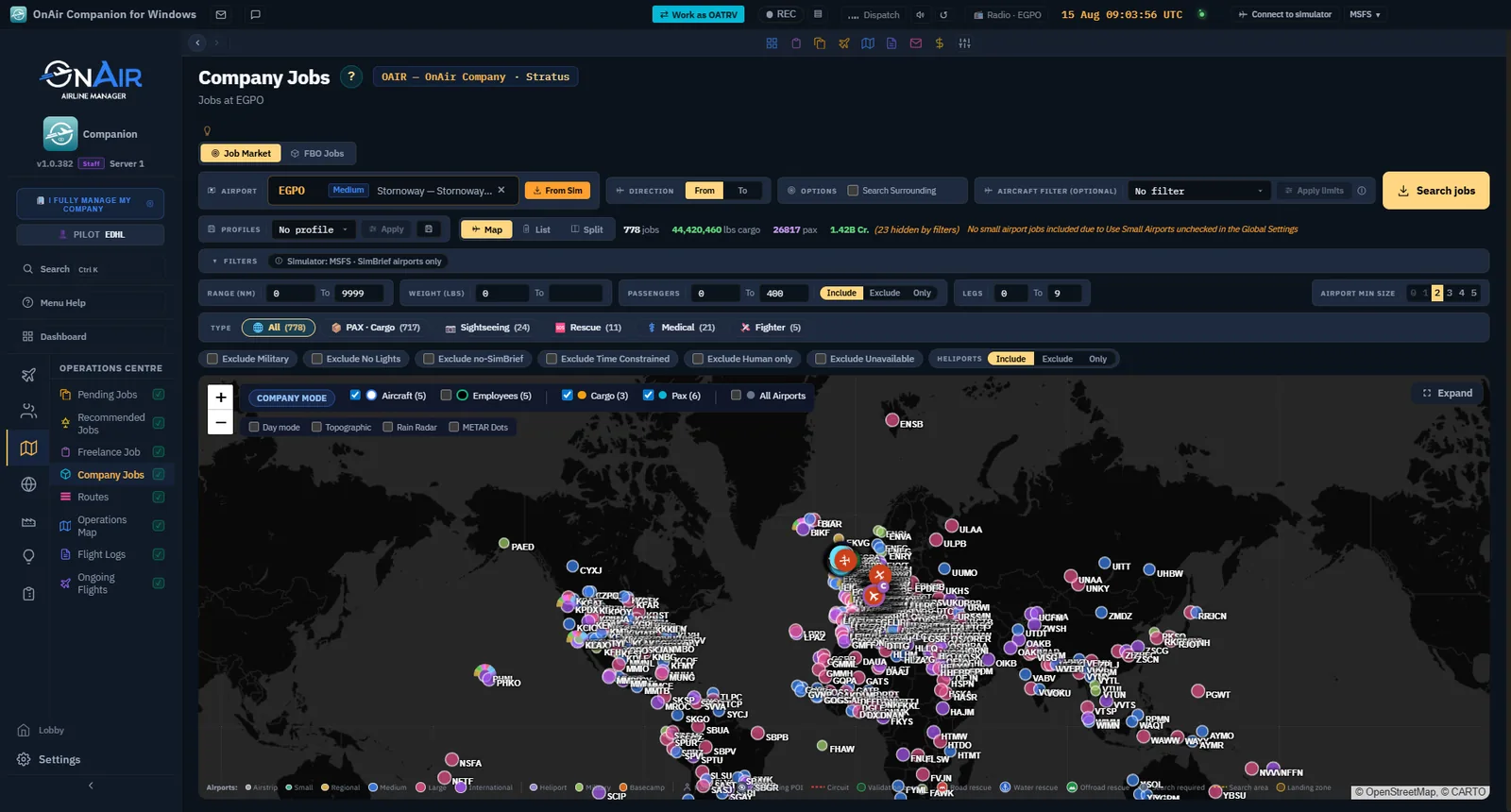
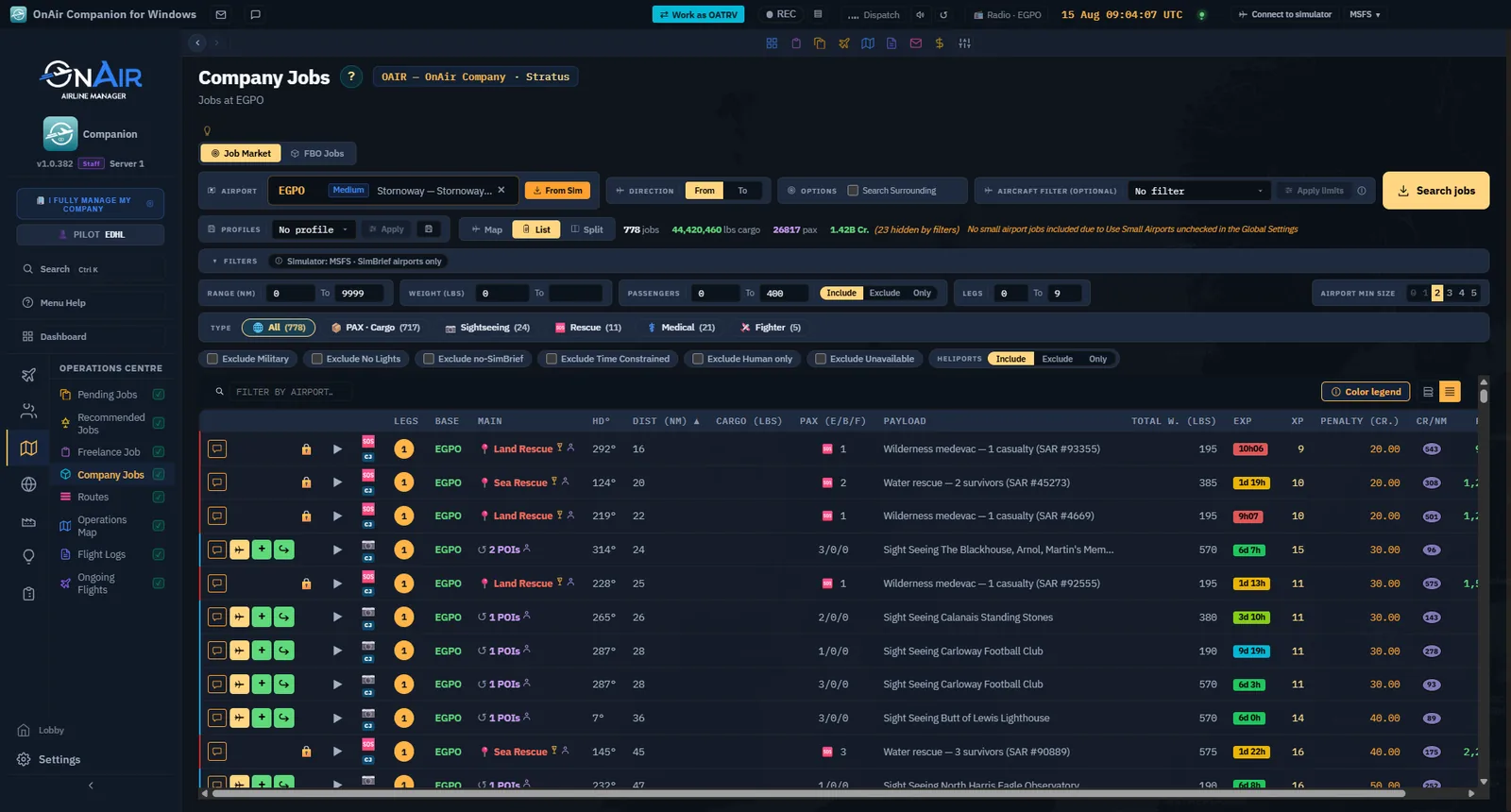
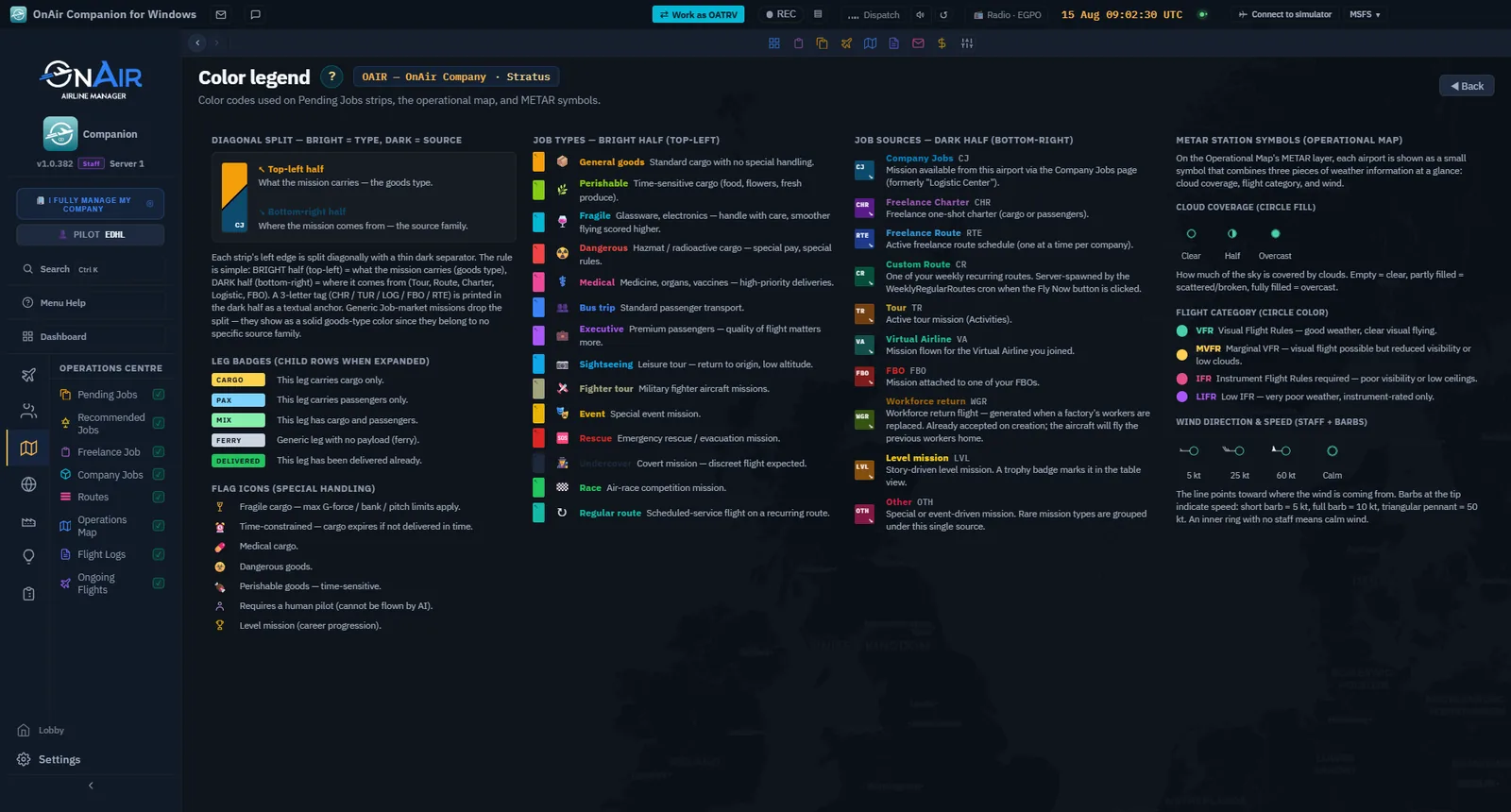
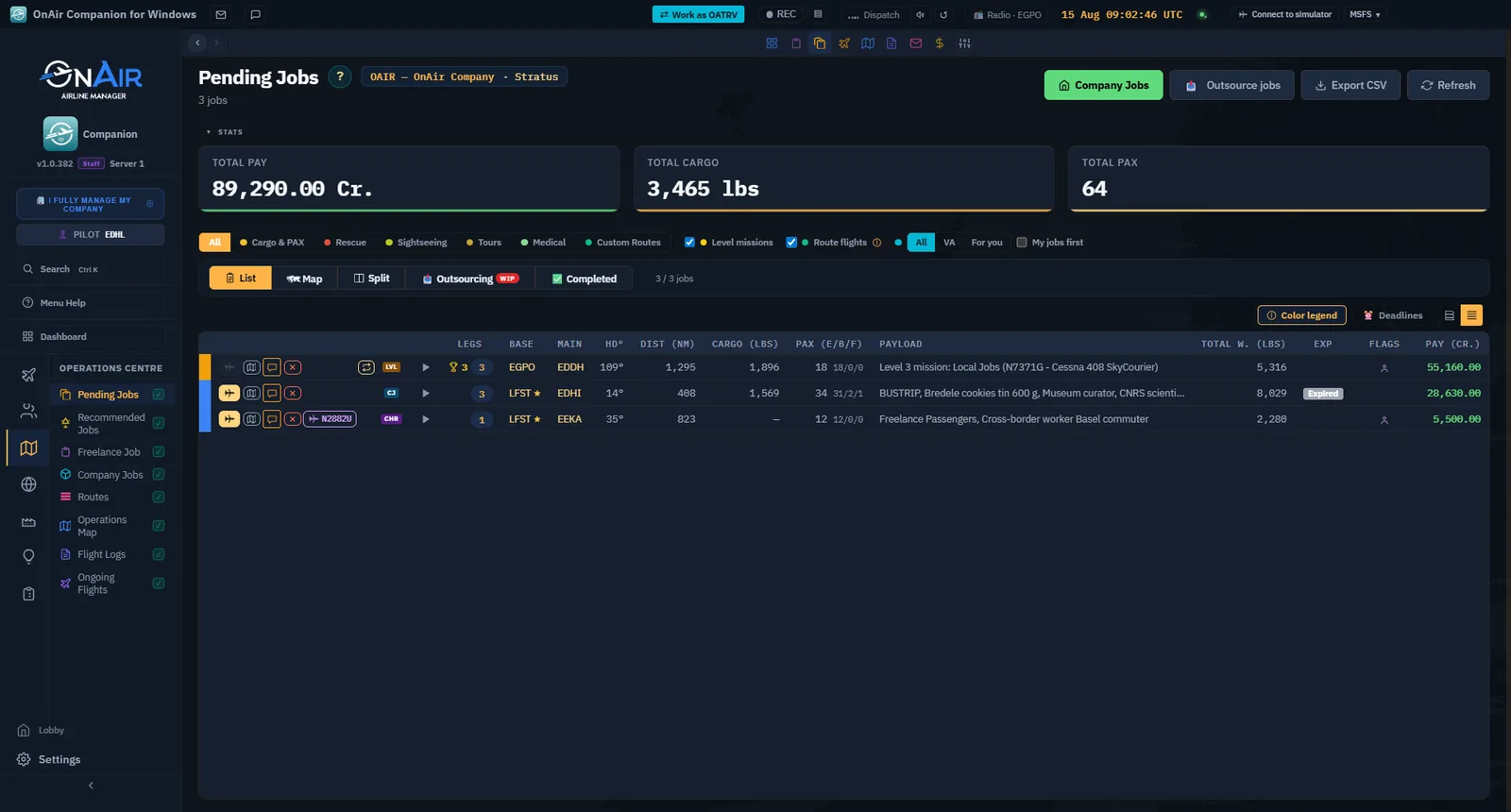
Additional views: browsing and comparing Company Jobs
The earlier prospecting examples below use other airports and companies. They illustrate the same browsing controls without replacing the EDHL–EDDH exercise. Read the current filters and units before using any result.